Configuring Device Settings
Device settings refer to the device name, location, service provider login and other
settings.
Note: Some configuration options are available on specific AP models only.
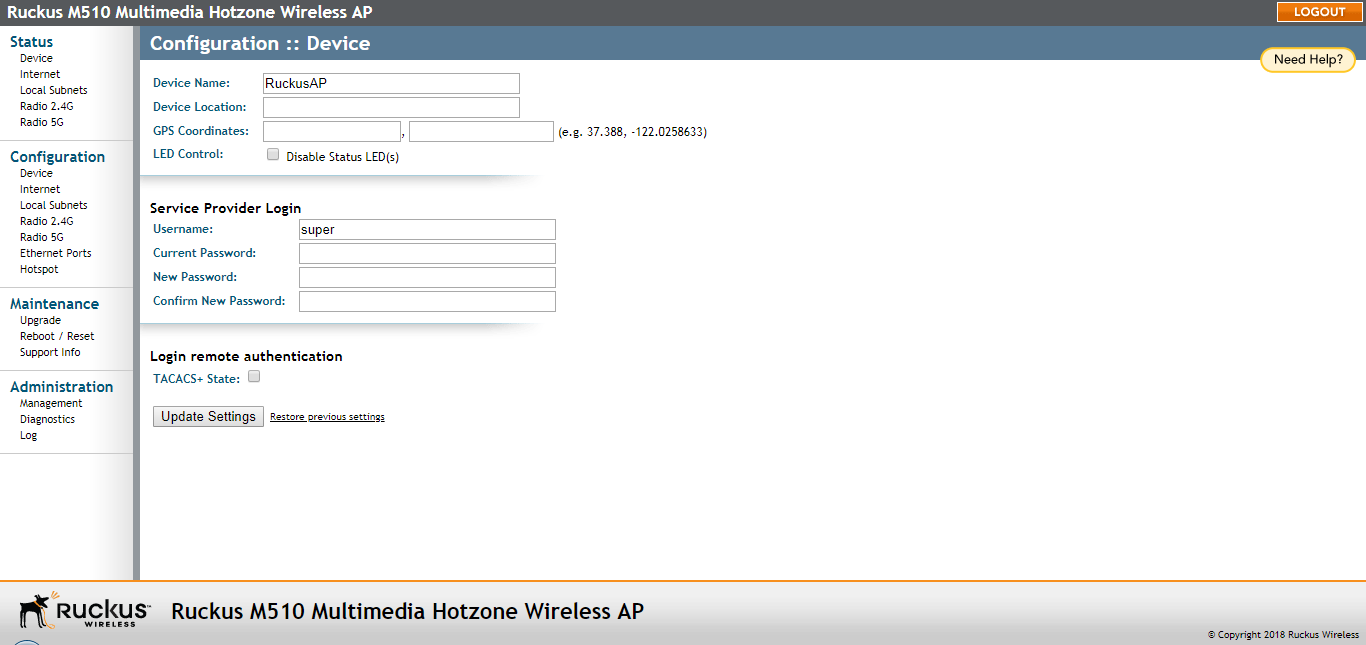
- Select Configuration > Device. The Configuration > Device page appears.
- In Device Name, type a new name for the device or leave as is to accept the default device name (RuckusAP). The device name identifies the AP among other devices on the network.
- Optionally, enter Device Location and GPS Coordinates to keep track of the physical location of the AP.
- In Temperature Update (specific models only), enter the interval (in seconds) to record the internal temperature of the device.
- Under LED Control (specific models only), check the Disable Status LED(s) box to turn off the status LEDs. This can be useful when the AP is installed in a public location, to avoid drawing attention to the AP.
- Under
Service Provider Login, change the login information as required:
- Username: Type the name that you want to use for logging into the web interface. The default user name is super.
- Current Password: When you are changing the password, enter the existing password here.
- New Password: When you are changing the password, type the new password that you want to use. The default password is sp-admin. The password must consist of six to 32 alphanumeric characters only.
- Confirm New Password: Retype the new password to confirm.
- Under Login remote authentication, click the TACACS+ State box to enable TACACS+ authentication, if required. Terminal Access Controller Access-Control System Plus (TACACS+) is an AAA protocol used to authenticate administrator login to this device. Users can be authenticated/authorized to monitor, operate or configure this device. Default is disabled. Administrators can be assigned any of the following three administration privilege levels:
- If TACACS+ server state is enabled, then configure the TACACS+ server settings:
- Click Update Settings to save and apply your changes.