Configuring Common Wireless Settings
Common wireless settings are settings that are applied to all WLANs.
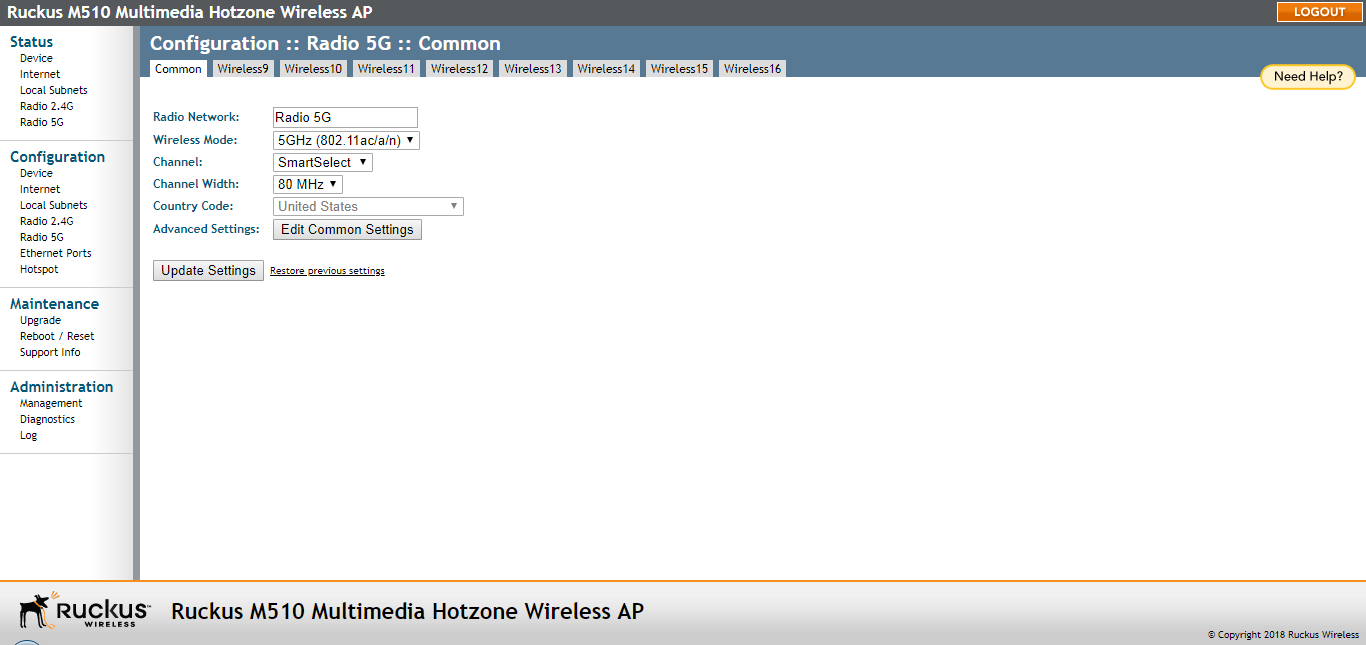
- Go to Configuration > Radio 2.4G/5G. The Configuration > Radio 2.4G/5G > Common page appears.
- Make changes to the common wireless settings listed in the following table.
Common Wireless settings
Setting Description Radio Network Allows you to change the name of the 2.4GHz and 5GHz radios (default: “Radio 2.4G” and “Radio 5G”). Wireless Mode Configure the 802.11 wireless mode for the 2.4GHz and 5GHz radio. Options vary by AP model depending on 802.11 technologies supported. Channel This option lets you select the channel used by the network. You can choose SmartSelect, or choose one of a specific set of channels. If you choose SmartSelect, the AP automatically selects the best channel (encountering the least interference) to transmit the signal. Channel Width (11n/ac/ax APs only) On 802.11n/ac/ax APs, the option to choose wider channel widths provides potential increases in data capacity at the expense of fewer channels available, and more interference from other wireless signals. Country Code This option (if enabled) lets you select your country or region code. Caution: Selecting the incorrect country or region may result in violation of applicable laws. If you purchased the AP in the United States, you do not need to set the country code manually. Ruckus devices that are sold in the US are pre-configured with the correct country code and this setting is non-configurable.Advanced Settings Refer to Configuring Common Advanced Settings. AeroScout RFID Select Enabled to support AeroScout RFID tag detection. To check the status of the AeroScout communication agent (which relays location data from AeroScout Tags to the AeroScout Engine), go to the Status > Wireless page. Refer to Viewing Common Wireless Settings for more information. Note: For other AeroScout-related configuration, refer to the AeroScout documentation that was shipped with your AeroScout Tag and AeroScout Engine.Note: If ZoneDirector exists on the network, then you can enable AeroScout RFID tag detection on all its managed APs at once. Refer to the ZoneDirector online help for more information.Ekahau RFID Select Enabled to support Ekahau RFID tag detection, and then enter the IP address and port number of the Ekahau Real Time Location System Controller (ERC). External Antenna Note: This option only appears if you are using an AP with external antenna support.To enable the external antenna, select the Enabled option in this section. This option is disabled by default. - Click Update Settings to save your settings.