The Ruckus M510 is an 802.11ac Wave 2 Access Point with embedded LTE module for cellular
backhaul. The M510 is designed for deployment in scenarios where there is no readily
accessible wired connectivity for backhaul, such as in buses, taxis, or other in-vehicle
deployments, or in remote locations where the cost of establishing a fixed line ISP
connection outweighs that of a wireless connection to a local 3G/4G network.
Top View Features
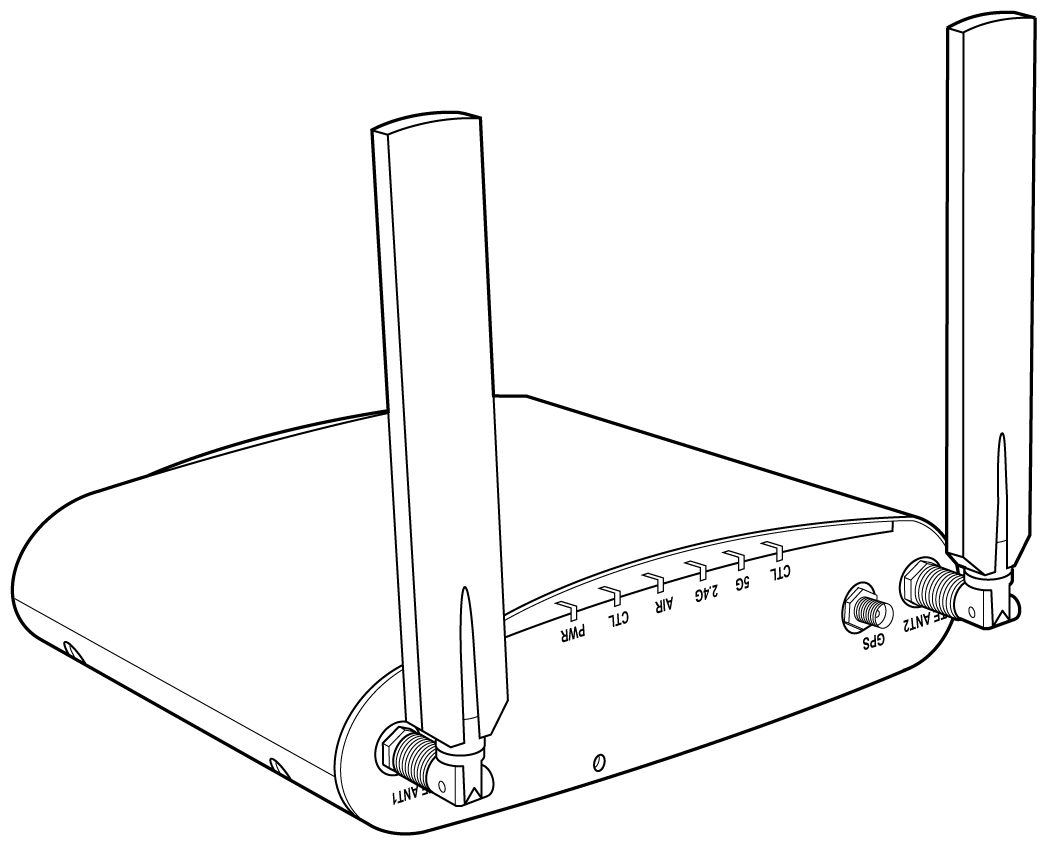
The following figure shows the top view of the M510. For a description of the top
panel LEDs, refer to the table below.
M510 top view
M510 top panel LEDs
LED
Description
PWR
Off: Off.
Red: Boot up in process.
Flashing Green: No routable IP address
Green: On.
CTL
Off: The AP is not being managed by a Ruckus controller (standalone mode).
Green: The AP is being managed by a Ruckus controller.
Slow flashing green (one flash every two seconds): The AP is being managed by a Ruckus
controller, but is currently unable to communicate with controller.
Fast flashing green (two flashes every second): The AP is being managed by a Ruckus
controller and is currently receiving configuration settings (provisioning) or an
image update.
AIR
Off: The AP is operating in standalone mode or operating as a root AP (RAP) or a non-mesh
AP.
Green: The AP is functioning as a Mesh AP (MAP), and the wireless signal to its uplink
AP is good.
Fast flashing green (two flashes every second): The AP is functioning as a Mesh AP
(MAP), and the wireless signal to its uplink AP is fair.
Slow flashing green (one flash every two seconds): Mesh networking is enabled, but
the AP is still searching for a mesh uplink.
2.4G
Off: The WLAN service is down.
Green: The WLAN is up and at least one client is associated.
Amber: The WLAN is up. No clients are associated.
5G
Off: The WLAN service is down.
Amber: The WLAN is up, but no clients or downlink MAPs are associated/connected.
Green: The WLAN is up and at least one client is associated. No downlink MAPs are
connected.
Slow flashing green (one flash every two seconds): The WLAN is up and at least one
downlink MAP is connected. No clients are associated.
Fast flashing green (two flashes every second): The WLAN is up, at least one downlink
MAP is connected, and at least one client is associated.
CEL
Off: No cellular connection.
Amber: 3G connection.
Green: 4G/LTE connection.
Bottom Panel
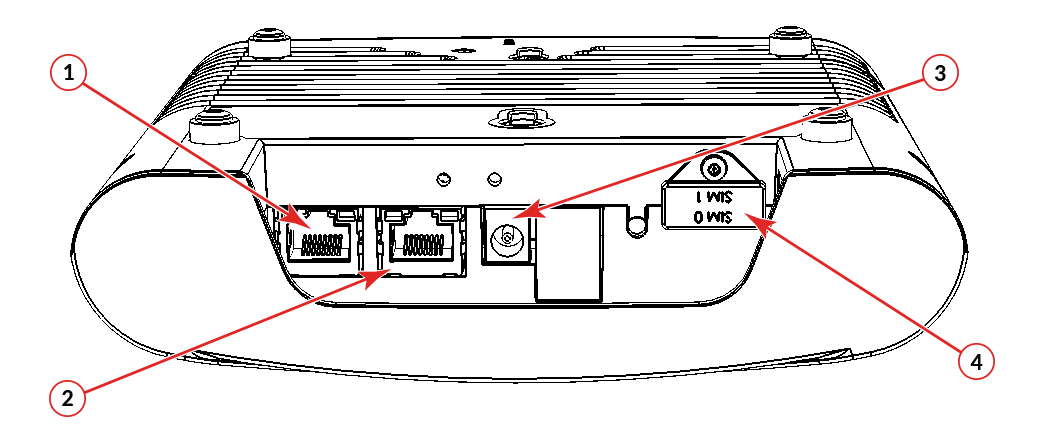
The bottom panel of the M510 includes the following:
Two 10/100/1000 Mbps Ethernet ports
12V DC power socket
Reset button
Two redundant SIM card slots for LTE backhaul
M510 bottom panel
M510 bottom panel elements
No.
Label
Description
1
ETH 0
10/100/1000 Mbps RJ-45 Ethernet port
2
ETH 1
10/100/1000 Mbps RJ-45 Ethernet port
3
12V DC input, terminal block and DC connector
Connect a customer-ordered Ruckus DC power adapter (sold separately), or connect power
directly using DC terminal block.
4
SIM Card Slots
Insert an activated SIM card into the primary slot, and optionally, a second SIM card
into secondary slot for redundancy.
Note: The orientation of the SIM cards is reversed, refer to the
M510 Quick Setup Guide for details on SIM card insertion.
Ethernet Port LEDs
Behavior of Ethernet port LEDs on the M510
LED
Description
Off
Not connected
Amber + Green
Connected to 10Mbps device
Amber
Connected to 100Mbps device
Green
Connected to 1000Mbps device
WAN Uplink Connections
The M510 can be connected to WAN via LTE or via Ethernet, or both (using the LTE connection
as a backup for WAN failover). If the AP detects both methods are available, the Ethernet
backhaul will be used. When the Ethernet WAN link goes down, LTE will take over. If
you are using Ethernet as the primary WAN link with LTE as a backup, connect an Ethernet
cable to your local network and configure that port as the WAN port.
The M510 supports the following deployment scenarios:
Standalone AP
Manual Controller Discovery
Cloud Managed AP
Note: Write down the IMEI number of the M510, printed on the gift box, and also on the AP.
This may be required by your mobile service provider to activate your data plan. You
can also use the SWIPE mobile app (downloadable from the Apple App Store/Google Play
Store) to scan and save the IMEI number to the SZ controller.
For instructions on initial setup procedures, refer to the
M510 Quick Setup Guide included in the AP package.