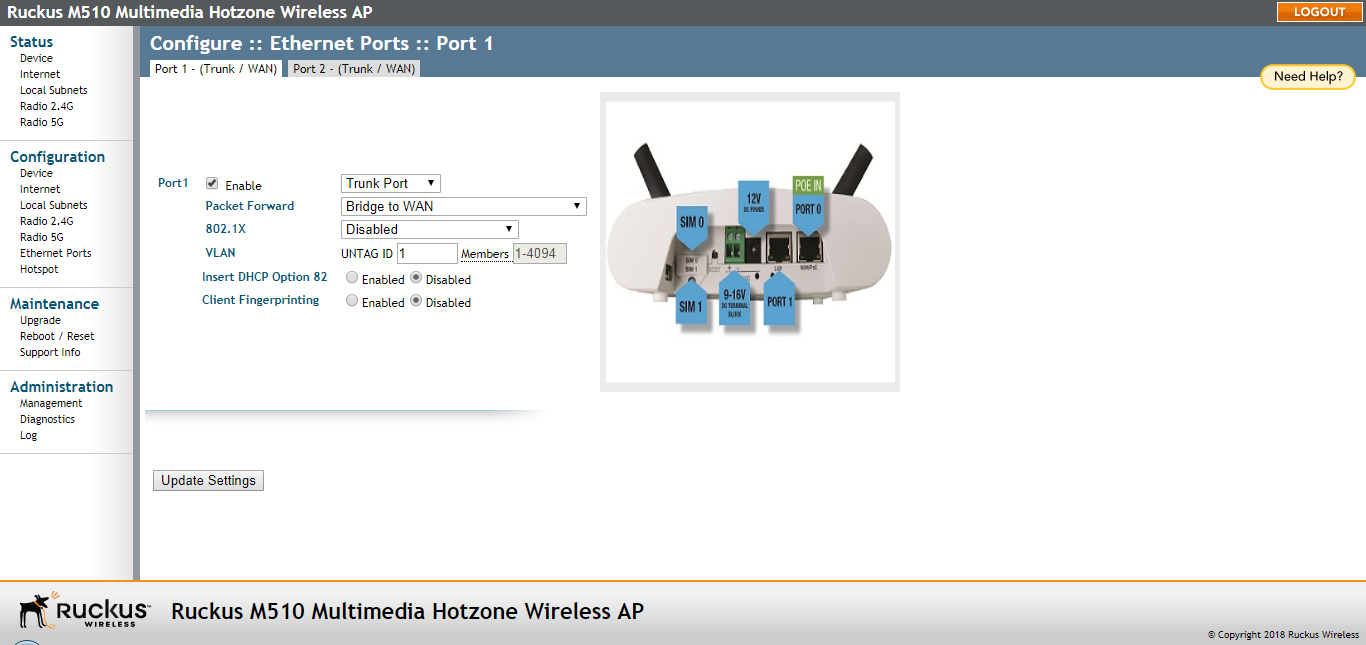
Configuring Ethernet Ports
- Go to Configuration > Ethernet Ports.
- Review the following table and make changes as needed for each of the ports labeled
Port1 through
Port4 (depending on AP model), which correspond to the AP's Ethernet ports.
Configuring Ethernet ports
Setting Description Enable All Ethernet ports are enabled by default. Unchecking this box next to a port disables that port entirely. If you do not want to provide wired access through the AP, uncheck (clear) the Enable box next to each LAN port. Port Type See Setting Ethernet Port Type for more detailed information. Packet Forward Isolated: Selecting Isolated causes the traffic from this port to terminate at the AP.
Bridge to WAN: The default setting, Bridge to WAN forwards packets arriving on this port to the WAN (uplink) port and eventually to their external destinations using Layer 2 forwarding.
Local Subnet NAT and Route to WAN: This setting allows routing of packets to their destinations using Layer 3 network address translation (NAT).
Bridge to L2TP Tunnel: Uses Layer 2 Tunneling Protocol to deliver packets encapsulated with an L2TP header in UDP datagrams.
Local Subnet This option appears if you have selected Local Subnet and Route to WAN under Packet Forwarding, and you have selected Access Port as the port type. This option allows you to select which subnet this port's traffic is part of. You must have previously configured a subnet from the Configuration > Local Subnets page before it becomes available here. 802.1X Configure the port as an 802.1X authenticator or supplicant. The following options are available: - Disabled: No 802.1X controls are applied to this port.
- Authenticator (Port-based): Only one of the attached MAC hosts must be authorized for all hosts to be granted access to the network.
- Authenticator (MAC-based): Each MAC host is individually authenticated.
- Supplicant: The port acts as a supplicant to an upstream authenticator. Configure a port as Supplicant if the port is a Trunk Port used to connect the AP to a LAN switch.
See Working with 802.1X on Wired Ethernet Ports for more information.
VLAN Untag ID: Enter a valid VLAN ID in this field to segment traffic arriving on this port to a specific VLAN. Default is 1. Valid VLAN entries are 1-4094.
Members: Displays the VLAN membership of the port. (Membership is configurable only for the General port type.)
Refer to Working with Port-Based VLANs for more information.
Insert DHCP Option 82 When this option is enabled for an Ethernet port, additional information is encapsulated in DHCP option 82 and inserted into DHCP request packets.
Current format of option 82 is:
Circuit ID sub-option: ETH:<IFNAME>:<VLAN>:N/A: <MODEL>:<HOSTNAME>:<DEVMAC>
This option supports the ability for a service provider to allocate IP addresses intelligently by considering information on the origin of the IP allocation request.
Client Fingerprinting When this option is Enabled, the AP attempts to identify client devices by their operating system, device type and host name, if available. - Click Update Settings to save your changes.