The R510 is a high-performance 2x2:2 802.11ac Wave 2 dual-band AP designed for medium
client density deployments.
The R510 has a USB port on its bottom panel. The USB port is intended for low-power
devices such as BLE (Bluetooth low energy) beacons. The maximum power that the USB
port can supply is 0.5W. Refer to
AP Support for Bluetooth Low Energy Devices for more information.
Note: The 104.x AP base images support standalone mode and FlexMaster (FM) WLAN manager
operation. The SmartZone software-compatible images only support SCG, SZ and vSZ controllers.
The ZD-compatible images only support ZD controllers.
Note: The R510 AP requires a minimum of standalone AP base image 104.0 and later, or SmartZone
3.4 and later, or ZoneDirector 9.13 and later to operate.
The R510 includes five LEDs on its front panel and buttons and connectors on its rear
panel.
Front View Features
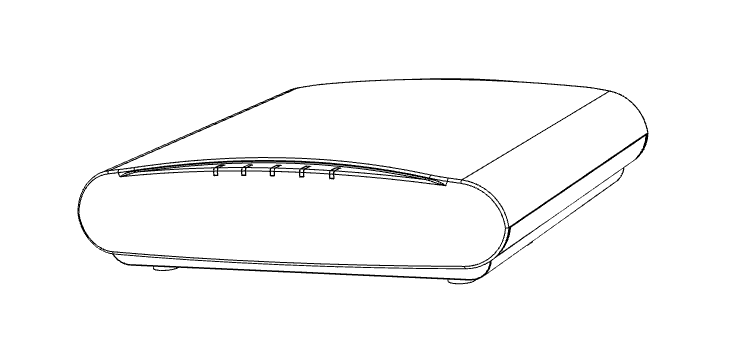
The following figure shows the top view of the R510. For a description of the front
panel LEDs, refer to the table below.
R510 top view
R510 front panel LEDs
LED
Description
PWR
Off: Off.
Red: Boot up in process.
Flashing Green: No routable IP address
Green: On.
CTL
Off: The AP is not being managed by a controller (standalone mode).
Green: The AP is being managed by a controller.
Slow flashing green (one flash every two seconds): The AP is being managed by a controller,
but is currently unable to communicate with the controller.
Fast flashing green (two flashes every second): The AP is being managed by a controller
and is currently receiving configuration settings (provisioning) or an image update.
AIR
Off: The AP is operating in standalone mode or operating as a root AP (RAP) or a non-mesh
AP.
Green: The AP is functioning as a Mesh AP (MAP), and the wireless signal to its uplink
AP is good.
Fast flashing green (two flashes every second): The AP is functioning as a Mesh AP
(MAP), and the wireless signal to its uplink AP is fair.
Slow flashing green (one flash every two seconds): Mesh networking is enabled, but
the AP is still searching for a mesh uplink.
2.4G
Off: The WLAN service is down.
Green: The WLAN is up and at least one client is associated.
Amber: The WLAN is up. No clients are associated.
5G
Off: The WLAN service is down.
Amber: The WLAN is up, but no clients or downlink MAPs are associated/connected.
Green: The WLAN is up and at least one client is associated. No downlink MAPs are
connected.
Slow flashing green (one flash every two seconds): The WLAN is up and at least one
downlink MAP is connected. No clients are associated.
Fast flashing green (two flashes every second): The WLAN is up, at least one downlink
MAP is connected, and at least one client is associated.
Rear Panel
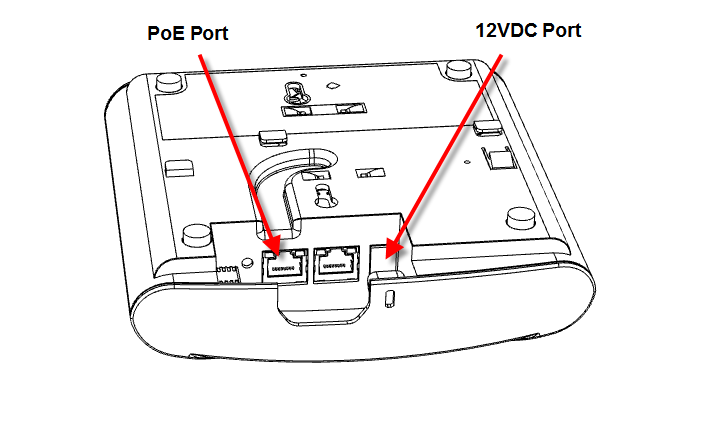
The rear panel of the R510 includes one 10/100/1000 PoE Ethernet port, 10/100/1000
Ethernet port, power socket and reset button. See the table below for a description
of each rear panel part.
R510 rear panel
R510 Rear panel element descriptions
Label
Description
RESET Button
Pressing, and then quickly releasing this button reboots the AP. Pressing and holding
it for six seconds resets the AP to factory default settings.
Note: Resetting the AP to factory default settings erases all settings that you configured
previously.
PoE Port
One RJ-45 port for a 10/100/1000 PoE (Power over Ethernet, 802.3af/at) connection.
(The R510 is a Class 3 device.)
Ethernet Port
One RJ-45 port for a 10/100/1000 connection.
12VDC
Connect the power adapter (12 VDC/1.25A) to this socket. Power can also be supplied
via the 10/100/1000 PoE port.
USB Port
The R510 can have a low-power (0.5W or less) customer-supplied USB device plugged
in. The USB device is hidden after the R510 is attached to its mounting base.