Navigating the Web Interface
You can manage the AP through a web browser-based user interface that is accessible
from any networked computer or mobile device.
The following figure and table describe the Access Point web interface components.
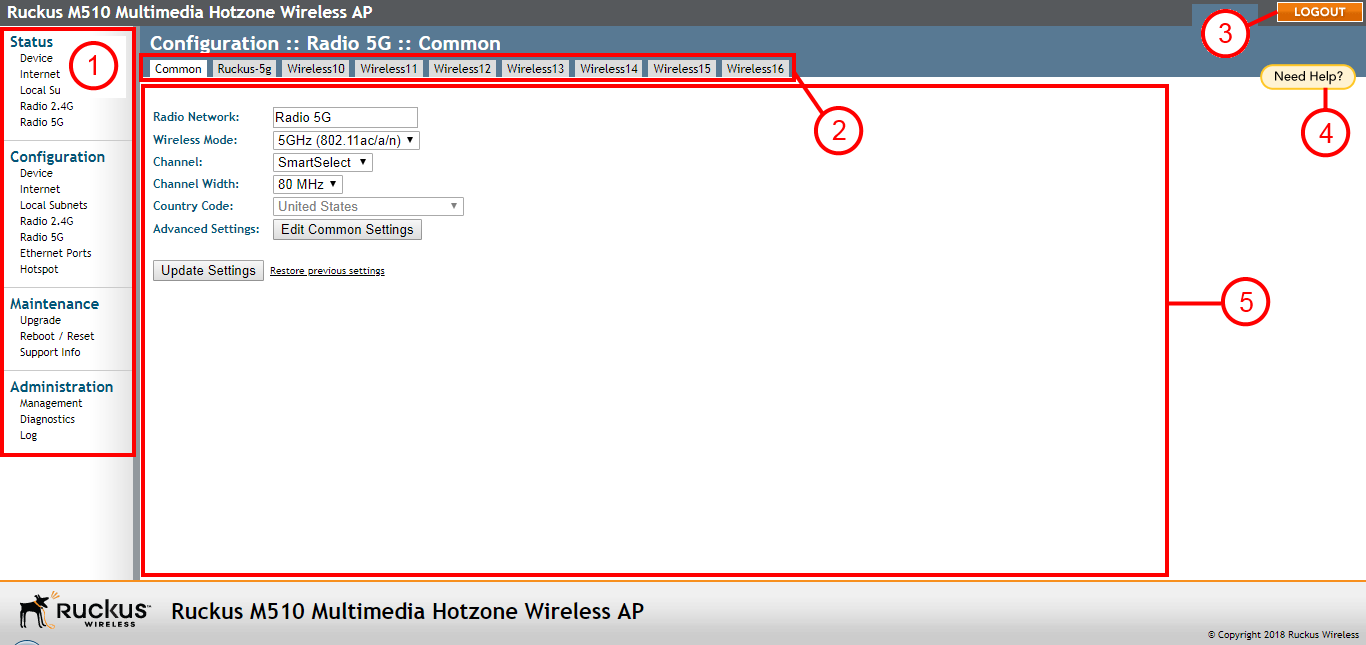
Ruckus AP web interface elements
| No. | Element | Description |
|---|---|---|
| 1 | Menu | Under each category (Status, Configuration, etc.) are options that, when clicked, open the related workspace in the area to the right. |
| 2 | Tabs | Contains additional options for the configuration page. For example, the Configuration > Wireless page includes one tab for common wireless configuration and eight tabs for each of the available WLANs. |
| 3 | Logout Button | Click this button to log out of the AP. |
| 4 | Help Button | Click this button to open a help window with information related specifically to the options currently displayed in the workspace. |
| 5 | Workspace | This large area displays features, options and indicators relevant to your menu bar choices. |