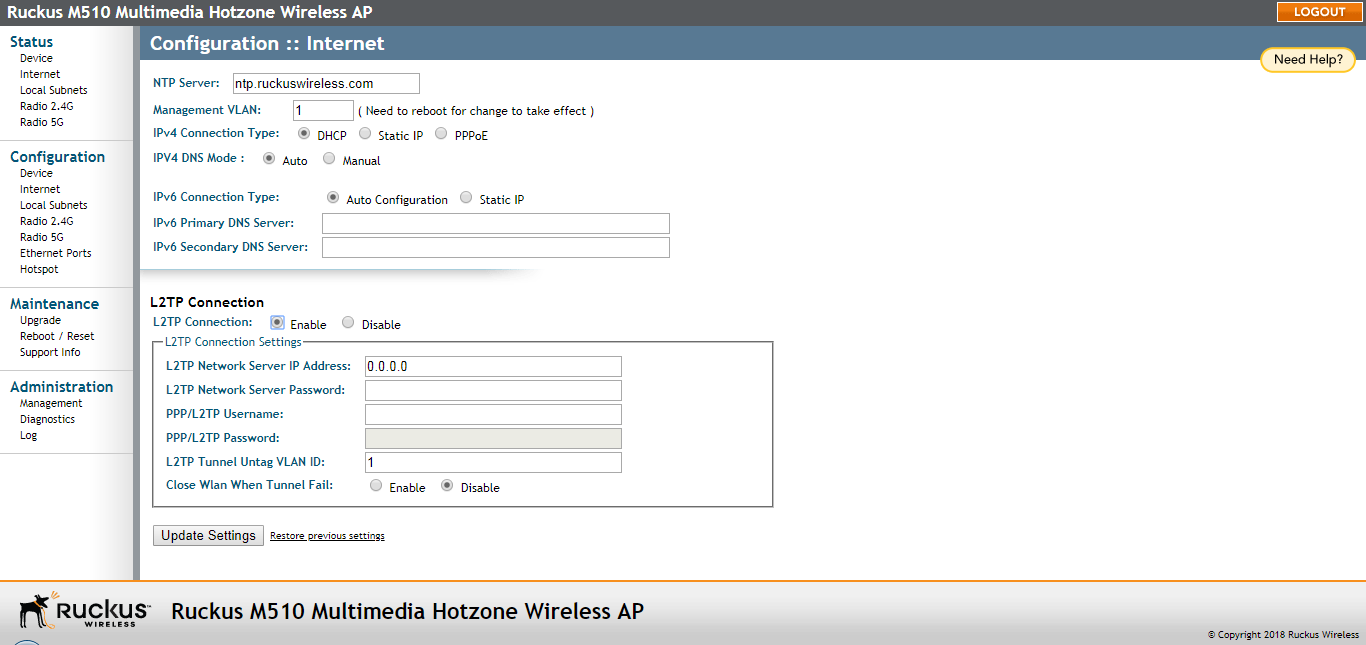
Configuring L2TP Connection Settings
Use the following procedure to configure Layer 2 Tunneling Protocol settings.
In the case of L2TP, the Ruckus AP functions as a remote bridge, forwarding traffic on to PPP sessions over the L2TP tunnel. This implementation ensures that you have complete visibility into MAC addresses of users, as individual Wi-Fi clients are essentially placed (bridged) onto the ISP's core network.
- Go to Configuration > Internet.
- Under L2TP Connection, click Enable.
- In L2TP Network Server IP Address, type the IP address of the L2TP network server (LNS) to which the device connects.
- In L2TP Network Server Password, type the L2TP server password.
- If your network requires PPP authentication, configure the following fields under L2TP/PPP Authentication:
- In Close WLAN When Tunnel Fail, select Enable if you want to disable the WLAN when the tunnel connection is lost. This prevents clients from remaining connected to the WLAN but without Internet connectivity.
- Click Update Settings to save your settings.