Log Into the AP's Web Interface
Log into the AP to pre-configure the AP for standalone operation.
- On the administrative computer, open a web browser window.
- In the address or location bar, type the following address:
- Press Enter on the keyboard to connect to the AP's web interface. A security alert message appears.
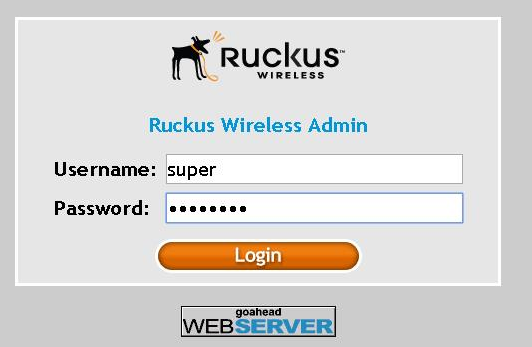
- Click Yes or OK or Proceed anyway (depending on the browser) to continue. The AP's login page appears.
- In User name, type super.
- In Password, type sp-admin.
- Click Login. On your first login, you will be prompted to change the default password.
- When the Change Password dialog box displays, enter the following:
- Click Submit.
- Log in using the new password. The web interface appears, displaying the Status > Device page.
- Continue to Configure the Wireless Settings.