Reports

Reports display a list of rogue devices that were detected in a specific zone containing one or more monitor APs.

Two types of reports are generated:

  1. Access Point or AP reports
  2. Client reports

Access Points or AP Reports

Access Point or AP reports can be viewed by selecting a zone and device type as Access Point.
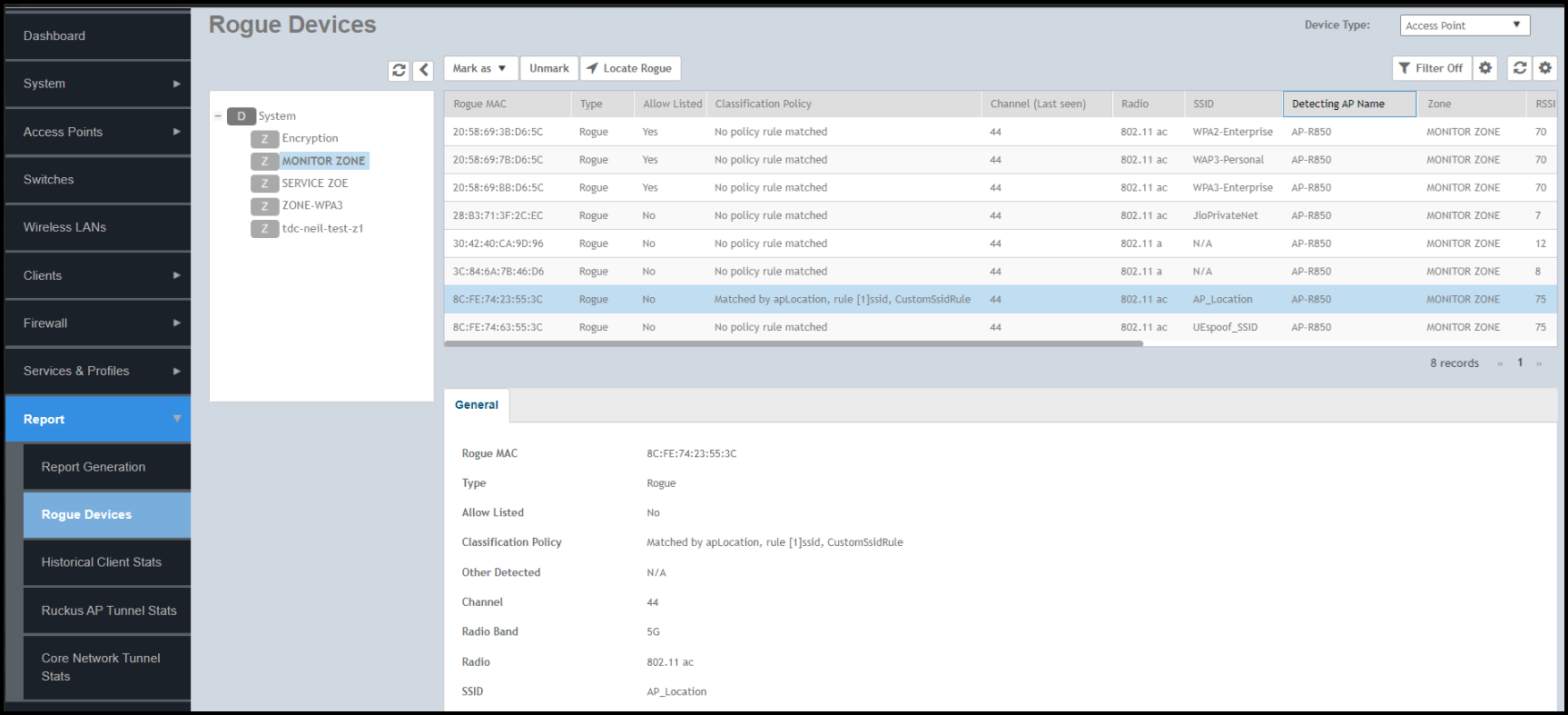
  1. In the home page, navigate to Report. Select Rogue Devices. This displays system level Rogue Devices and by default Access Point is selected as Device Type on the top right hand corner.
  2. To view list of zone level access points, select a specific zone under the System tree.

    Viewing Access Point Report

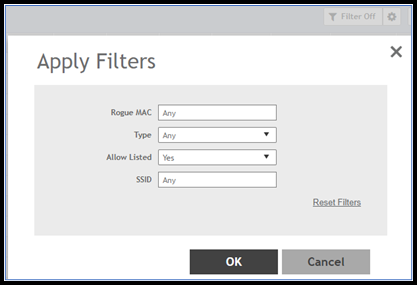
    Access Point (AP) Report Filters

Note: Click icon to filter rogue devices based on the Rogue MAC, Type, Allow Listed and SSID. The AP report can be filtered and viewed only by the administrator user.
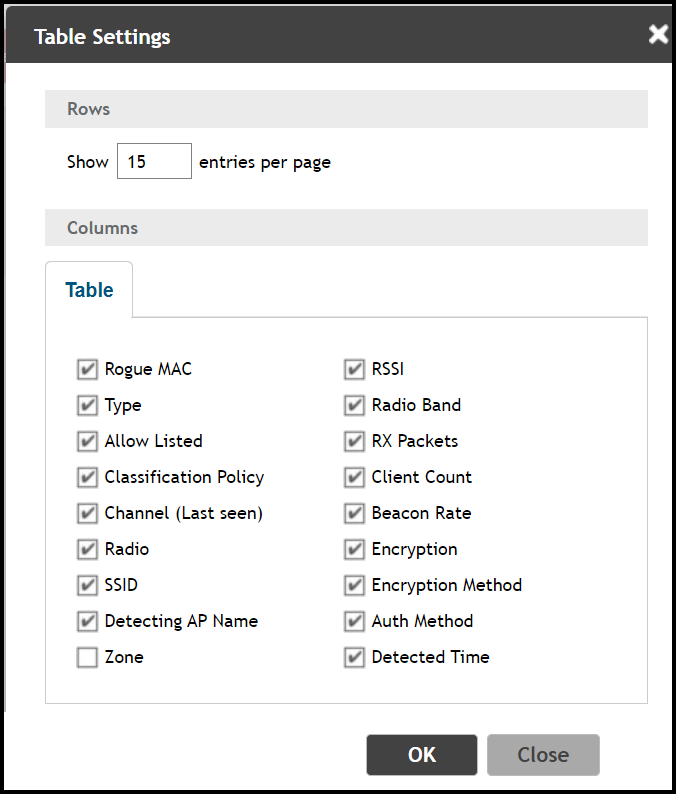
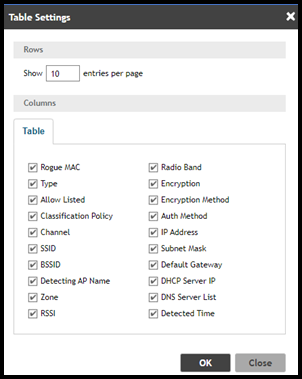
Table Settings for Access Point (AP) Reports

Note: The tabs in the columns can be customized by clicking icon and select the checkbox corresponding to the tab names.

Client Report

Client reports can be viwed by selecting a zone and device type as Client.

  1. In the home page, navigate to Report. Select Rogue Devices. This displays system level Rogue Devices and by default Device Type is selected as Access Point on the top right hand corner. Click the device type drop-down list and select Client.
  2. To view list of zone level client list, select a specific zone under the System tree.
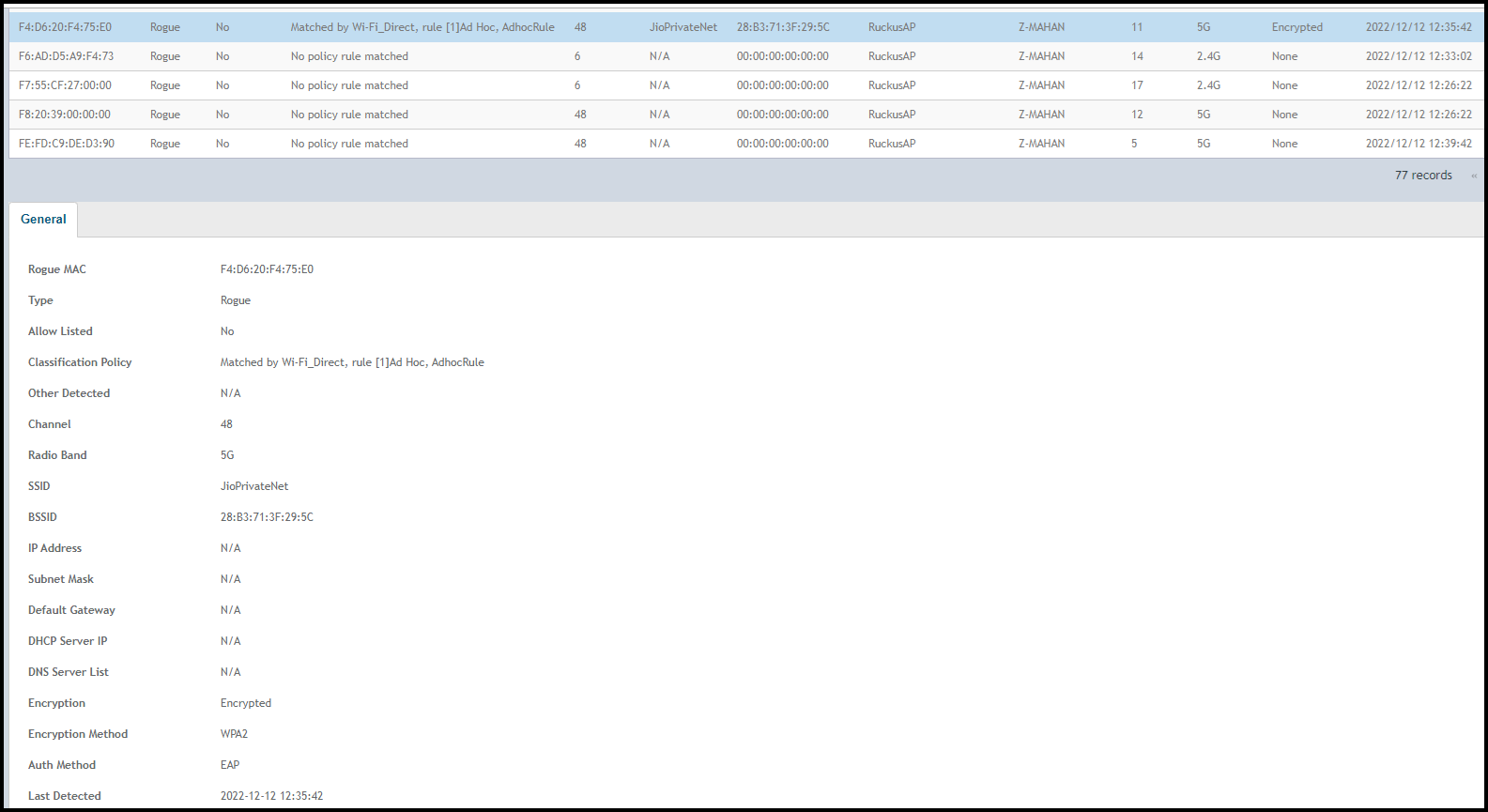
    Client Report

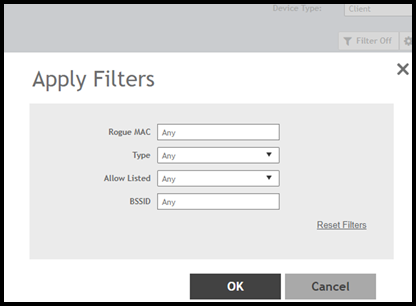
Note: Click icon to filter rogue devices based on the Rogue MAC, Type, Allow Listed and BSSID. The Client report can be filtered and viewed only by an administrator.

Apply Filters Client Reports

Note: The tabs in the columns can be customized by clicking icon and select the checkbox corresponding to the tab names.

Table Settings for Client Reports