Mapping the Authentication Profile for the WLAN
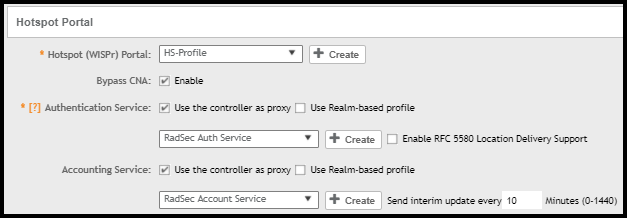
- When mapping the authentication profile for a WLAN configuration using Hotspot WISPr,
be sure to map to the WISPr portal page. Confirm the Hotspot Portal settings. Click
OK to save the mapping.
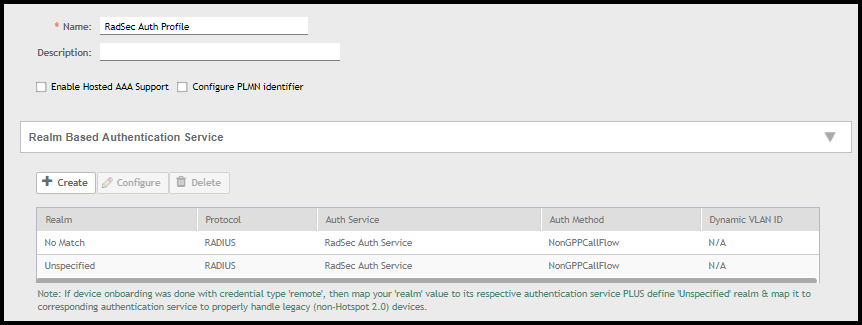
- To map to a standard usage call WLAN profile, navigate to Services & Profiles > Authentication > Realm Based Proxy on the web interface.
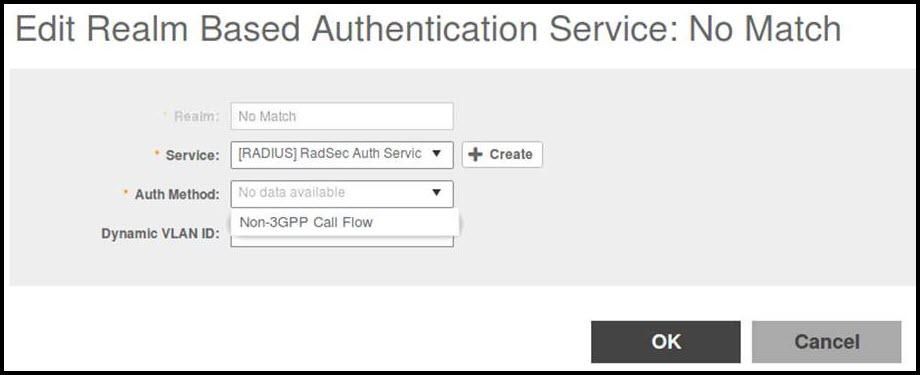
- Under Realm, click No Match.
- Click Configure, and configure the following items:
- Similarly, set the configuration for Unspecified.
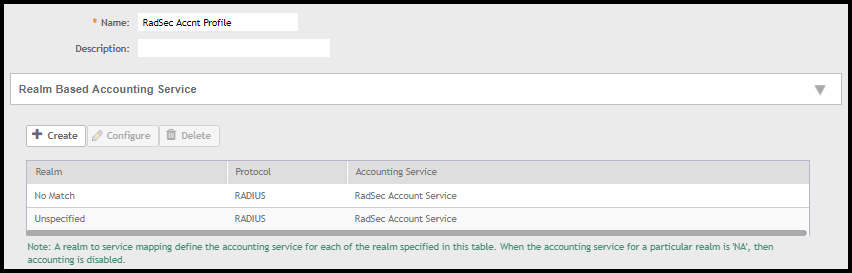
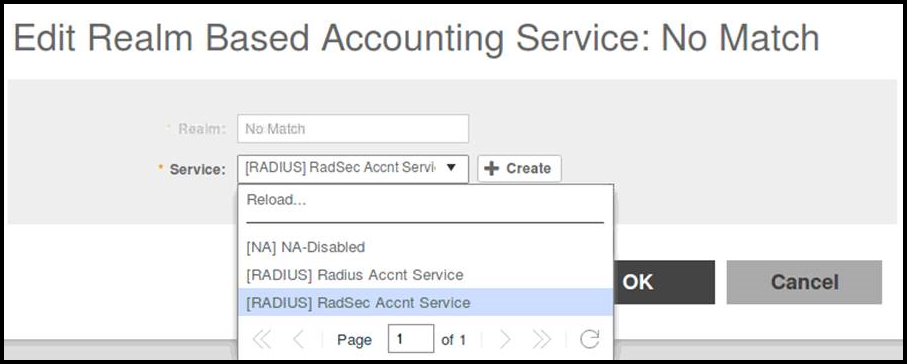
- To create a realm-based proxy for accounting to map to a standard usage call WLAN profile, navigate to Services & Profiles > Accounting > Realm Based Proxy on the web interface. The RadSec accounting profile is created and displayed.
- Under Realm, click No Match.
- Click Configure, and configure the following items:
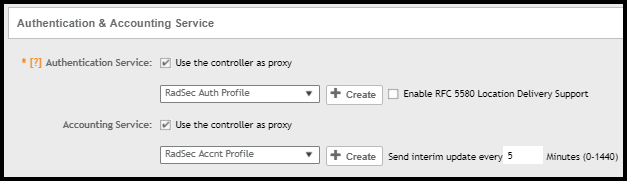
- Map the authentication and accounting profile to the WLAN as shown in the following figure.
This step is included in the draft at this point, but it seems isolated and not to make sense in context. What do I do with this?