Validating Certificates
You can validate CA certificates of the controller before assigning them to the AP.
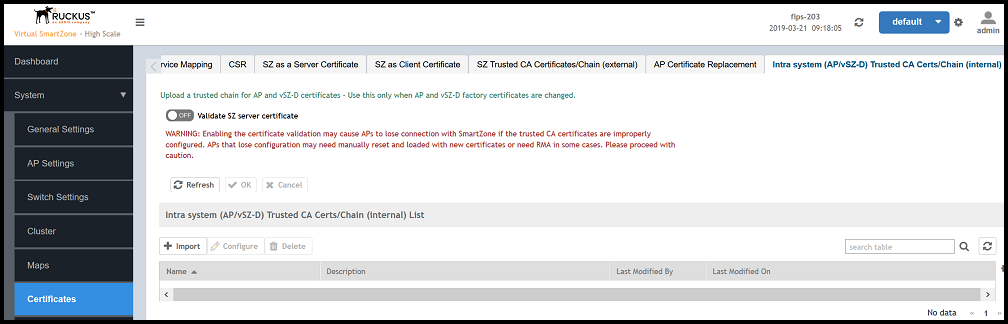
- , and click ON to enable Validate SZ Server Certificate options.
- From Intra system (AP/vSZ-D) Trusted CA Certs/Chain (Internal) List, click Import.
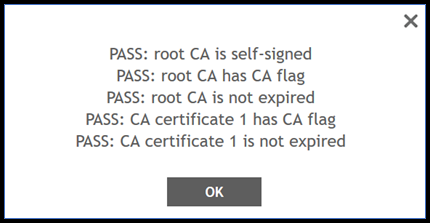
- Click Validate.
- Click
OK.
Note: When uploading the CA, the Sub-CA, Server Certificate, the Client Certificate and the Keys from the profiles SZ as Server Certificate, SZ as Client Certificate, SZ Trusted CA Certificates/Chain (external), and Intra system (AP/vSZ-D) Trusted CA Certs/Chain (internal) if an error occurs an event is triggered. To know more about the event refer the Events section.
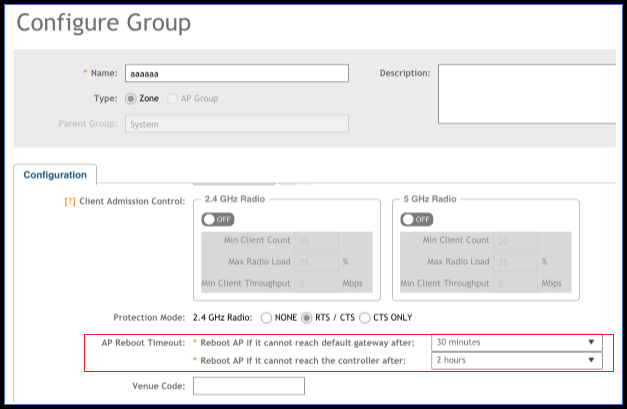
It takes some time for the certificate configurations to be applied to the AP. The AP must be turned off, moved to the production controller, and then powered on. The AP must be rediscovered by the controller. The discovery time is usually configured for 30 minutes. After this time, the AP establishes a connection with the controller. You can reconfigure this discovery time on the production controller to two hours from the controller interface (navigate to ). The settings highlighted must be configured for the same.