Signature Based Detection Rule
As part of the Wireless Intrusion Detection monitoring system (AP and EUD), monitoring AP scans for a specific pattern in the received frames from the EUDs (clients). The received frame (from EUD) is matched against the configured signatures. After successful detection an alert is triggered by SmartZone controller.
To view the list of signatures, go to Services & Profiles > WIDS & WIPS > Signature-Based Rule.
A user can Create a new Signature-based rule, Configure/Modify, Clone/Replicate or Delete an existing signature-based rule.
Creating a Signature-Based Detection Profile
To create Signature-Based Rule, perform the following:
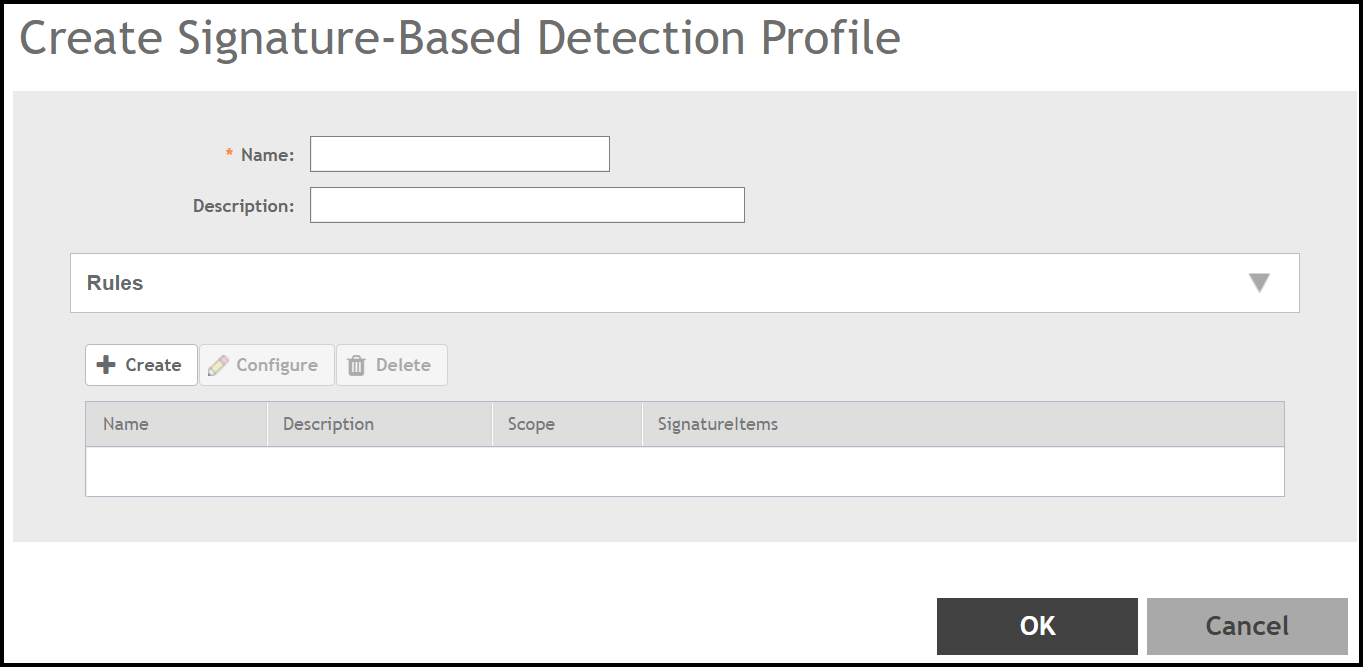
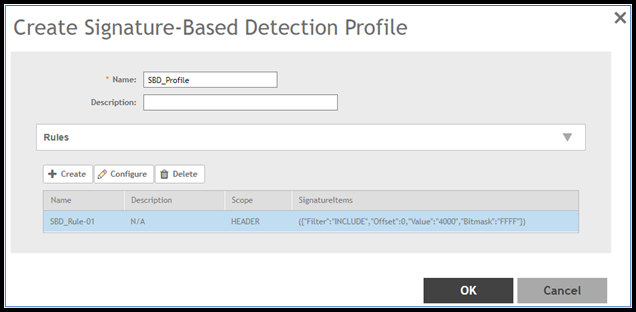
- Go to Services & Profiles > WIDS & WIPS > Signature-Based Rule and click Create.
- Enter the following information
in the respective fields.
- Name: Enter the name for the new Signature-Based Detection Profile.
- Description: Enter a short description for the new Signature-Based Detection Profile.
- Rules: User can
Create, Configure and Delete a rule. To
create a rule, perform the following:
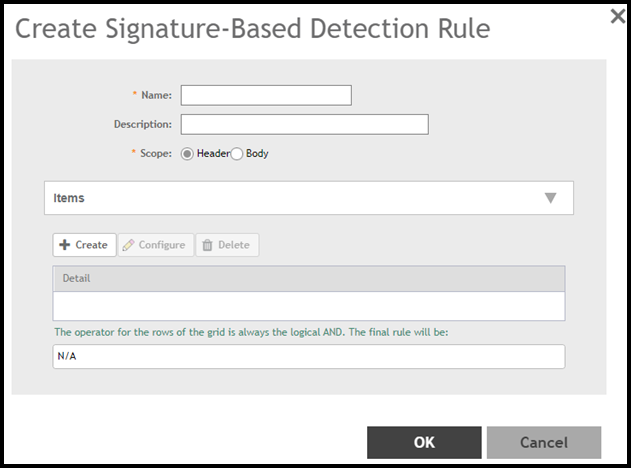
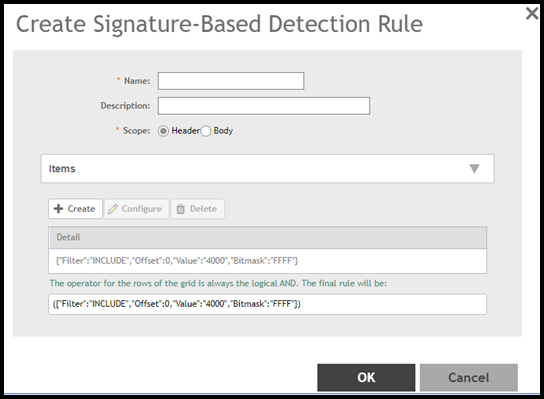
- Click Create. This displays Create
Signature-Based Detection Rule screen. Enter the
information in fields:
- Name: Enter a name for the rule.
- Description: Enter a short description for the rule.
- Scope: Select Header or Body for the rule.
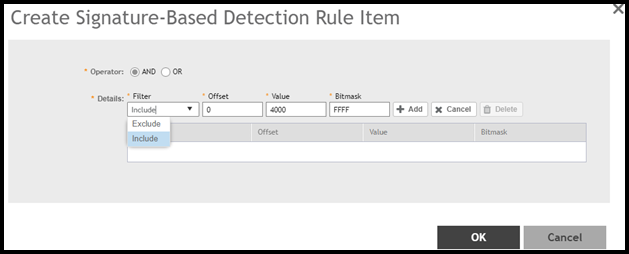
- Click Create in the Items section. This displays Create Signature-Based Detection Rule Item screen.
- In this screen, select Operator options between AND, OR.
- In the
Details column, select or enter the
following fields:
- Filter: Click on the drop-down menu and select the option to filter the rules.
- Offset: Enter an offset valid range, for Header 0~31 and Body 0~2311
- Value: Enter a 64 bit value in hex format.
- Bitmask: As the value field is a 64 bit hex format, the Bitmask should be entered between F and FFFFFFFFFFFFFFFF hex range. Value and Bitmask field length should be equal, (for example, value=2e ; Bitmask = FF), here, value = 2;Bitmask = F.
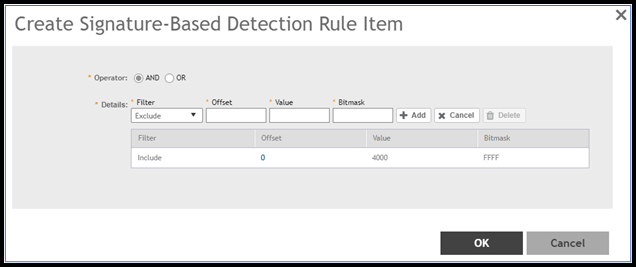
- After entering the above fields, click Add. The new rule is displayed in the below table. Click OK.
- The newly created Signature-Based Detection Rule/Item is displayed in the Detail table as per the configured items. Click OK.
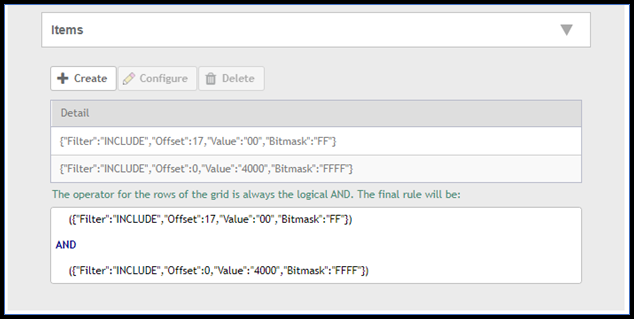
- User can add multiple rule items with AND-OR, AND-AND & OR-OR operations under one rule in a SB profile.
- The new rule for the Signature-Based Detection Profile is created. Click OK.
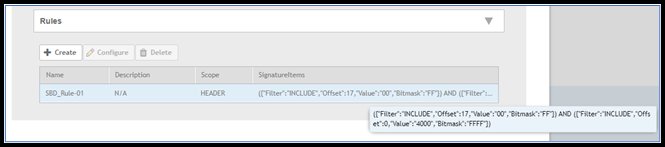
- In case of multiple rules in one rule. The application displays the below screen.
- Click Create. This displays Create
Signature-Based Detection Rule screen. Enter the
information in fields: