Upgrading (v)SZ Software
RUCKUS periodically releases software updates which contains new feature enhancements or fixes for known issues.
The software can be updated through GUI or CLI. Perform below steps to update the software:
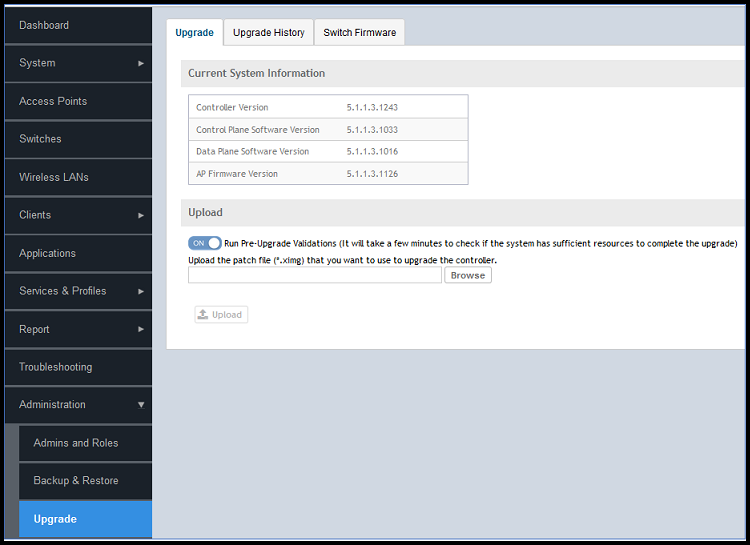
- Log-in to GUI and upload the image.
- Download update/upgrade image from the RUCKUS Customer release site. Click Upgrade to view current version of the software.
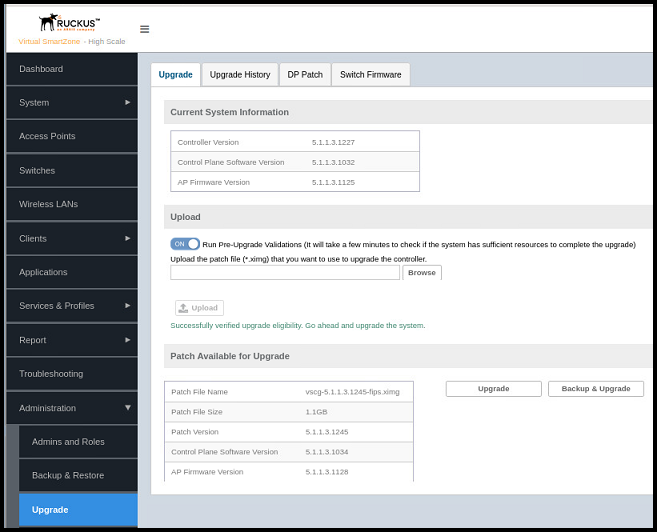
- After uploading the image, initiate
Upgrade or
Backup & Upgrade.
Note: The upgrade package contains upgrade software/firmware, signatures and certificates of the signature signers. After upgrade package is uploaded to the controller, certificate chain is validated by the controller. If the certificate of signature signer passes the chain validation, then signatures of the upgrade software/firmware is verified. When upgrade package signature signer certificate chain validation error or the signature verification error occurs, the GUI shows a package decryption error. In such case, use validate upgrade package to continue system upgrading.
- The web interface lists the active and inactive upgrade history.
- After uploading, initiate delayed activation/upgrade.
Caution: Upgrading the (v)SZ software can force a restart and therefore, cause a temporary interruption in all the functionalities.