Creating a Monitoring Access Point (AP)
Perform the following procedure to create a new zone for the monitoring AP and enabling rogue detection and mapping the Allowed Device policy:
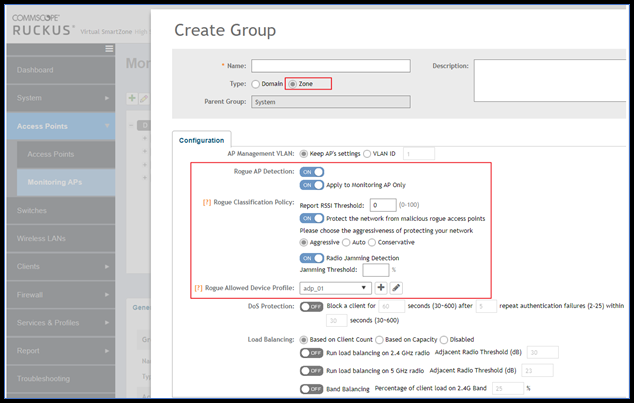
- From the left pane, select to create a zone.
- Select System and click + to create a zone.
- Select Type as Zone.
- Navigate to Advanced Options, enable Rogue AP Detection.
- For
Rogue Classification Policy, configure the following options:
- In the Report RSSI Threshold field, enter the threshold (the threshold ranges from 0 through 100).
- Enable Protect the network from malicious rogue access points and select one of the following options:
- Enable Radio Jamming Session and enter the jamming threshold as a percentage.
- Map Rogue Allowed Device Profile from the drop-down list (refer Configuration of Allowed Device Profile)
- Click OK.
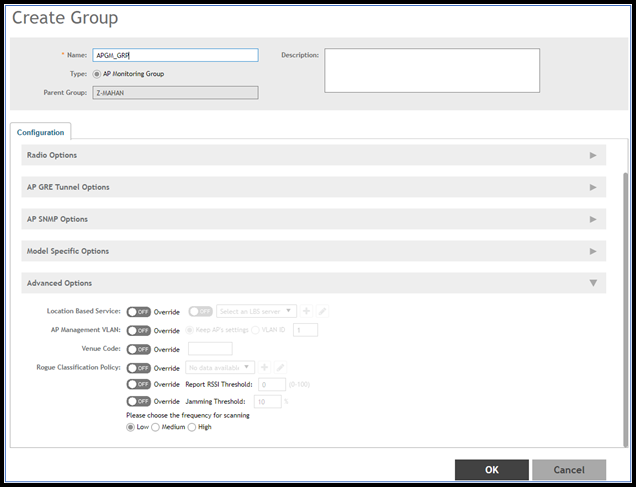
- On the Access Points > Monitoring APs page, select the created zone and click + to create the AP monitoring group.
- Enter the group name.
- In the Access Points page, select the AP from the default/staging zone and click Move.
- In the Select Destination AP Zone management domain window, select the AP monitoring group and click OK.
- Viewing Associated Events
- From the left pane, select Monitoring APs.
- Select the zone and the corresponding monitoring AP and click Event.
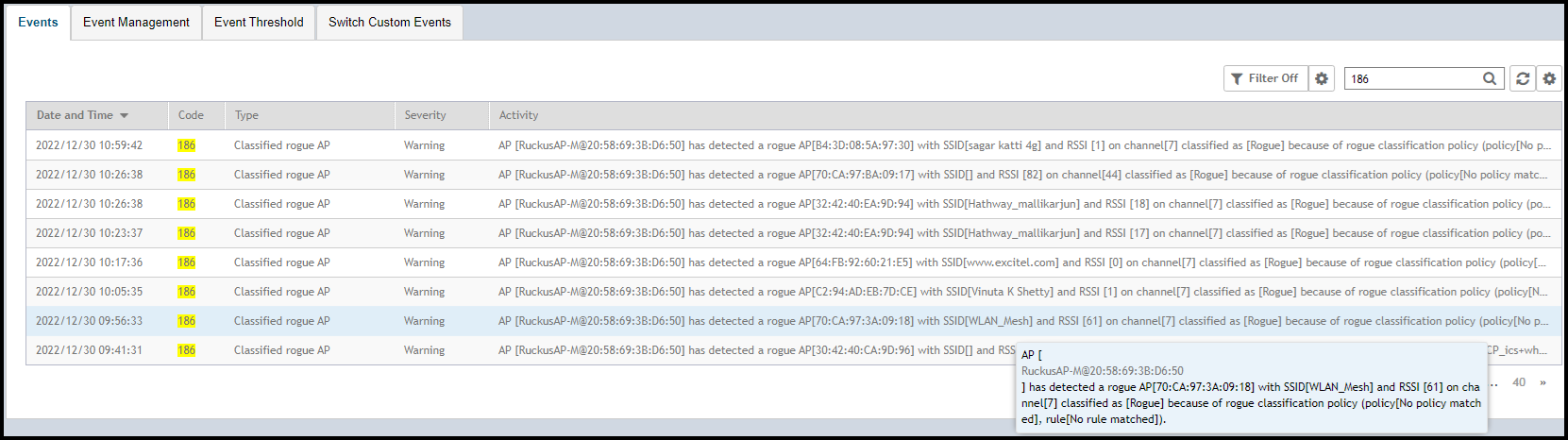
The event table lists rogue APs that are detected by the monitoring AP. Likewise, the rogue APs that are detected by the monitoring AP are listed on the Rogue Devices page. As shown in the below image.