Upgrading the AP Software
Feature enhancements or fixes or known issues pertaining to AP Software are addressed
via AP firmware associated with a firmware version which is bundled part of (v) SZ
Software upgrade image.
(v)SZ supports Multiple AP firmware . AP firmware version of a zone can be manually upgraded/downgraded. To change the AP Firmware of a zone, perform the following:
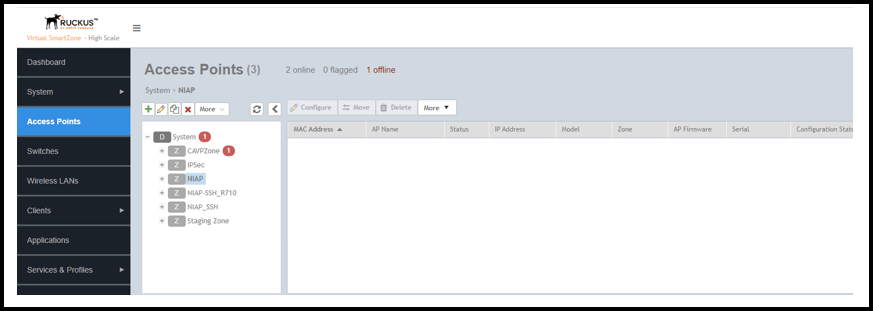
- In web-interface, navigate to Access Point, the Access Point page displays. Locate the Zone for which you want to upgrade the AP firmware version.
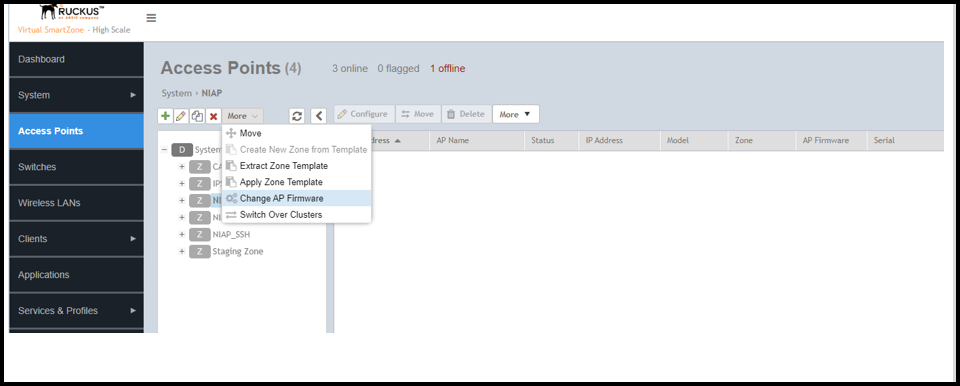
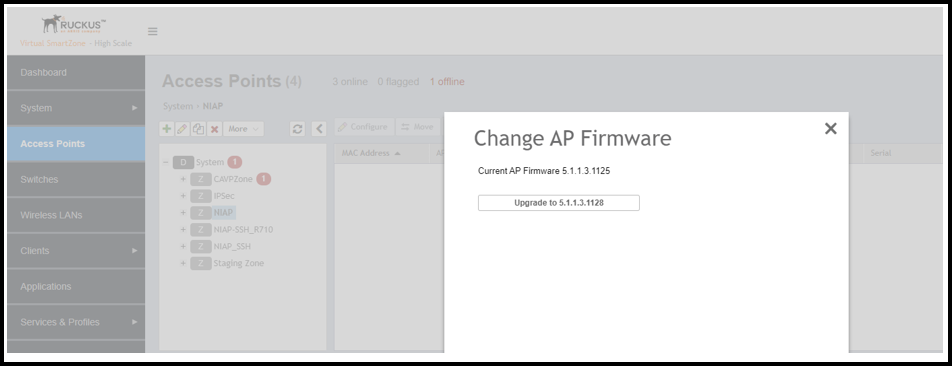
- Click on More and select Change AP Firmware. The Change AP Firmware dialog box displays the current AP firmware version.
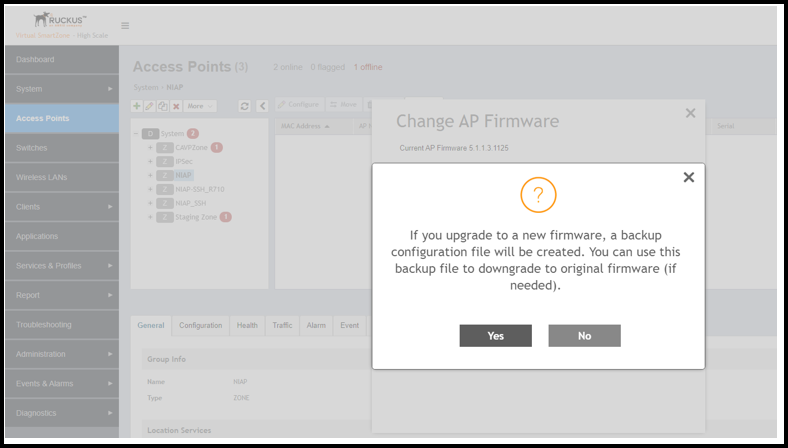
- Select the firmware version. If upgraded to a new firmware version, backup configuration is created which can used during firmware downgrade to original firmware.
- Click
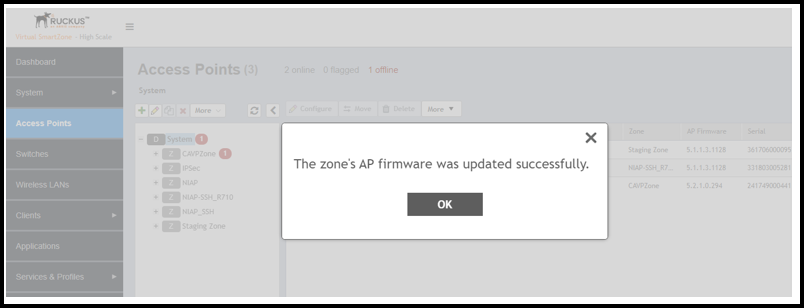
Yes , dialogue box is displayed with the below message.
Note: If the zone fails to upgrade, a message is displayed to download the CSV file.
- Click
OK after successfully Upgrading the AP firmware of the zone.
Note: The Firmware software contains upgrade software, Signatures and certificates of the signature signers . When the Firmware is pushed to AP from (v)SZ . AP is validate the Certificate Chain first once the Chain validation goes through then AP validates the Signatures of upgrade firmware. If any of this validation fail first upgrade will and the corresponding status will be shown on UI and detailed info can be viewed through logs.Caution: Upgrading the AP software can force a restart and therefore, cause a temporary interruption in all the functionalities.