Configuring IKE and ESP Rekeying Separately

IKE and ESP Rekeying can be configured independently to initiate the rekeying on the established IPSec tunnel.
Perform the following steps to configure.
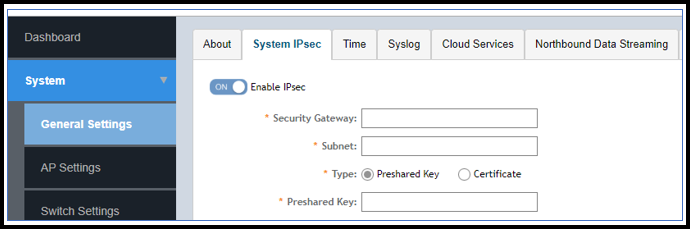
  1. In the web interface, navigate to System > General Settings > System IPsec Tab
  2. From the Type field, select either Preshared Key or Certificate.
  3. If Preshared Key is selected, perform the following.
    1. Enable IPsec.

      Enabling IPsec

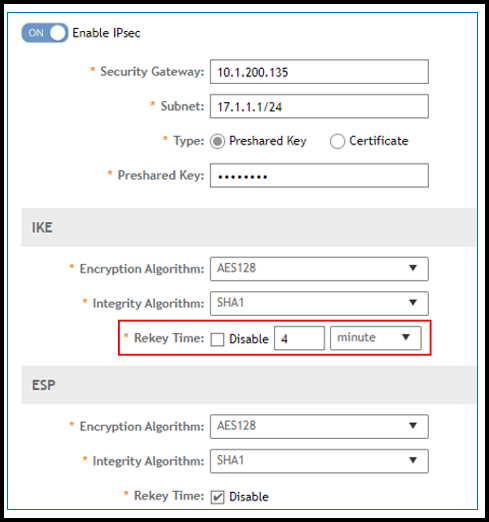
    2. In the IKE section, enable IKE Rekeying.

      Enabling IKE Rekeying

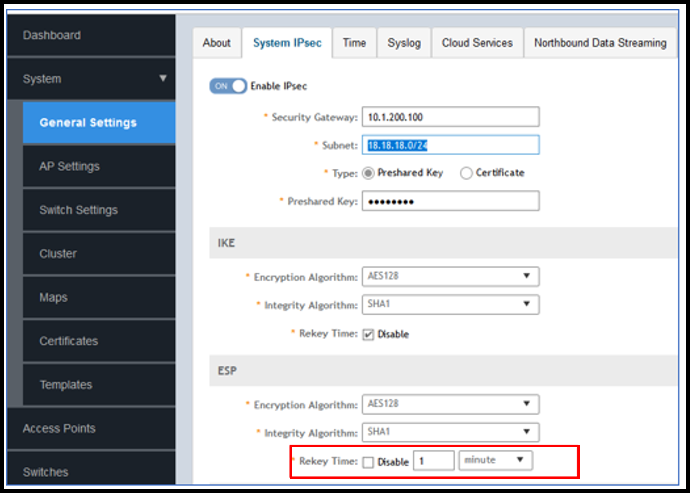
    3. In the ESP section, enable ESP Rekeying

      Enabling ESP Rekeying

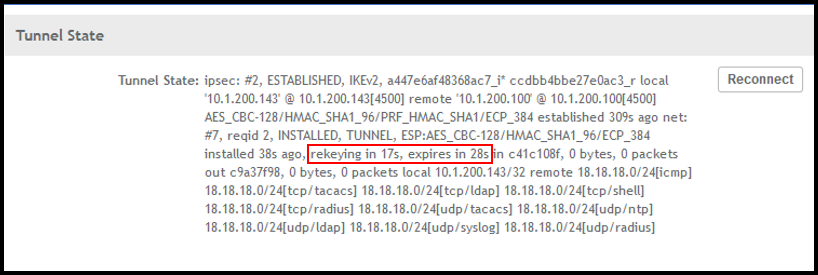
    4. After you click OK, the following message is displayed Successful IPSec tunnel creation with Rekeying information

      Successful IPsec Tunnel Creation

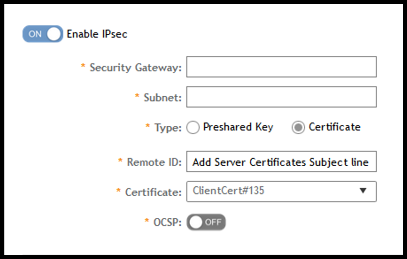
  4. If Certificates is selected, perform the following.
    1. In the Certificate field, upload 'SZ as Client Certificate' and 'CA n sub-CA Certificate'.
    2. In the Remote ID fiels, enter the IPSec GW certificates Subject line.
      For example, C=US, ST=CA, O=Ruckus Wireless Inc., CN=scg.ruckuswireless.com, EMAILADDRESS=service@ruckuswireless.com.

      Adding Certificate