Password Management
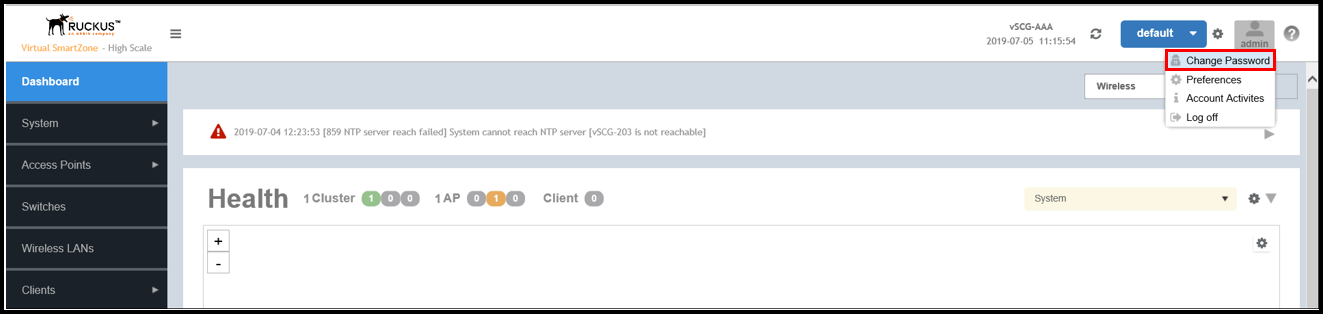
Passwords can be composed of any combination of uppercase and lowercase letters, numbers, and the following special characters: ! @ # $ % ^ & * ( ) - _ = + [ ] {}; : ' " , <> / ?. (No other special characters are allowed.) The password length ranges from 8 to 64 characters.
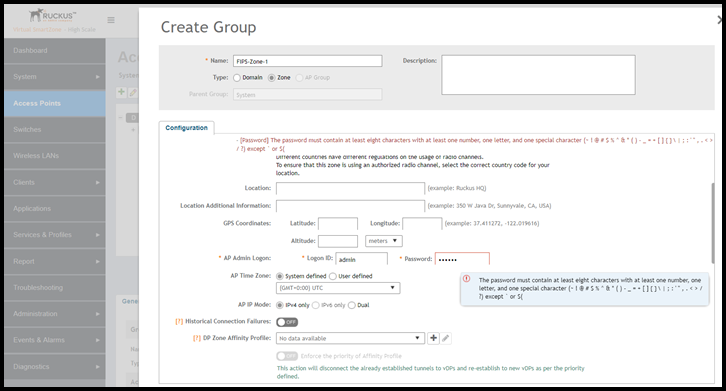
The administrator login password of the AP zones is pushed from the controller. Therefore, the controller validates the administrator login password of AP zones before pushing it into the APs. The administrator login password of the dataplane is identical to that of the controller, so it need not be validated.
The administrator login password of the AP zones are pushed from the controller. Therefore, controller validates the admin login passwords length of AP zones before pushing them into APs. The administrator login password of the dataplane is identical to the controller so it need not be validated.

You can also configure the AP admin login password from to configure the AP admin login password.. You can modify the settings for AP Admin Logon.
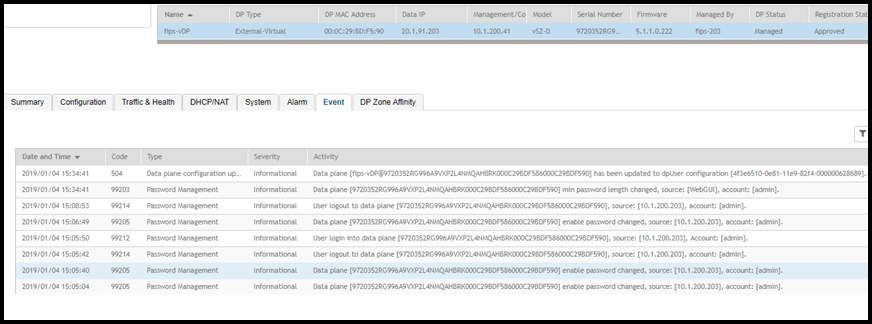
You can view changes to the data plane password from . Click the Event tab to view the logs.
Refer to the SmartZone Administrator Guide for this release for more configuration information.