Using FIPS-Related CLI Commands
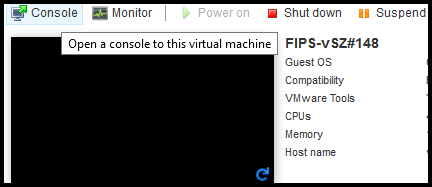
- Once the VM has been deployed, click Power On to start the vSZ.
- Open a console window to log in to the vSZ CLI.
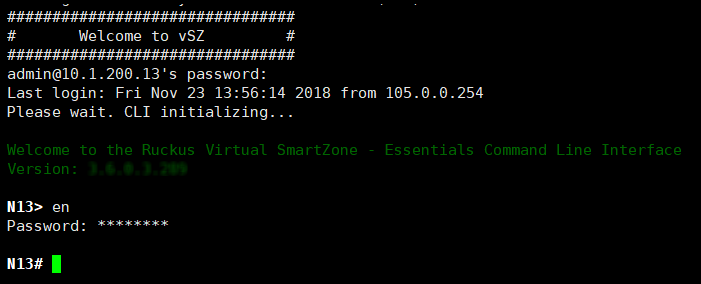
- At the login prompt, log in using "admin" as the username and password. At the
> prompt, enter the
enable (en) command and the admin password to change to Privileged EXEC mode.
From this step onwards, the installation process is the same for virtual platforms and hardware.
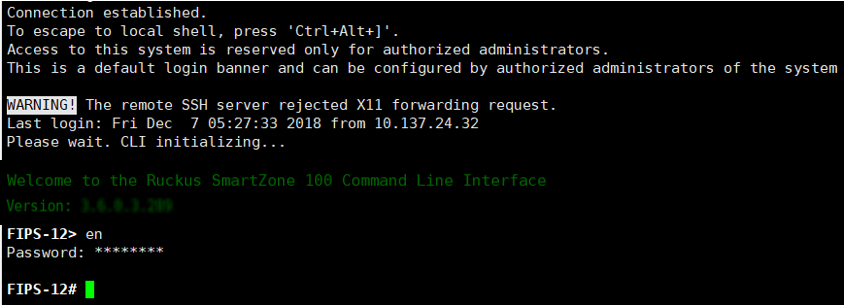
Use NETBOOT to load the FIPS image in the SZ144 controller hardware.
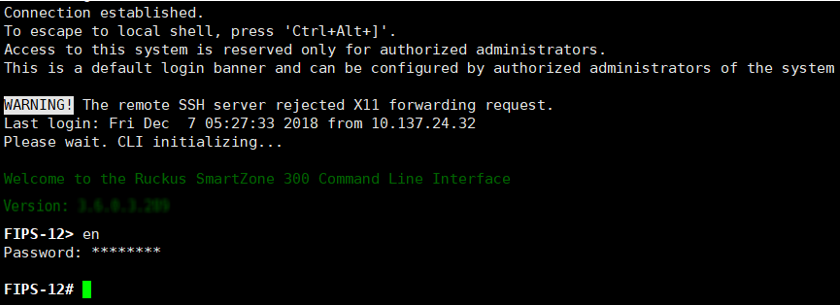
Use NETBOOT/USB boot to load the FIPS image in the SZ300 controller hardware.
- At the command prompt, enter
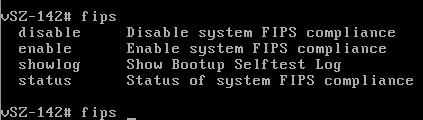
fips ?to display the list of available FIPS commands. - Enter
fips status to verify whether FIPS mode is enabled or disabled.
Note: When FIPS mode is enabled or disabled, vSZ is initiated with set-factory to clean up the configuration.
- Enter fips disable to disable FIPS mode, and enter yes to confirm.
- Enter fips enable to enable FIPS mode, and enter yes to confirm.
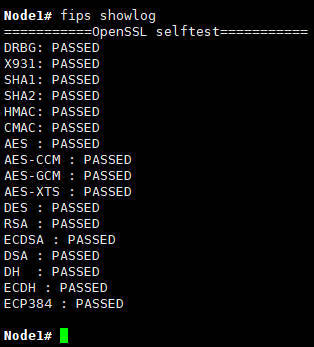
- Enter fips showlog to to display the results of an on-demand test of FIPS crypto modules.