SSH Public Key Authentication
SSH Public Key Authentication
This feature focuses on the SSH server on SZ/vSZ and this is a generic feature. No matter what the FIPS mode is, the SZ supports the SSH public key authentication. User "admin" can login to SZ Web GUI to configure up to 10 SSH public keys and configure the SZ to use
- Public key and password authentications (multi-factor) : admin login with this combination has to pass public key and password authentications. SSH server authenticates the user with public key and follow by password. If user fails in public key or password authentication, the user is not authenticated and the connection breaks.
- Public key authentication : Admin login by public key authentication only.
- Public key or password authentication : Admin is authenticated by pubic key or password. User is authenticated either passing public key or password authentication.
- Password authentication : Admin login by password authentication only.
Default AuthenticationMethod: SSH login to SZ will be ‘password’ authentication. before n after setup procedure.
Maximum Configurable Public Key: Only ‘admin’ user can configure up to 10 public keys for SSH public key authentication with key format validation.
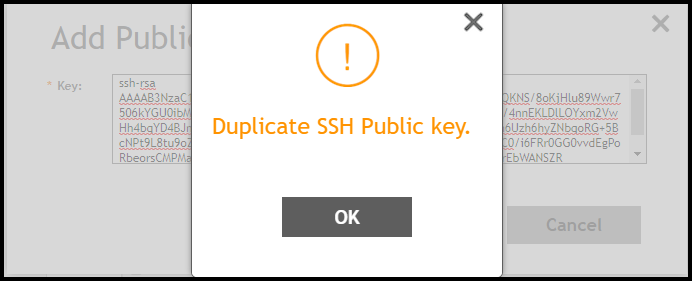
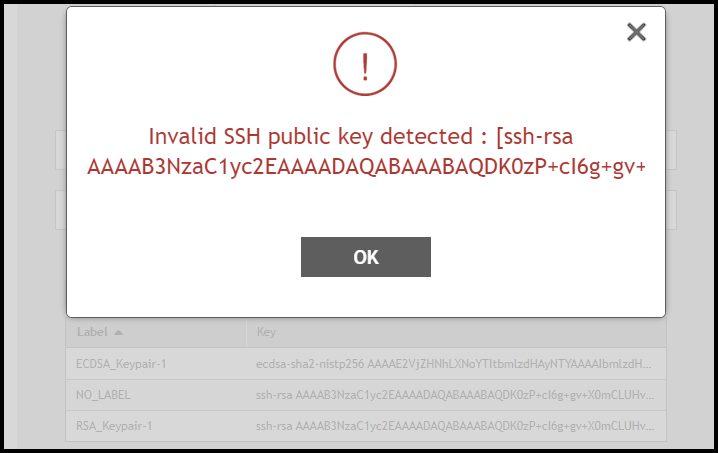
Verification of Uploaded Public Key: When admin user trying to upload/configure the SSH public key, SZ will prompt a notification if the key is invalid or duplicated
Cluster Configuration: The public key authentication method and the public keys, the configurations must be synchronized to all the nodes in the cluster
Non-admin Accounts: non-admin user cannot configure the SSH authentication methods or public keys settings.
Weak Cryptographic Algorithms: The public key that were generated by weak cryptographic algorithms, like DSA or ED25519 or RSA1.
Uploaded Public Key Format: When admin user trying to upload the SSH authentication public keys, SZ will prompt an error notification if the uploaded public key is not in SSH-format. The structure is "<algorithm> <key> [<comment>]", where the <key> part of the format is encoded with Base64. Although the format is not a standard in the cryptography world, but it is commonly adopted by most of the cloud applications. The comment part of the SSH-format public key is optional.
Public Key Authentication Fail:When admin user login from SSH and public key authentication fail, the failure count will not be increased. SSH client may try a lot of private keys for authentication, therefore, the public key authentication failure will not increase the authentication failure count on SZ
Key Zeroization: Those uploaded/configured public keys must be zeroized when the SZ FIPS mode changes from enable to disable, vice versa.
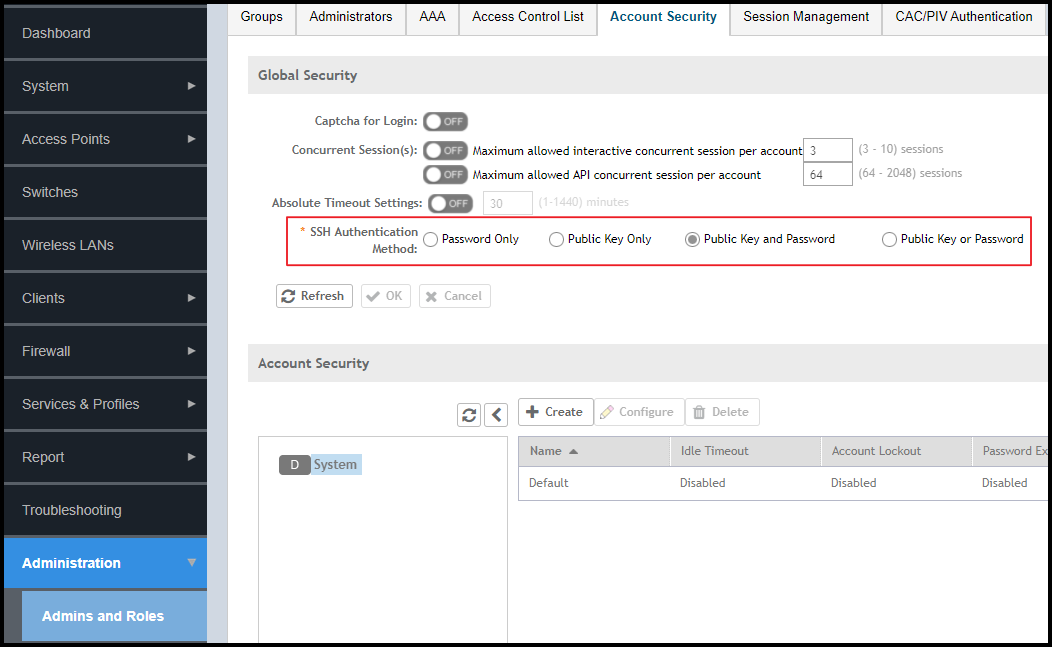
Configuring SSH Authentication Method
- In the controller web interface, navigate to GUI and choose AAH auth method.
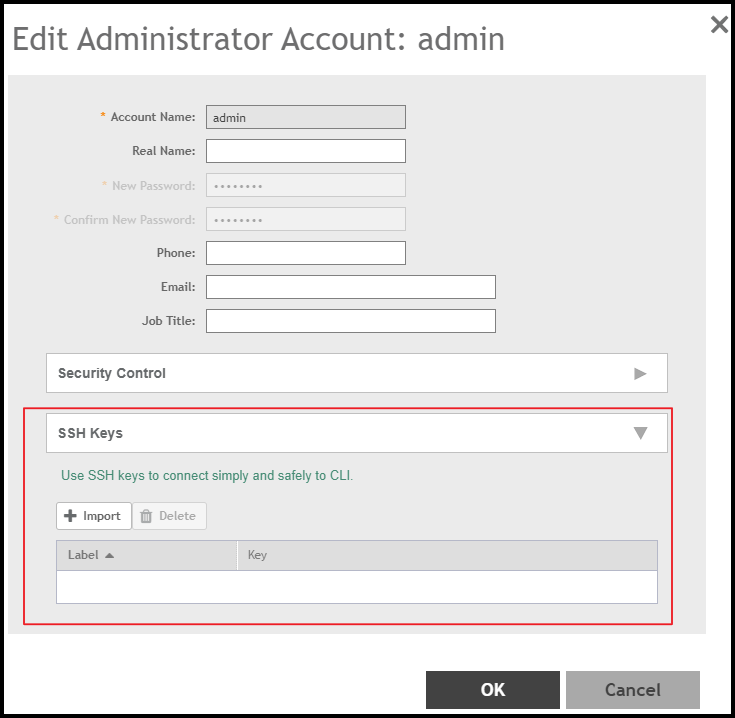
- Uploading SSH Authentication Public Keys
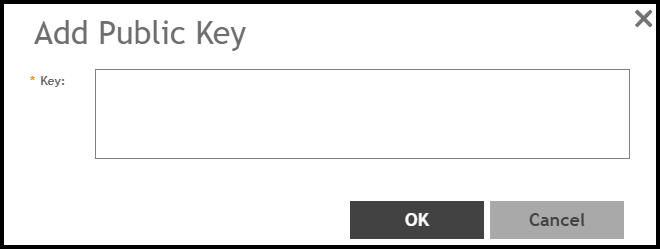
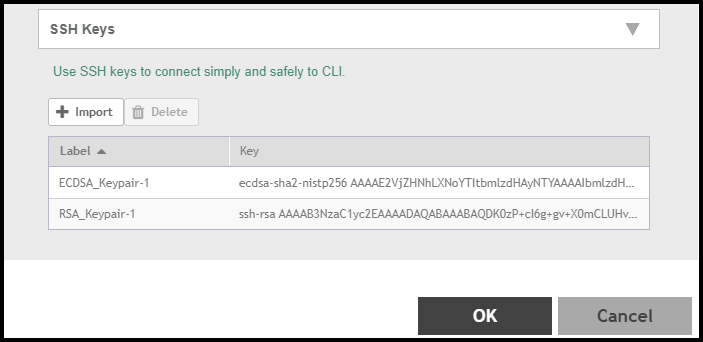
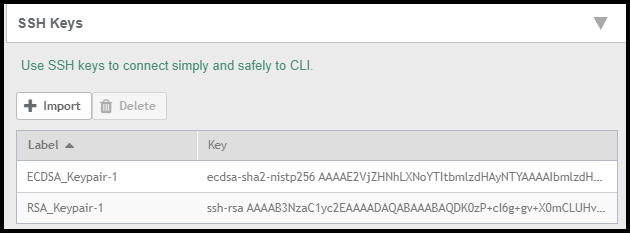
- In ‘admin’ page navigate to ‘SSH Keys’ and click on Import button to upload the SSH Public Keys
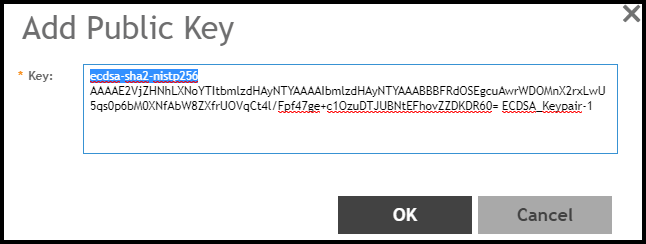
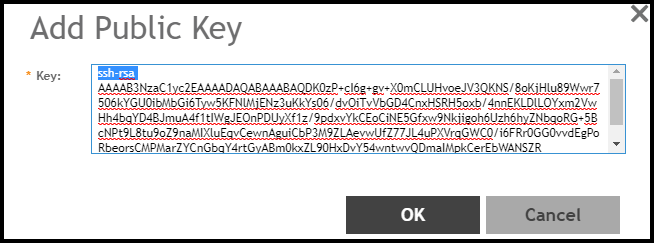
- Enter the public key in the "Key" Textbox.
- ECDSA based public Key
- RSA based public Key
- Uploaded Keys
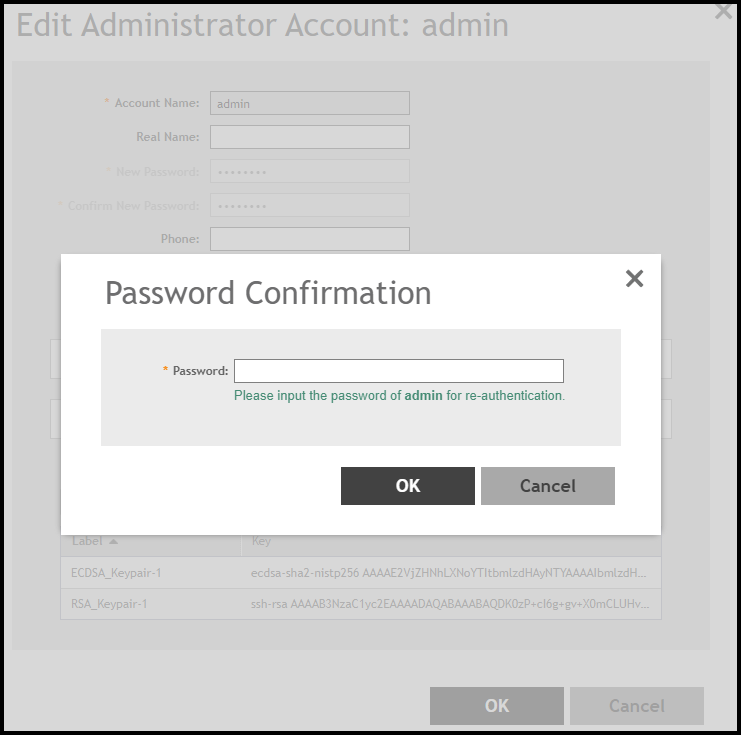
- Click ‘OK’ button to the save the uploaded keys. SZ will ask the admin user
re-authentication to save the keys.
SSH from Clients to SZ using each of the SSH public key Authentication
From any of the Linux machine user can generate RSA/ECDSA key pair [private n public]. Upload public key on SZ and use private key on the client from where SSH will be initiated towards SZ.
Use below command to generate key pair
-
ECDSAà ssh-keygen -t ecdsa -C "ECDSA_Keypair-10" -f ecdsa1
Files will be
- RSA > ssh-keygen -t rsa -C "RSA_Keypair-1" -f rsa1
Files will be
-

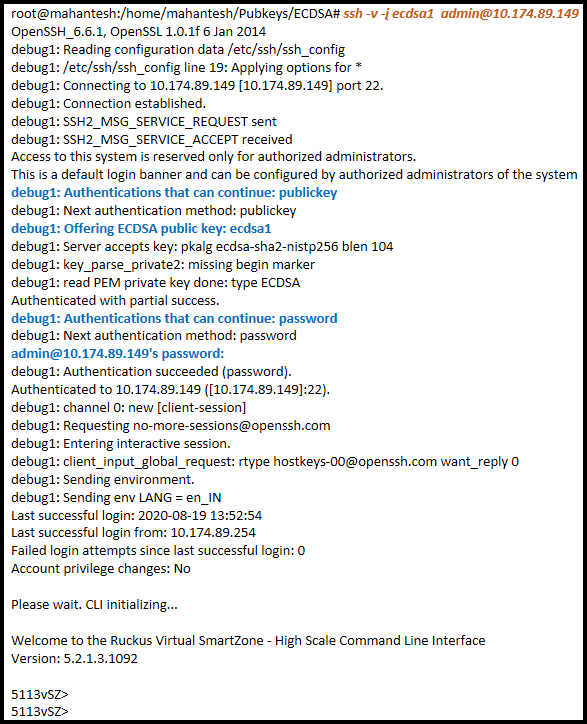
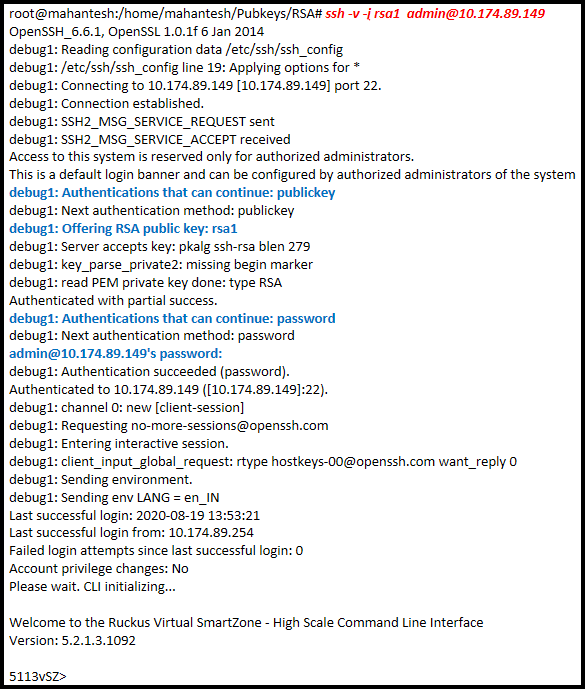
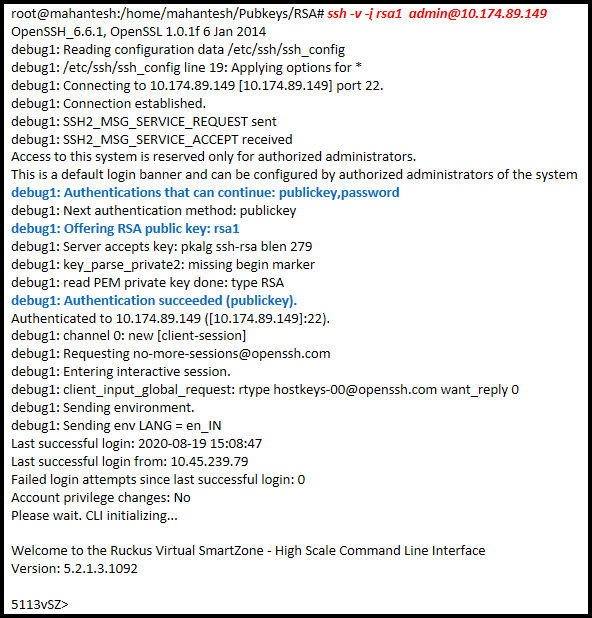
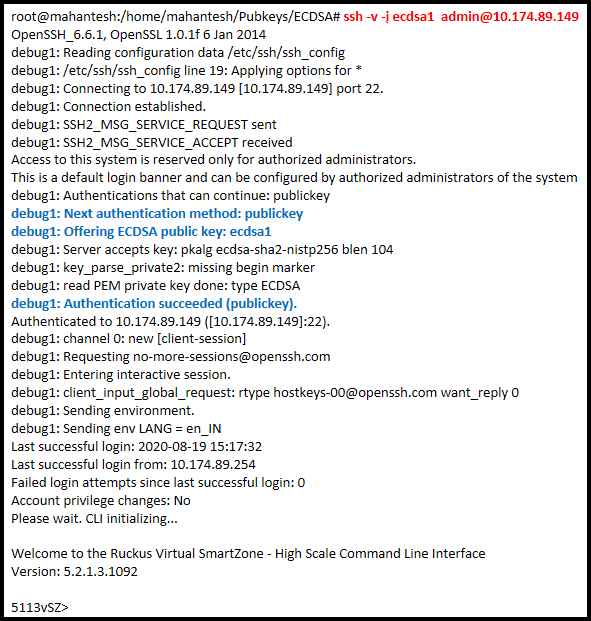
Connecting to SZ using each of the methods from Linux Client

- Public key and Password: Set the Authentication method and upload the public key
- Public key and Password: Set the Authentication method and the public key is already uploaded.
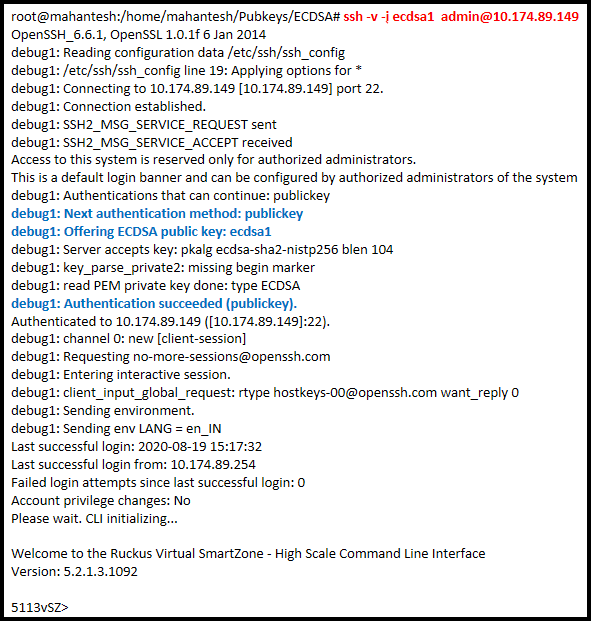
- Public key: Set the Authentication method and the public key are already uploaded.
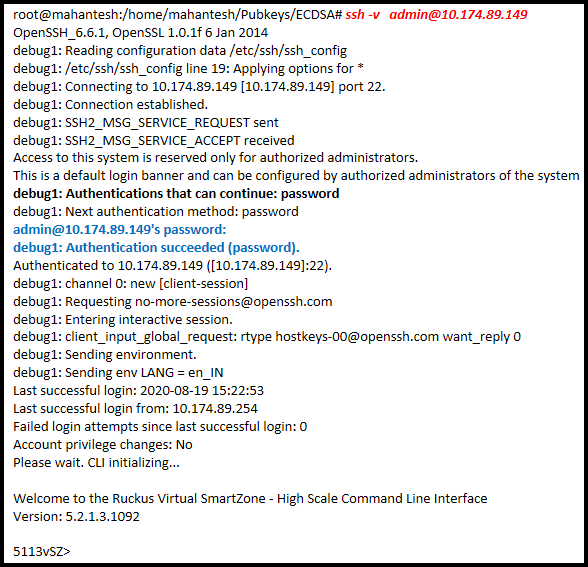
- Password: Set the Authentication method and the public key is already uploaded.