Creating WLAN Configuration
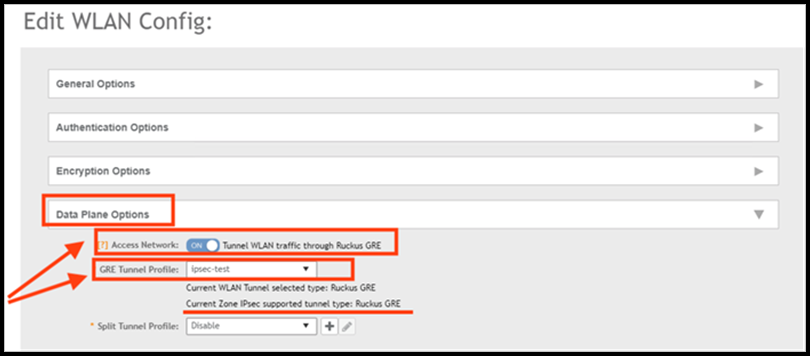
In WLANs where there is an option to tunnel the traffic, you can choose the tunneling
profile the WLAN can use. Follow the below steps to create an WLAN configuration.
On the controller web user interface:
- In the Wireless LANs page, from the System tree hierarchy, select the Zone where you want to create a WLAN.
- Click the option Create. to view the Creating WLAN Configuration page.
- Go to Data Plan Options and select the RUCKUS GRE tunnel profile. By default, RUCKUS GRE and IPsec are enabled and attached at the zone level to the WLAN.
- Click OK.
You have created the WLAN configuration.
Note: Peer reference identifiers are not configurable. The controller auto generates the
reference identifiers to AP and DP.
Mapping RUCKUS GRE and IPSec Profile to WLAN
- Navigate to Wireless LANspage.
- Select the Zone to either create a new WLAN or edit an existing WLAN.
- Within WLAN configuration, in the Data Plane Optionstab: