Configuring System Time
The controller has three external
Network Time Protocol (NTP) servers that are used to synchronize the time across
Access
Points, Cluster nodes, and vDPs.
Note: The controller supports version 4.2.6p5 of NTP. The SZ controllers and AP does not
accept broadcast and multicast NTP packets that would result in the timestamp,
these
packets are ignored by default.
- Go to .
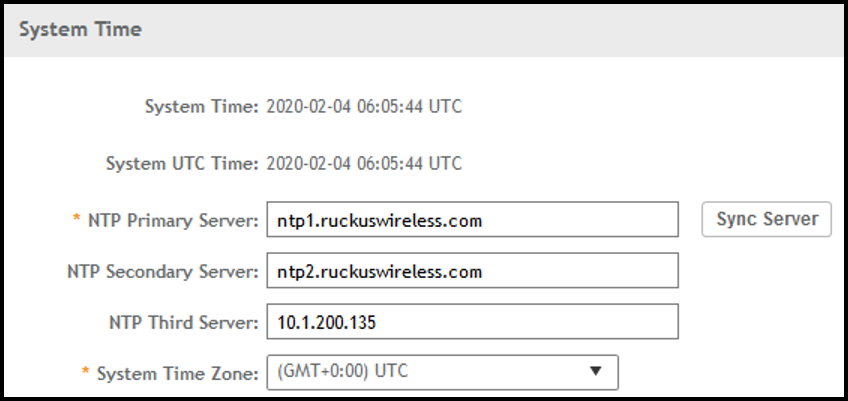
- For NTP Primary Server, enter
the NTP Server address that you want to use. By default, the controller uses
its
own clock to synchronize its time.Note: It is mandatory to configure the Primary Server. You can configure secondary and tertiary NTP server depending on the requirement.
- For System Time Zone, select the time zone from the list that you want the controller to use. The default time zone is (GMT +0:00) UTC.
- Click
Sync Server to enable an AP to join the controller and automatically synchronize its time every
day.
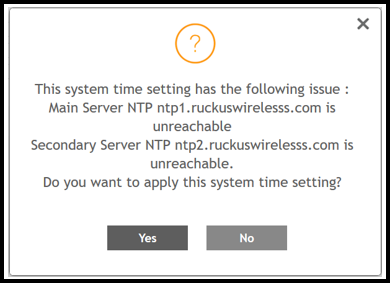
If the NTP Primary Server is unreachable then secondary and tertiary NTP servers can be reached for synching time. When primary and secondary NTPs are not reachable then the tertiary NTP server is used to sync the controller time.Note: When the NTP Servers are unreachable, an event is trigggered.
- Under
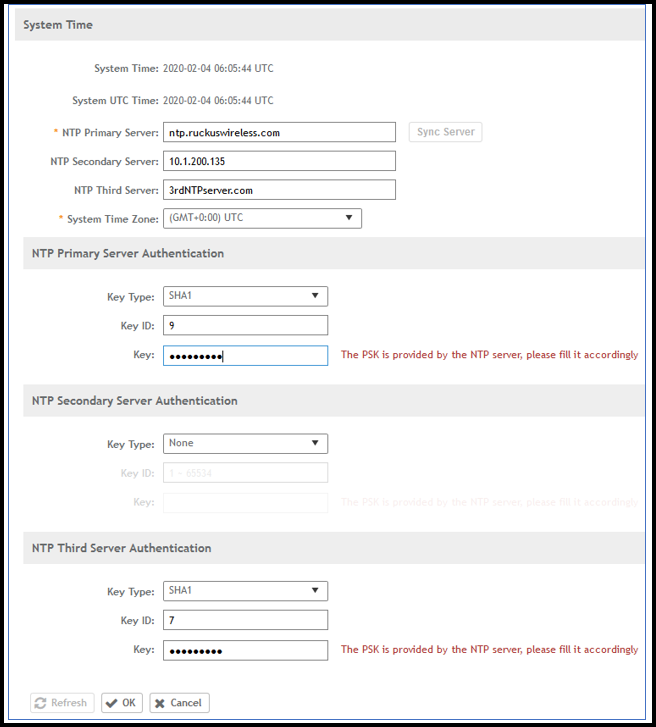
NTP Authentication, provide the NTP authentication (which includes the
Key Type as
SHA1 and
Key ID as [ranges from 1 through 65534], and
Key.
Note: By enabling the NTP Server Authentication in FIPS mode, you can configure the NTP (Primary, Secondary and Tertiary) servers.
- Click OK .