Uploading Certificates to SmartZone OS
For Active Directory (AD), Lightweight Directory Access Protocol (LDAP), and RADIUS over TLS (RadSec), the root CA is imported to the local machine so that the certificate from the server can be validated against the trusted CA.
Perform the following steps to import the certificate.
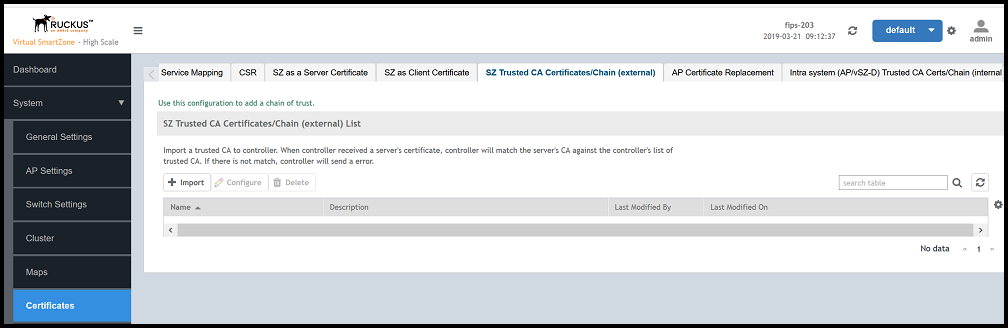
- In the web interface, navigate to > SZ Trusted CA Certificates/Chain (external).
- Click the Import option.
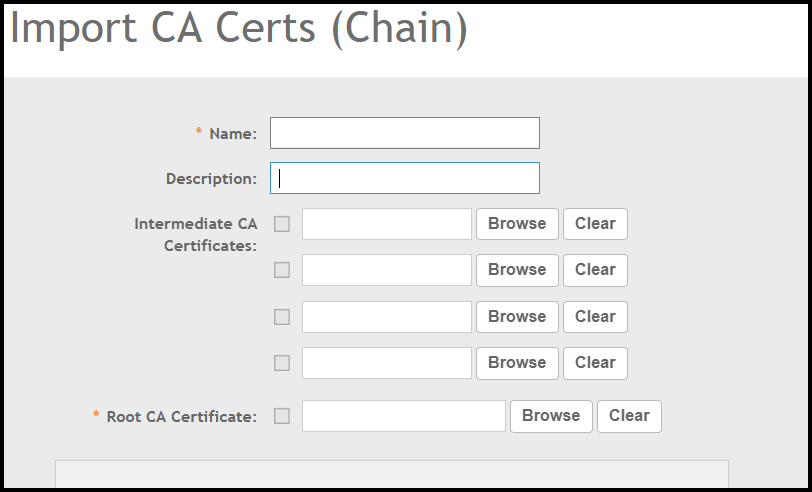
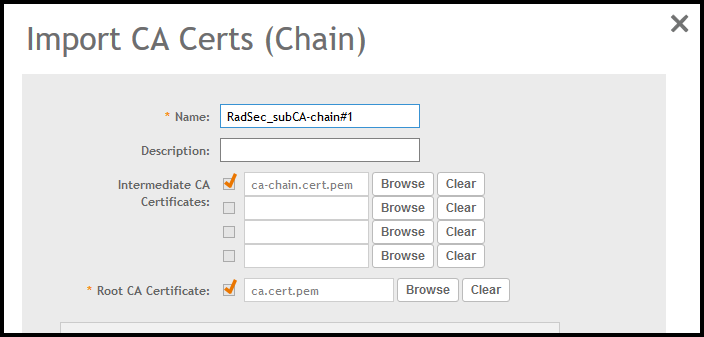
- Enter the name in the Name field, and click the Browse button to the right of the Root CA Certificate field to navigate to the appropriate file.
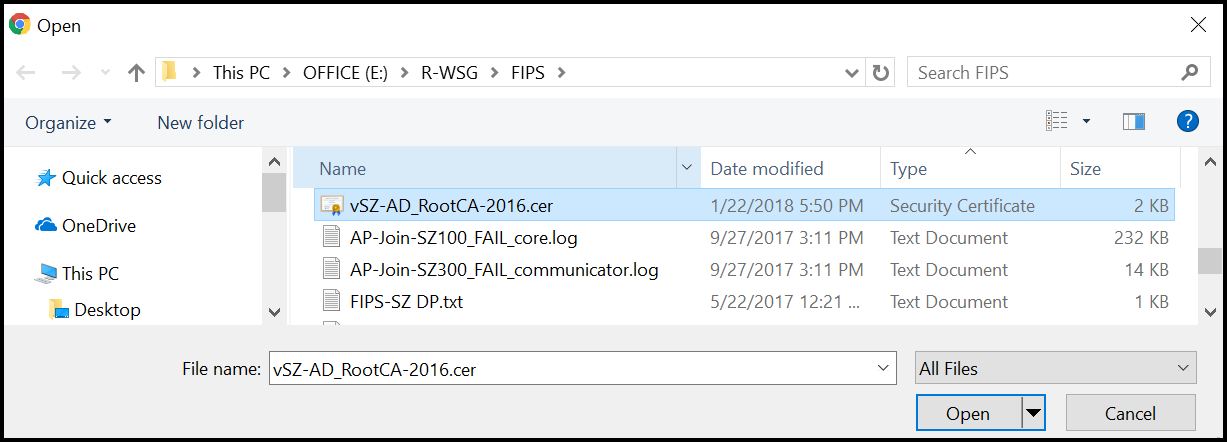
- Select the root CA file from the local machine, and click
Open.
Note: Only CER and PEM formats are supported for the CA certificates.