Configuring System IPsec using Certificates
You can configure the system IPsec settings by using certificates.
- From the controller web interface, select
.
Configure the following options:
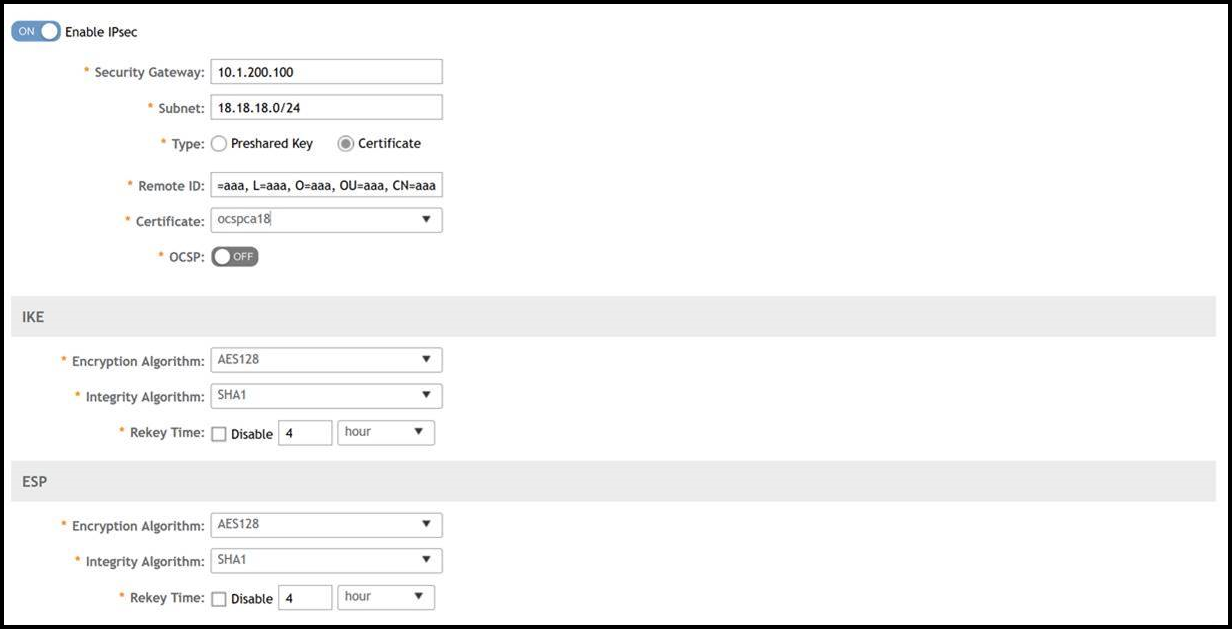
- Security Gateway: Enter the security gateway endpoint IP address.
- Subnet: Enter the subnet that is reachable via IPsec tunnel
- Type: Click
CertificateNote: Both RSA and ECDSA private keys are supported.
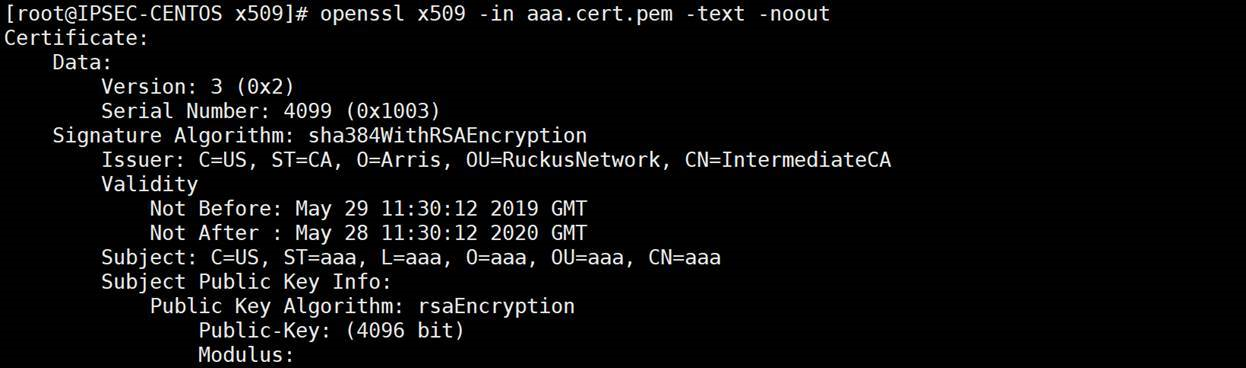
- Remote ID: Enter the remote ID for certificate authentication.
Note: The Remote ID must be a distinguished name and the identifier to the external IPSec gateway.
- Certificate: Select a previously imported client certificate.
- OCSP: If the CA certificate has the OCSP [authorityinfoaccess] by default, the system IPsec CA certifications will be validated using the information certificates. Click ON to enable the OCSP as necessary and enter the OCSP validator URL, trusted certificate, and subject of the certifications that need to be validated.
- Under
IKE, select the encryption algorithm, the integrity algorithm, and the rekey time.
Note: The supported encryption algorithms are AES128, AES192, and AES256. The supported integrity algorithms are SHA1, SHA256, SHA384, and SHA512. The IKE encryption proposals should be greater than or equal to the ESP encryption proposal. System IPsec supports IKEv2 authentication by X.509 certificate only.
- Under ESP, select the encryption algorithm, the integrity algorithm, and the rekey
time.
Note: The supported encryption algorithms are AES128, AES192, and AES256. The supported integrity algorithms are SHA1, SHA256, SHA384, and SHA512. By default DH group will be DH-20 [ECP-384], which cannot be changed. System IPsec supports DH-20 only.
- Under Tunnel State, view the status of the IPsec tunnel.
Note: System IPsec supports tunnel mode only.
- Click
OK.
You can import the System IPsec certificates from . You can import the trusted CA certificates from .Note: For IPsec, for CA- Chain certificate validation refer Configuring RadSec.
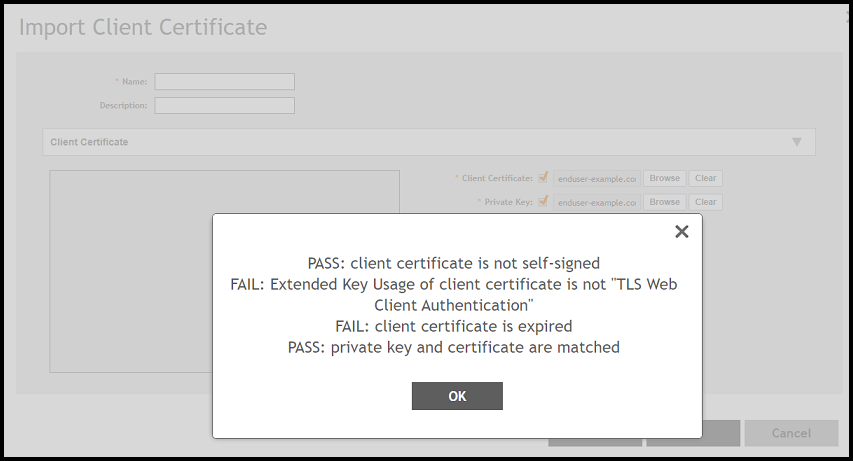
The Client certificate also known as SZ’s certificate must be uploaded, validated and saved for IPSec tunnel formation. The controller allows user to upload the client certificate eventhough the certificates fail to pass the certificate validation. The validation failed Import Client Certificate results in the failure of establishing the IPSec/TLS tunnel formation.