Uploading the vSZ Image to a Storage Bucket
Follow these steps to upload a controller image to the storage bucket you created.
- Extract the vSZ raw.bin file that you obtained from RUCKUS Networks.
- Read the Virtual SmartZone (vSZ) Software License agreement that appears when you extract the raw.bin file.
- When the
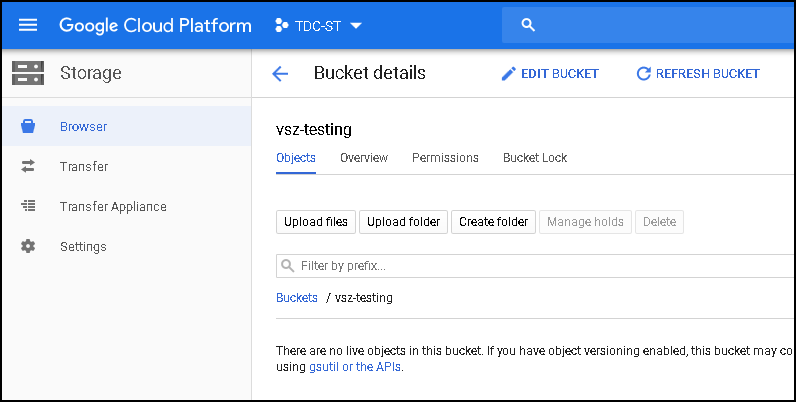
Accept this agreement?prompt appears, enter yes to accept the license agreement.When the extraction process is complete, a raw.tar.gz file appears. - On the GCE web interface, browse to the storage bucket where you want to upload the vSZ image file.
- Click Upload files.
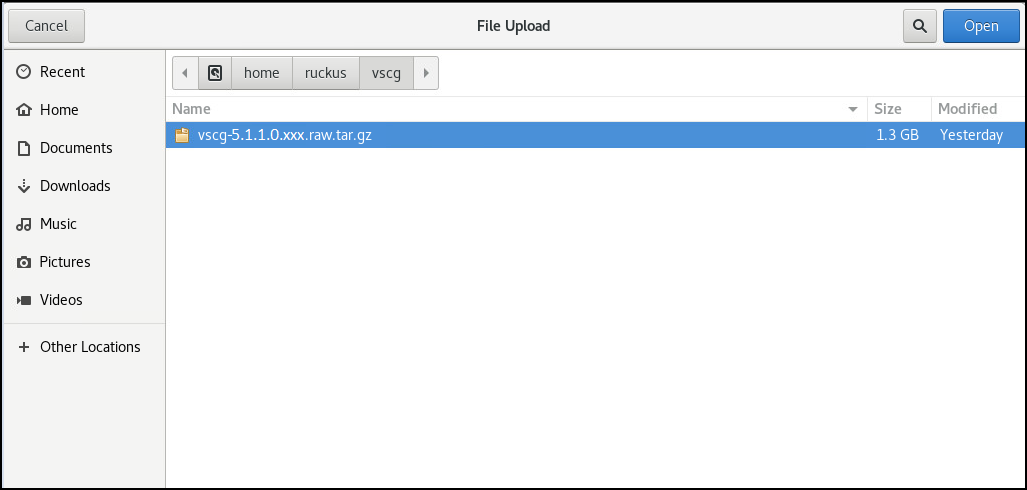
- Browse to the location of the .raw.tar.gz image file that you extracted, and then
select it.
Note: You can only select .raw.tar.gz files.
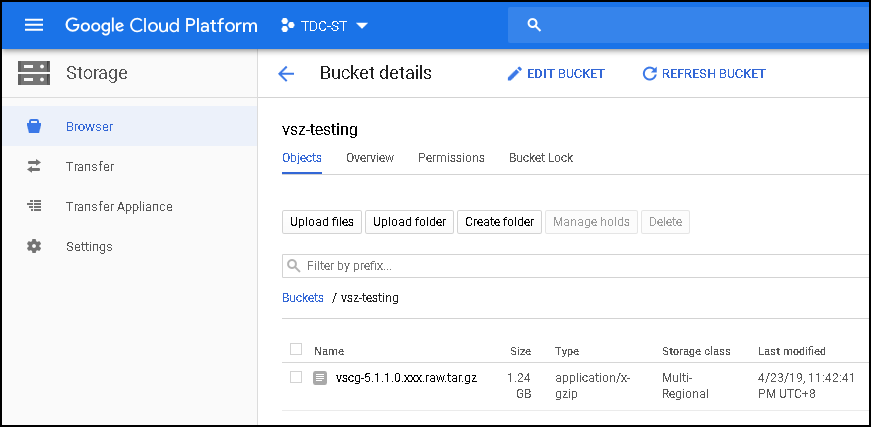
- Click Open to upload the image file.