Step 4: Configure Dual Mode IP Address Settings Using CLI
The following are the steps to configure the dual setup using CLI. This is an alternative
method of configuring IPv4 and IPv6 manually if the DHCP server is not available on
the network.
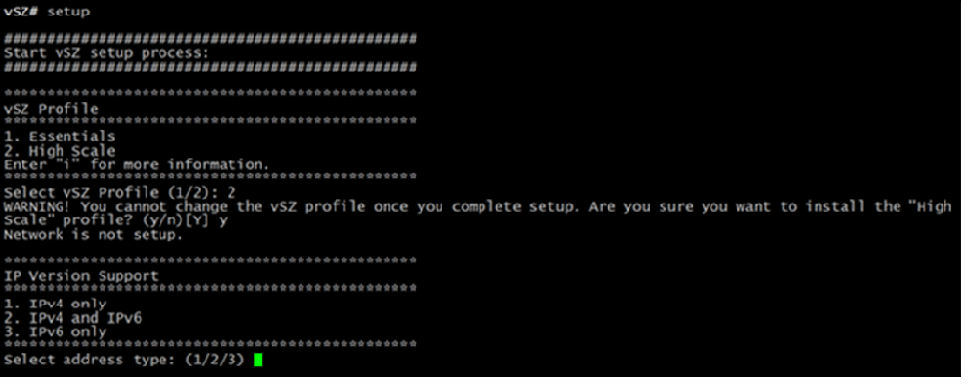
- Using CLI execute the setup command:
vSZ# setup - In vSZ Profile, choose either 1. Essentials or 2. High Scale.
- In IP Version Support, choose 2. IPv4 and IPv6.
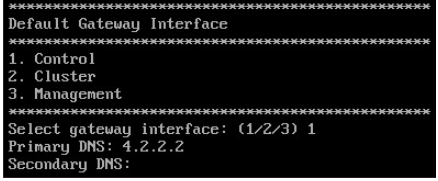
- Configure the IPv4 address settings that you want to assign to the AP/DataPlane interface,
through which client traffic and configuration data are sent and received.
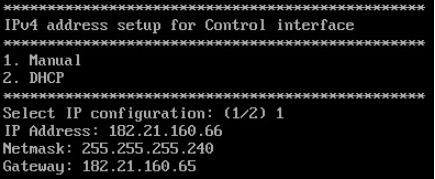
- Enter the setup for
Control as either:
1. Manual2. DHCP
- Enter the IP configuration as 2 (DHCP).
- Enter following network settings as required:
- Save the networking configuration of Control settings.
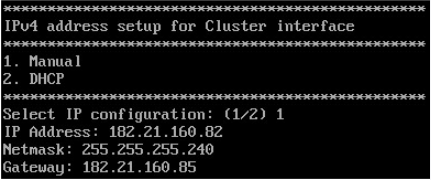
- Enter the setup for Cluster as either: 1. Manual 2. DHCP
- Enter the IP configuration as 1 (Manual)
- Enter following network settings as required: IP address, Netmask, and Default gateway
- Save the networking configuration of Cluster settings.
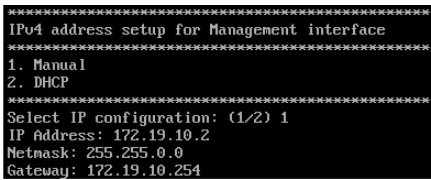
- Enter the setup for Management as either: 1. Manual 2. DHCP
- Enter the IP configuration as 2 (DHCP)
- Enter following network settings as required:
- Save the networking configuration of Management settings
- Enter the setup for
Control as either:
- Configure the IPv6 address settings that you want to assign to the AP/Data Plane interface,
through which client traffic and configuration data are sent and received.
Note: The cluster interface setting does not support IPv6 addresses.
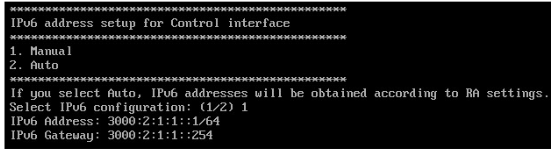
- Enter the setup for Control as either: 1. Manual2. Auto Configuration
- Enter the IP configuration as 1 (Manual).
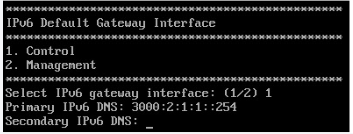
- Enter following network settings as required:
- Save the networking configuration of Control settings.
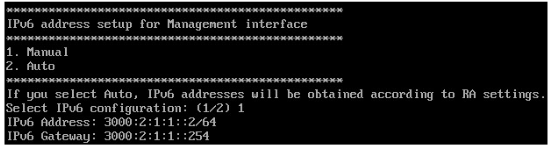
- Enter the setup for Management as either: 1. Manual2. Auto Configuration
- Enter the IP configuration as 1 (Manual)
- Enter following network settings as required: IP address Default gateway
- Save the networking configuration of Management settings.
- To apply the settings, press Y. The system takes a while to configure the network.
- Verify that the Control Plane network settings display the IPv4 and IPv6 addresses that you configured.
- Continue to Step 5: Configure the Cluster Settings