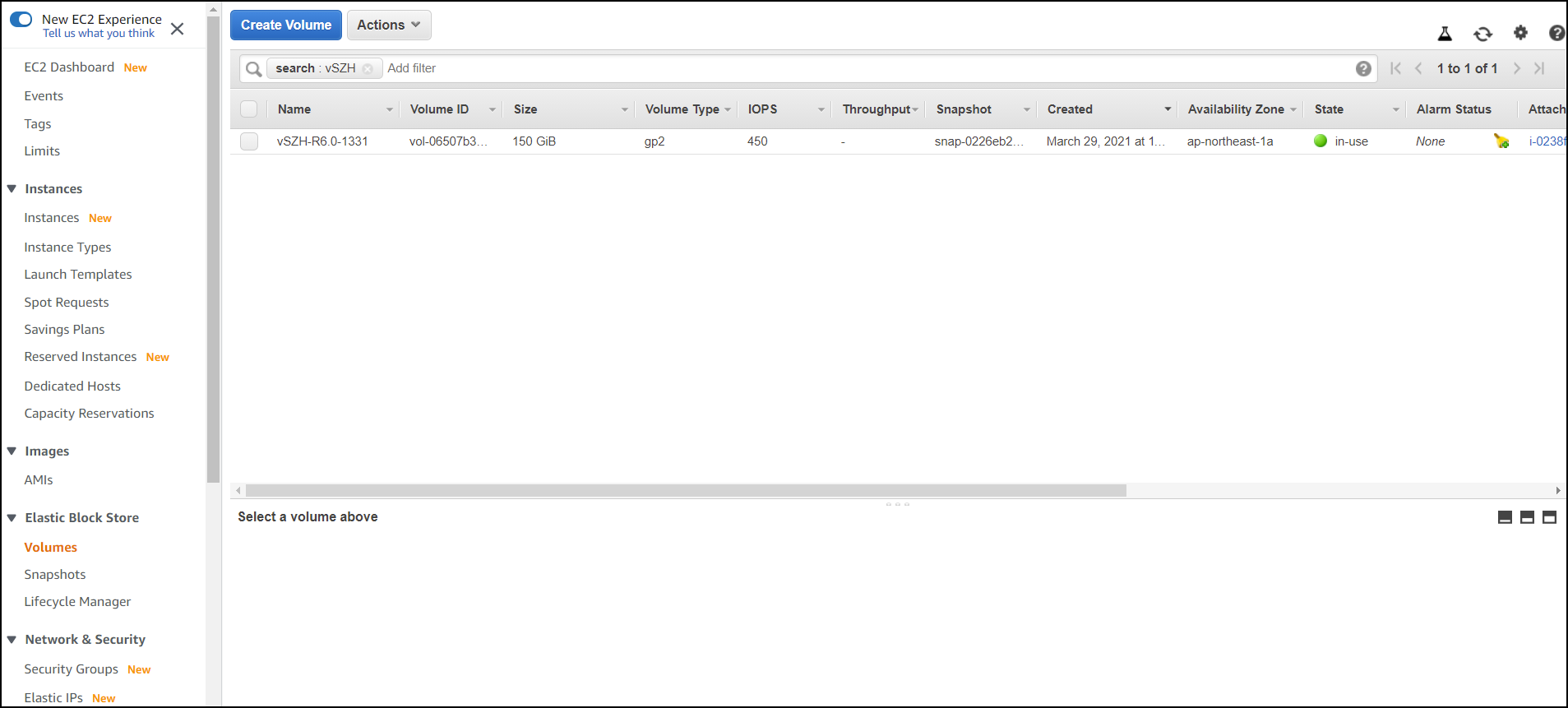
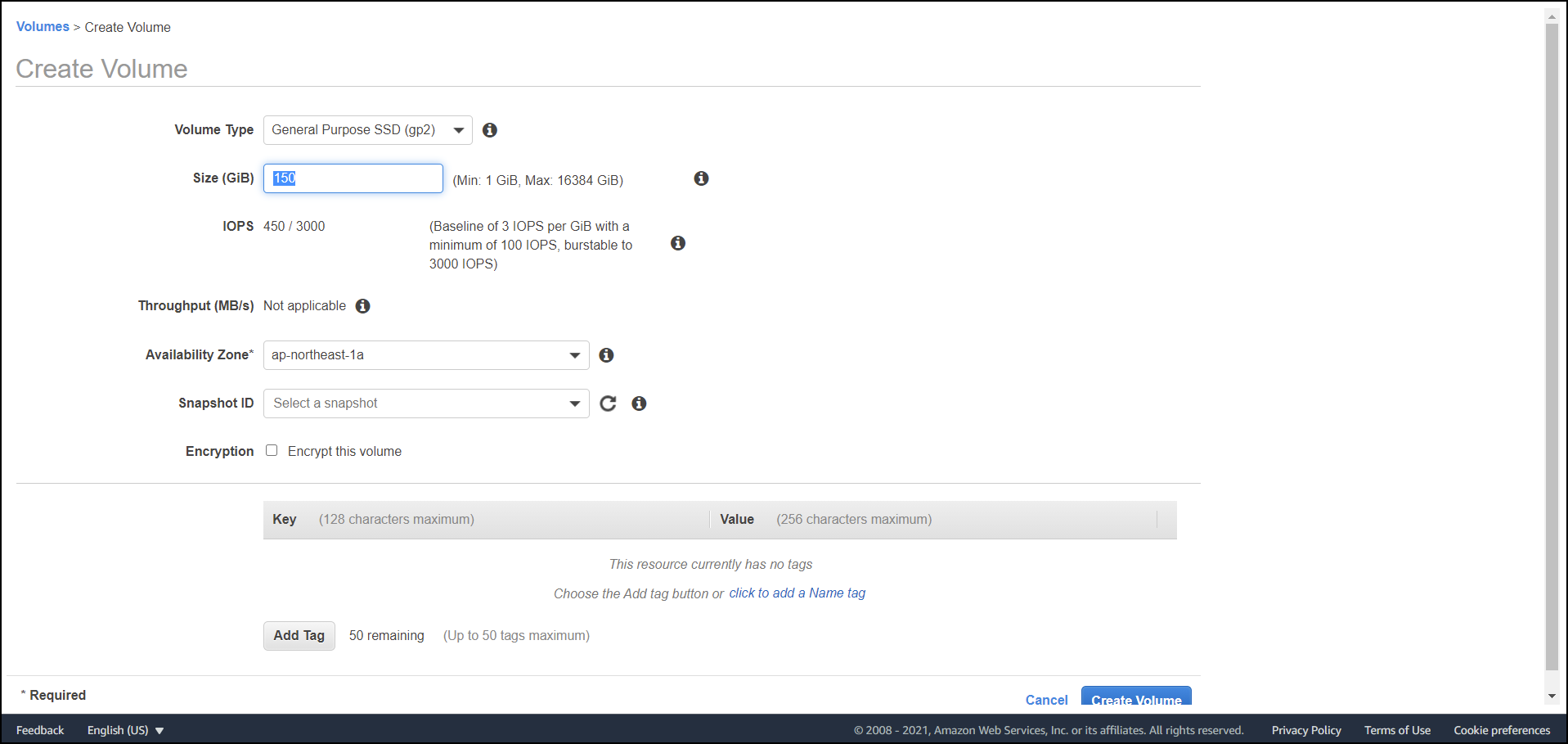
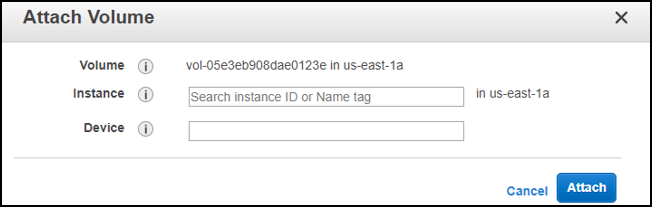
Attach a New Disk VolumeFollow these steps to add a new disk volume. Navigate to EC2 Dashboard > Elastic Block Store > Volumes and click Create Volume as shown. Create Volume Enter the required disk type, size and availability zone. Create Volume Click Create. Right click on the newly created disk and select Attach Volume. Enter the instance identifier and the desired device name. Attach Volume Click Attach. Parent topic: Configuring AWS for a vSZ Instance