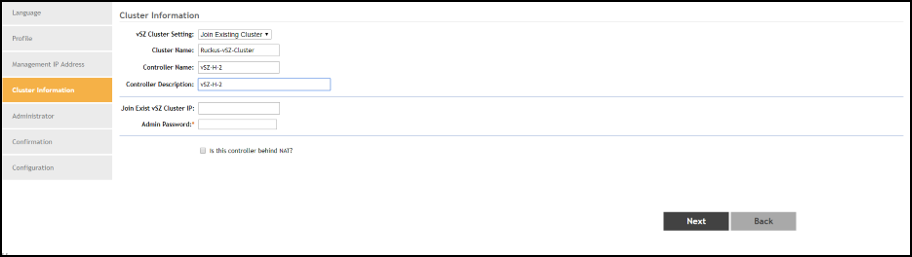
If This vSZ Is Joining an Existing Cluster
- Note:
- A vSZ cluster supports a maximum of four nodes. If you are building a vSZ-E cluster with more than two nodes, two (2) additional cores must be added to each node to support the added search and replication capabilities.
- For vSZ deployments, the node that you are joining into an existing cluster must have identical virtual machine resources (CPU, memory, and disk size) as the existing nodes in the cluster.
- Use the AP Rebalance feature to distribute AP load evenly between the existing and new cluster nodes, and the Dataplanes in appliance SZ models.
- There is no impact or downtime on existing cluster node operations when a new node joins the cluster.
To add this vSZ to an existing cluster, the entire target cluster must be in a healthy state (no node must be in “out of service” state). If any member node is out of service, the join request will fail. You will need to remove any out-of-service node from the cluster before you can add a new node successfully.
Note: When adding a new node into an existing cluster, any ARC signature files, AP or switch firmware, and AP patches on the existing cluster will be synchronised onto the new node.
Kernel Space Program (KSP) patches must be independently uploaded to the new node. Refer to the KSP documentation to ensure whether the KSP patches are applied per node and whether the cluster needs to be reloaded.
Follow these steps to configure this to join an existing cluster.
- In vSZ Cluster Setting, select Join Existing Cluster.
- In Cluster Name, type the name of the cluster that this vSZ is joining.
- In Controller Name (optional), type a name that you want to assign to this new controller.
- In Controller Description, type a description for this new controller.
- In Join Exist vSZ Cluster IP, type the IP address of the leader in the existing cluster.
- In Admin Password, type the administrator password to the web interface of the leader node.
- Click Next to continue to the Administrator page. See Step 6: Set the Administrator Password.