Creating a Network and Configuring Firewall Rules
Follow these steps to create a network and configure firewall rules for your network.
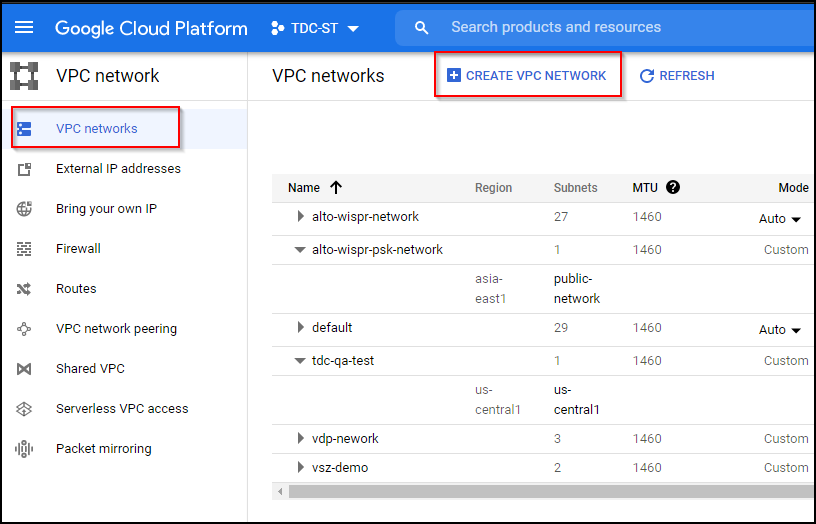
- From Google Developers Console, click > . A page displaying a list of networks is displayed. Click on Create VPC Network.
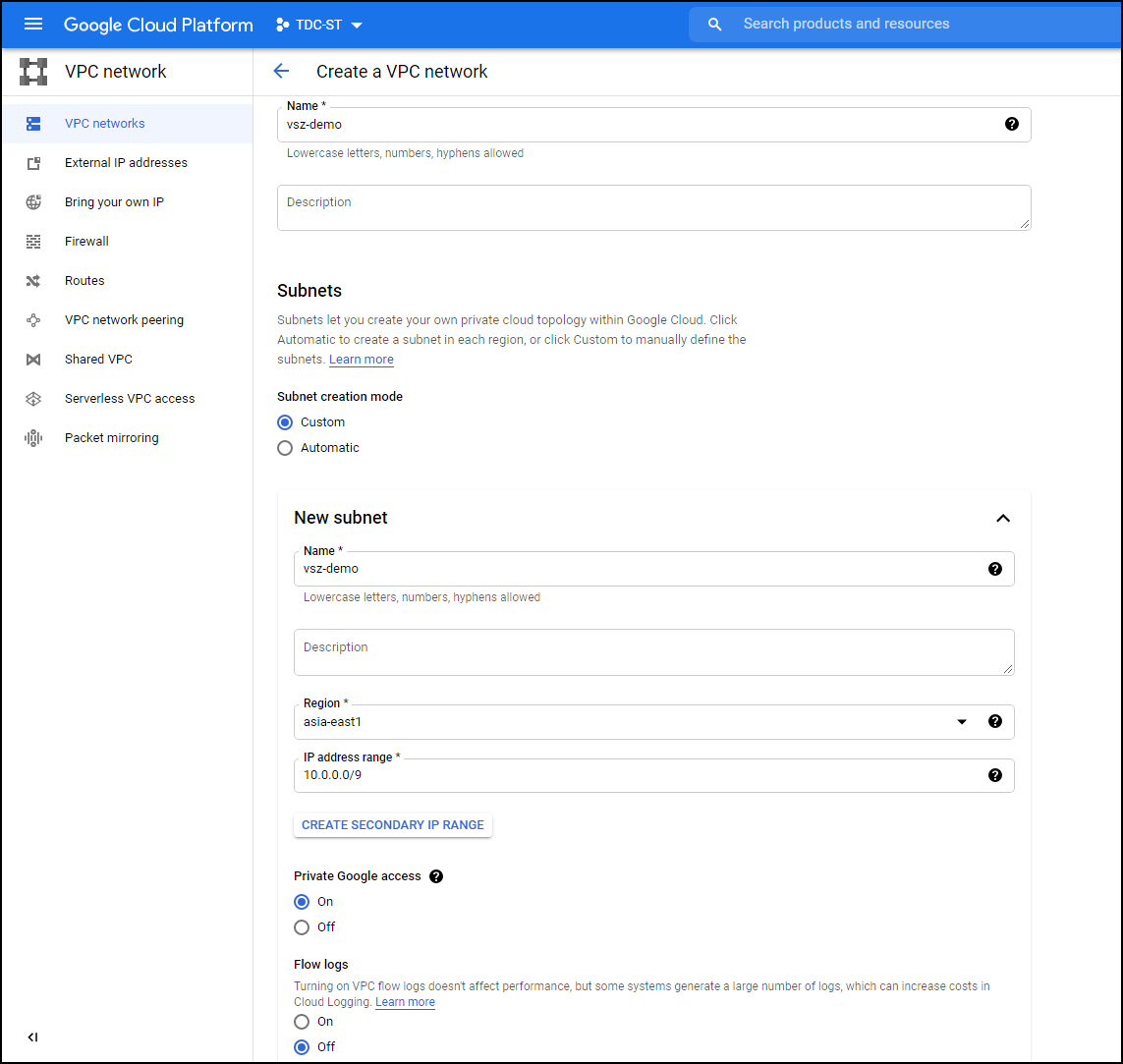
- In the Create a VPC network screen, configure the
following:
- Name: enter the name of the VPC network.
- Subnets: enter a name for new subnet.
- Region: select a region from the list that is used to place the vSZ instance.
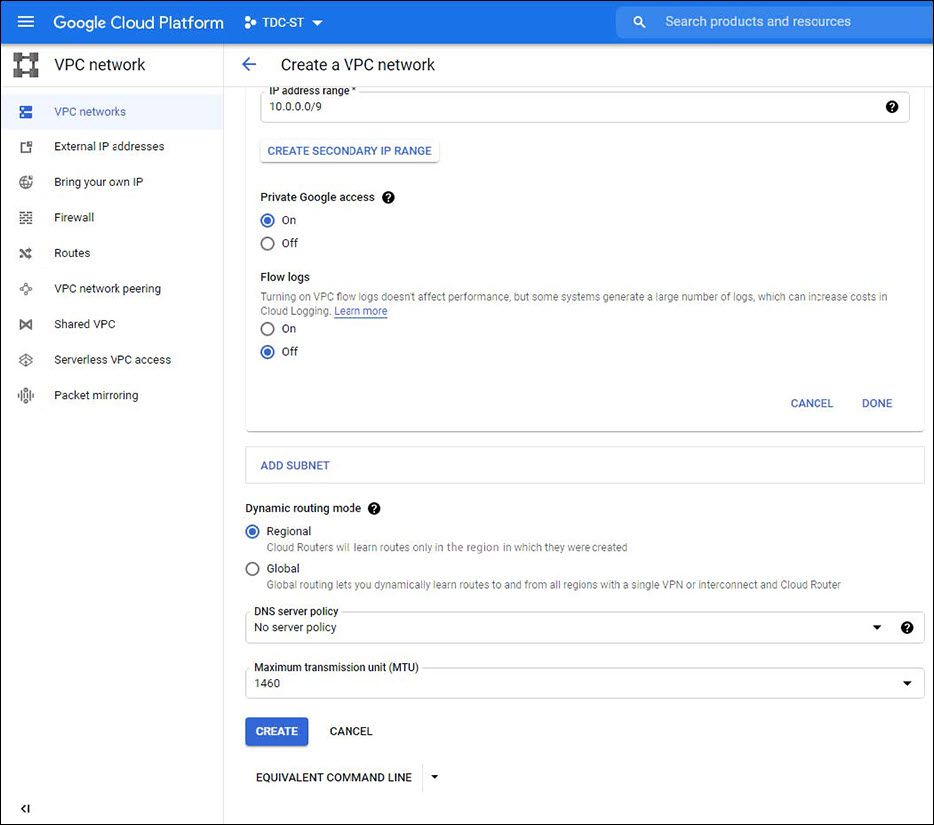
- IP address range: enter a private subnet.
- Private Google access: select On.
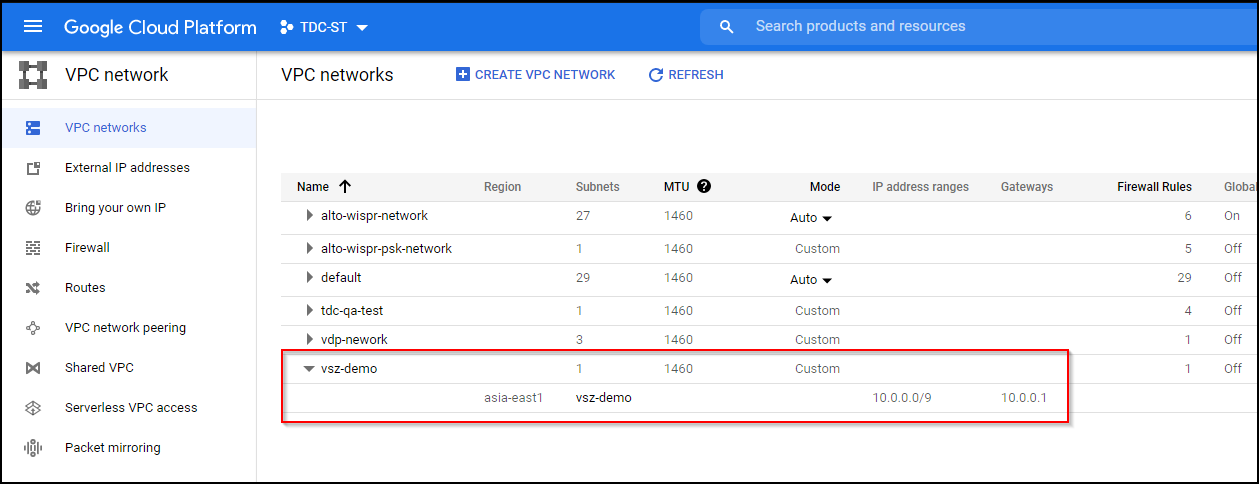
- Click Create, the new VPC network entry is displayed.
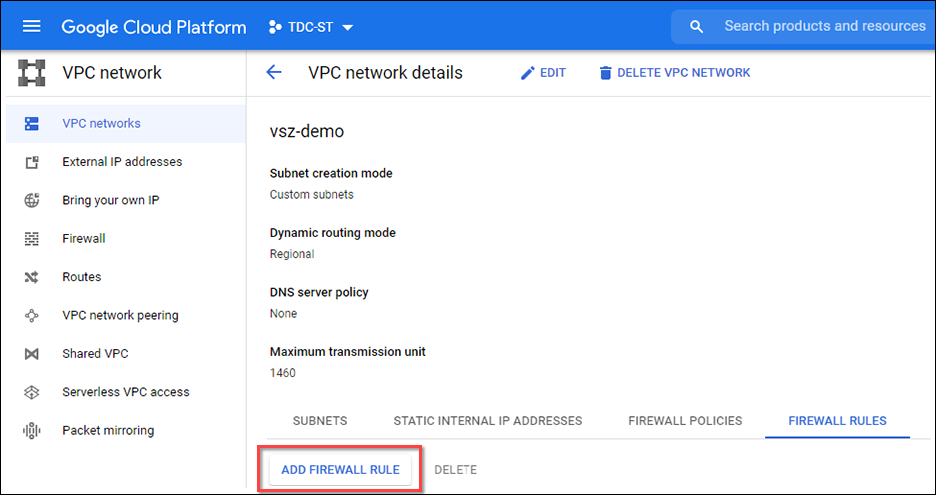
- To create a firewall rule, click Add a firewall rule.
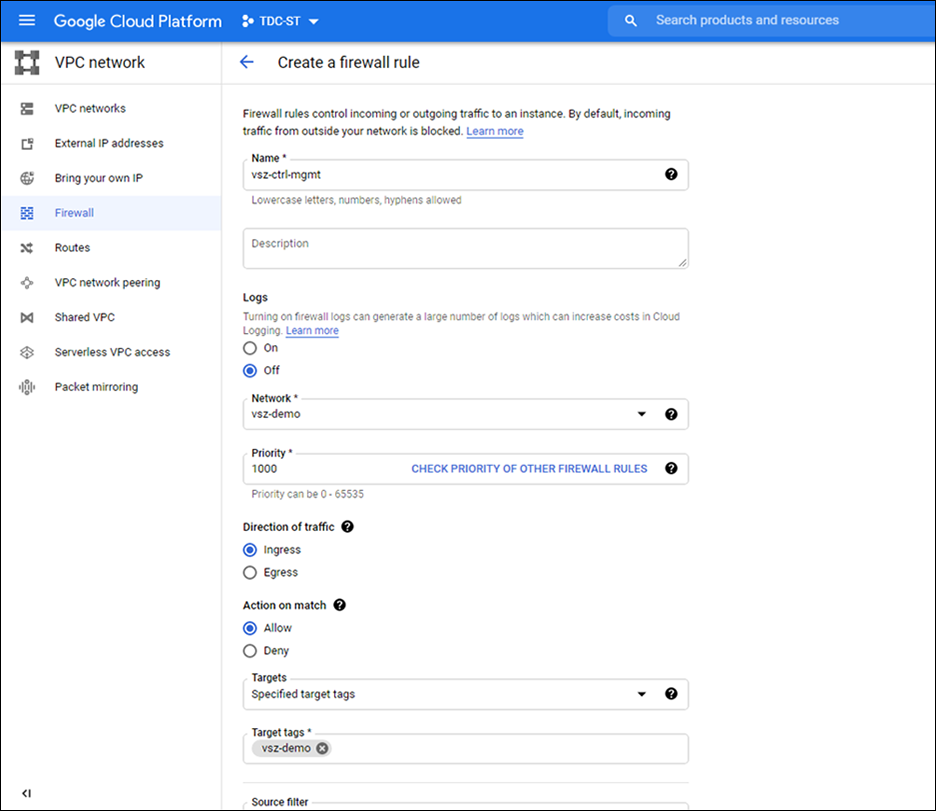
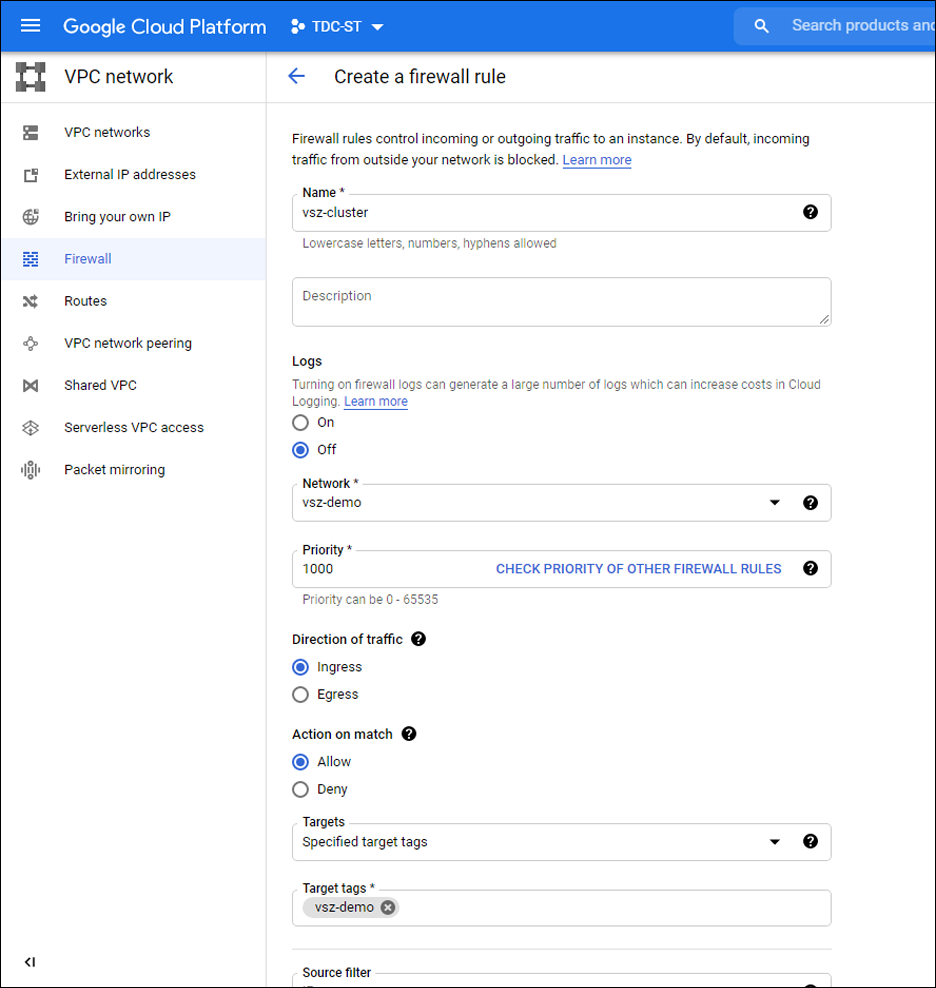
- In the Create a firewall rule screen, configure the following:
- Name, enter the name of the rule
- Description, provide a brief description about the rule.
- Network, enter the network address.
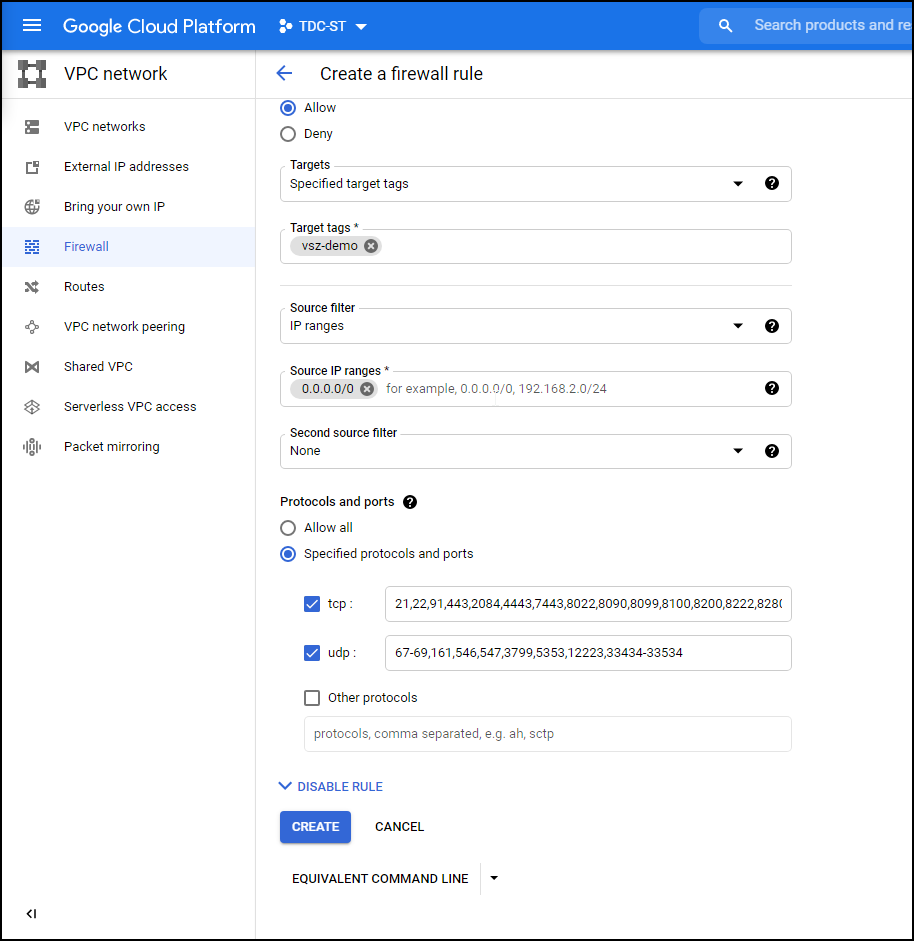
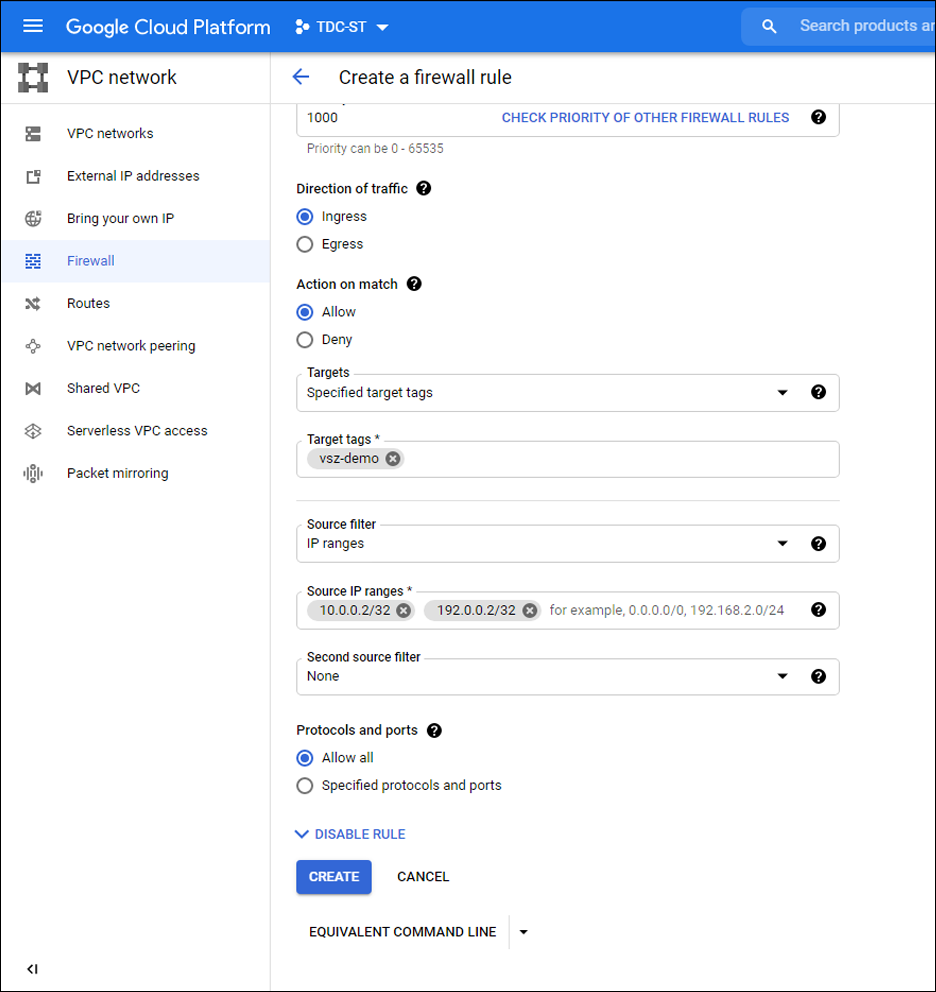
- Source filter, select Allow from any source.
- Source IP ranges, enter the range.
- Allowed protocols and ports, enter the protocols and ports that will be allowed.
- In Target tags, specify a tag name. It is recommended that you provide a tag as all network instances with this tag will adhere to the firewall rule.
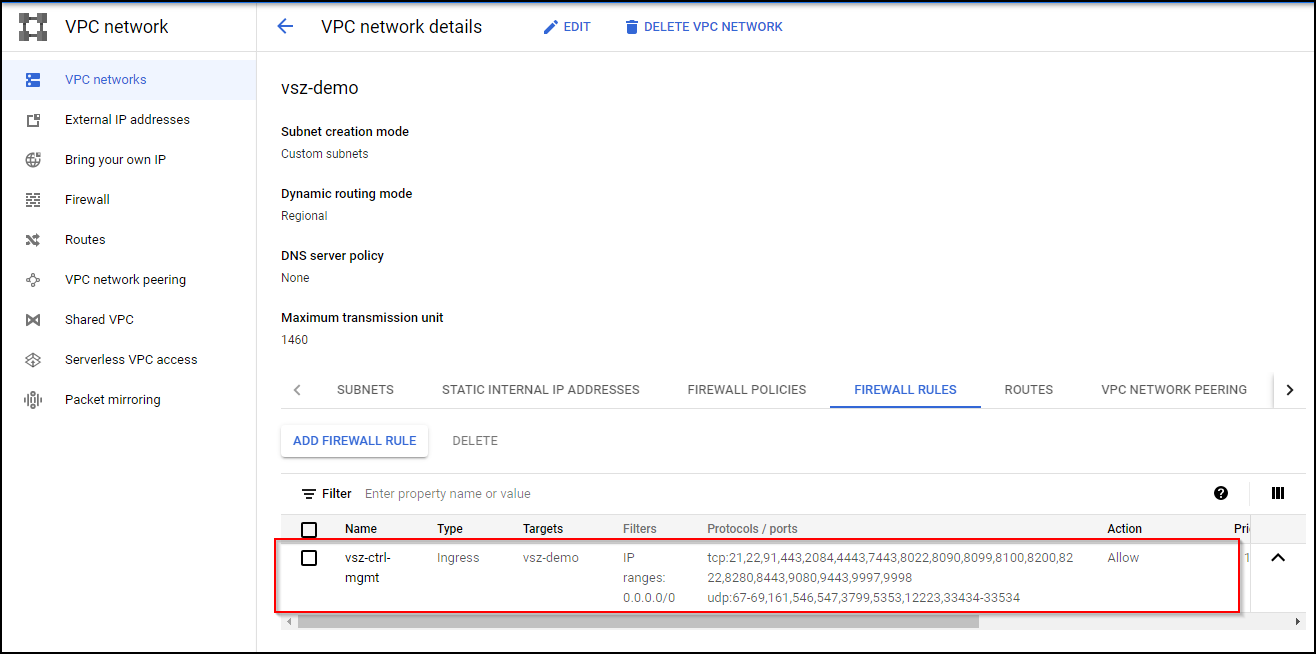
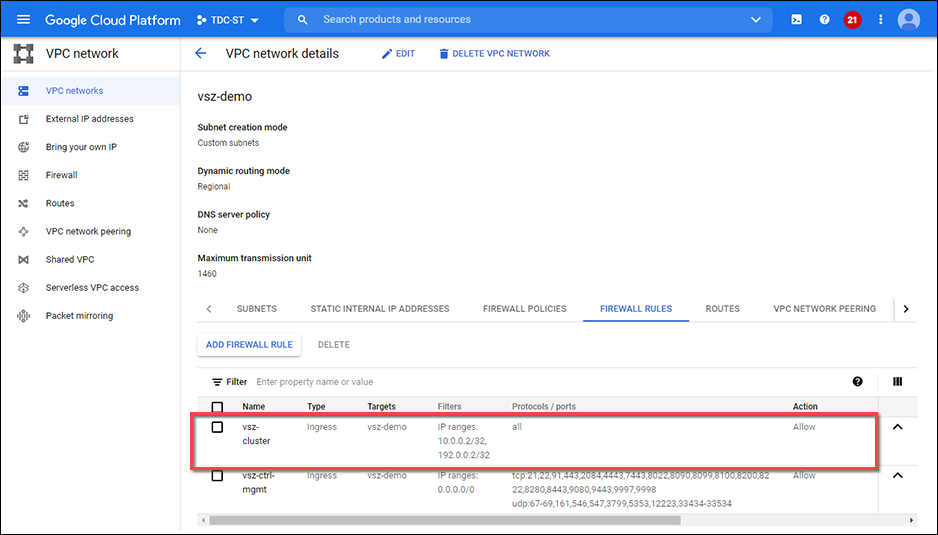
- Click Create. A page displaying the new firewall rule appears.
- For building up a 2-4 node cluster, create another firewall rule that allows all traffic on internal interface of all your vSZ instances.