Connect to vSZ Using CLI on ESXi Server
Follow the below procedures to connect to vSZ.
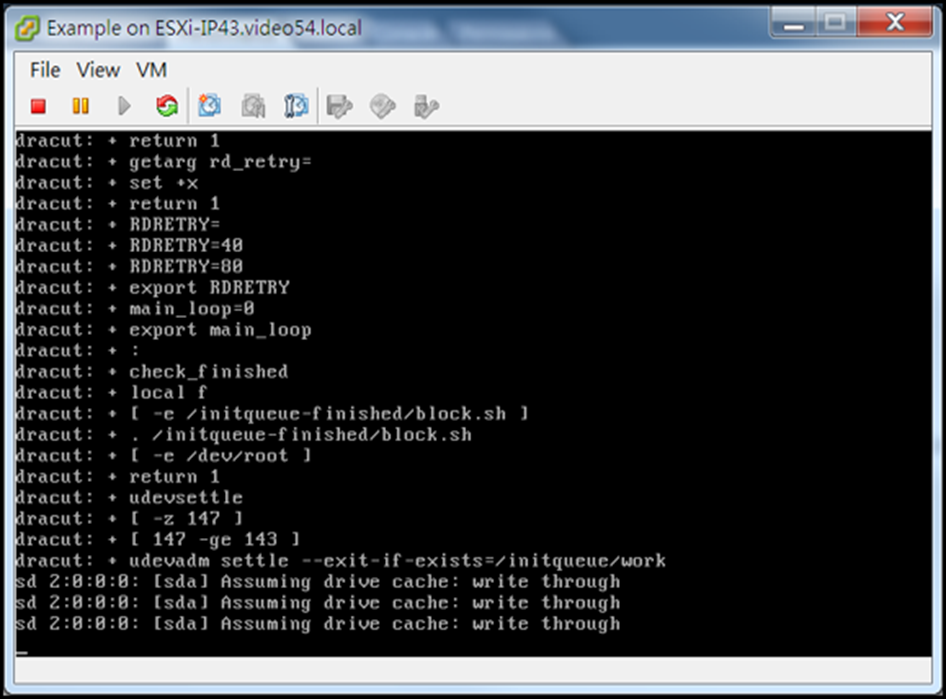
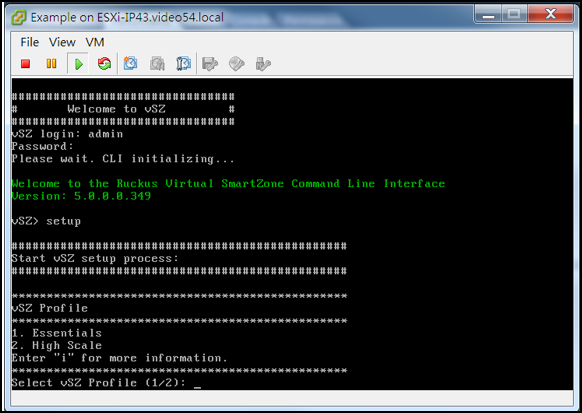
- At the login prompt, login using administrator credentials of username and password. Run the setup command to initialize vSZ as shown in the figure below.
- Enter 2 for High-Scale mode and press Y to continue.
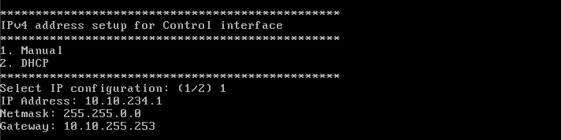
- Enter static IP address for control interface as shown in the figure below.
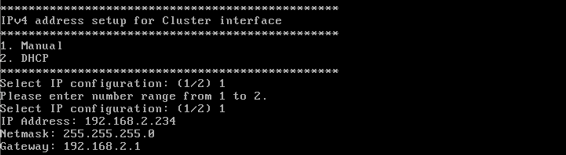
- Enter static IP address for cluster interface as shown in the figure below.
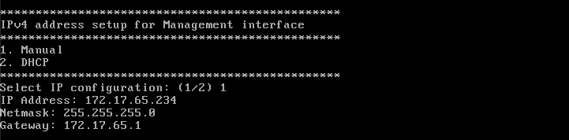
- Enter static IP address for management interface as shown in the figure below.
- Select the default gateway interface. Enter 1 for control interface, 2 for cluster interface, and 3 for management interface as shown in the figure below.
- Enter the DNS server setting and press Y to apply all setting.
- Access the web link http://172.17.65.234:8443 to continue other setting as shown in the figure below.
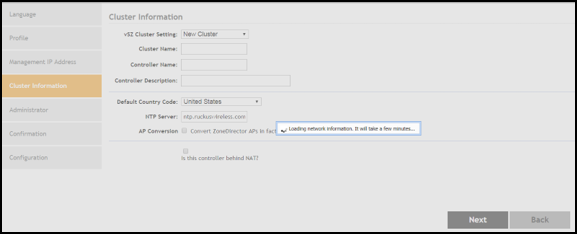
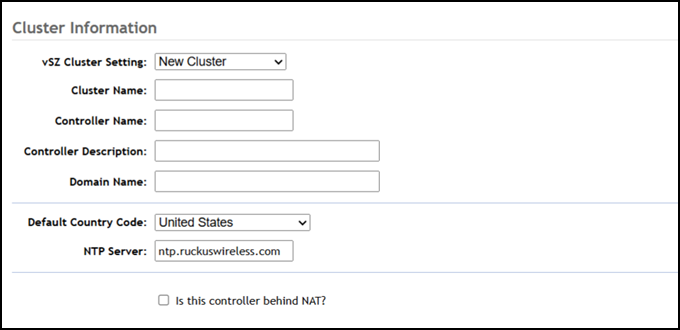
- Enter your Cluster Information and click Next as shown in the following figure.
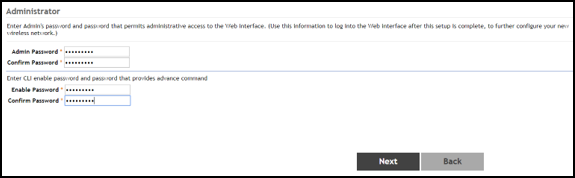
- Enter your vSZ Administrator password requirements and click Next as shown in the following figure.
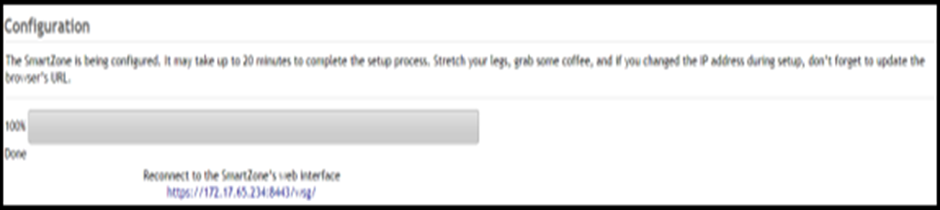
- Click Finish and wait until vSZ is configured.
- After vSZ is configured, reconnect to vSZ web as shown in the following figure.
- Enter Username and Password to access vSZ.