Downloading the VHD From the RUCKUS Support Site
- In a web browser, navigate to https://support.ruckuswireless.com/ and log in with your RUCKUS account credentials.
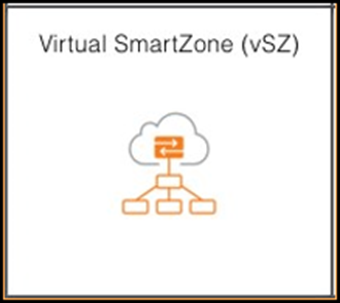
- Select the Virtual SmartZone (vSZ) icon from the list of products.
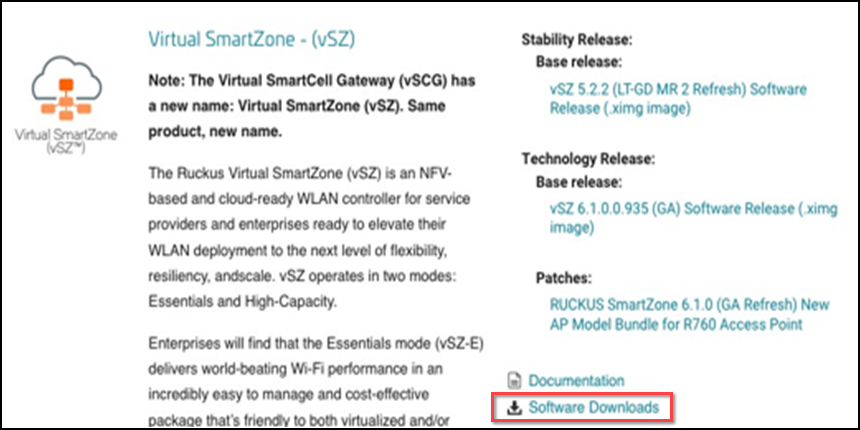
- In the Product page, click on Software Downloads.
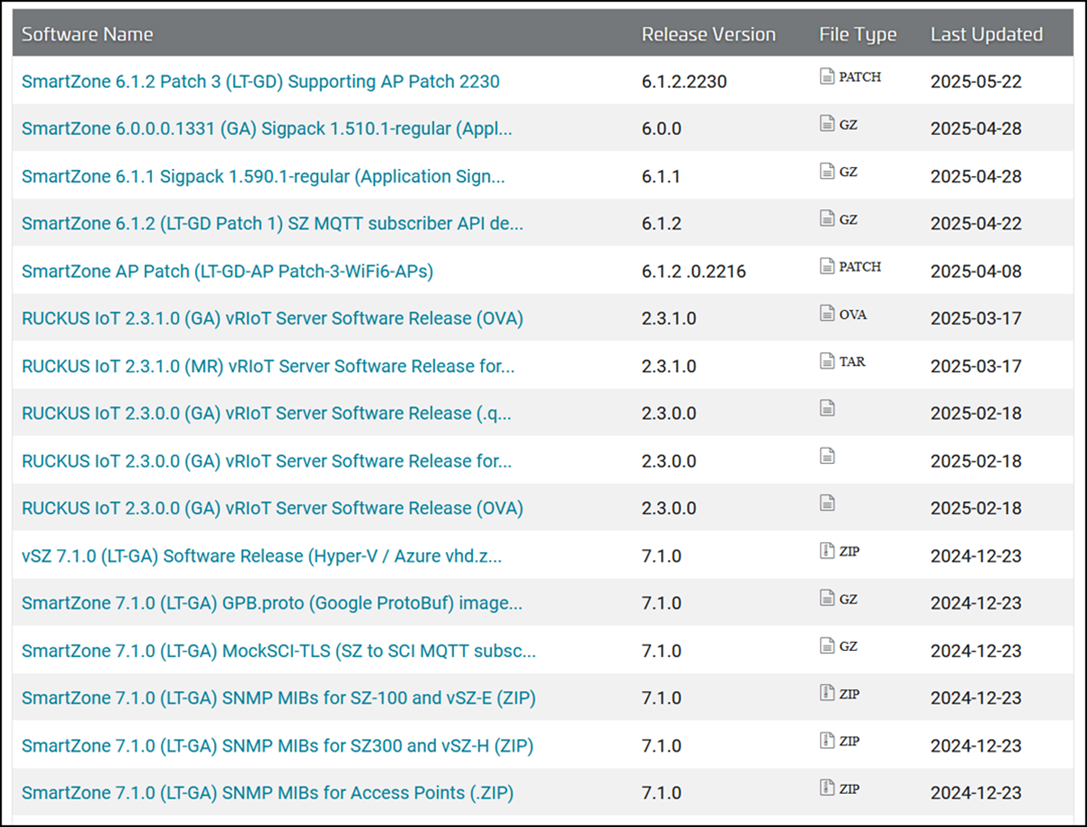
- Find and select the (Hyper-V/Azure vhd.zip image) for the version you intend to deploy. The example in the table below uses version 6.1.2.0.404.
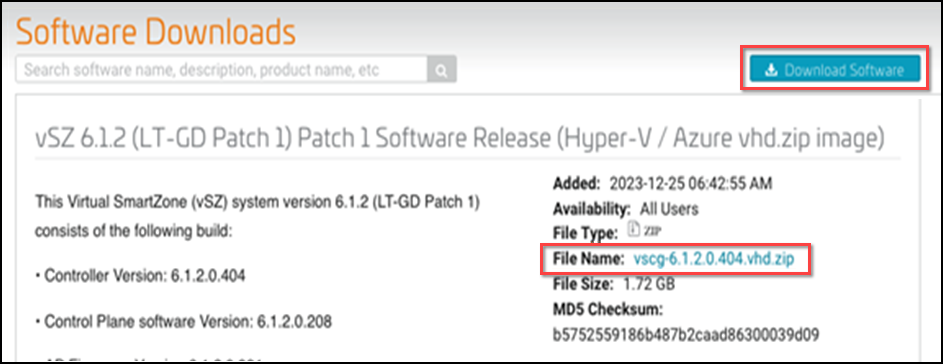
- In the next page, click on the Download Software button or the File Name.
- Accept the product’s Software License Agreement.
- Click on Download.
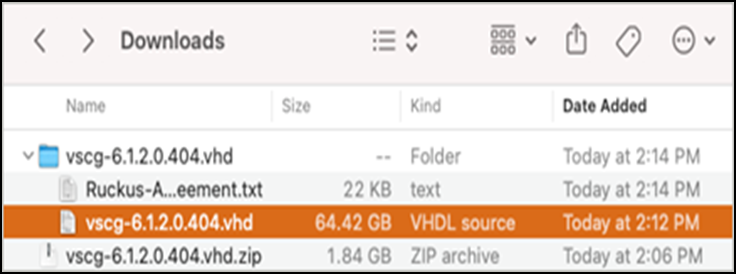
- After the download is complete, extract the VHD file from the compressed ZIP file to your local system. The extracted file should be around 65GB.