Creating an Image from VHD
Now that the network and security resources are created and the VHD is uploaded to the storage account, the VHD can be used to create an image. This image will be used to generate a VM in a later step.
- In the Azure Cloud portal, type Images in the search bar or navigate to more services and filter the services to view the Images page.
- In the Images page, click on
+ Create to create an image and use the parameters in the next
section.
- Subscription - should already be set to your subscription
- Resource group – vsz-rg
- Name – vsz-vhd-img
- Region – East US
- OS type – Linux
- VM generation – Gen 1
- Storage blob – click on Browse to locate and select the VHD in the storage account à container that was created previously
- Account type – select Standard SSD
- Host caching – Read/write
- Key management – Platform-managed key
- Click Review + create. After the validation has passed, click Create to deploy.
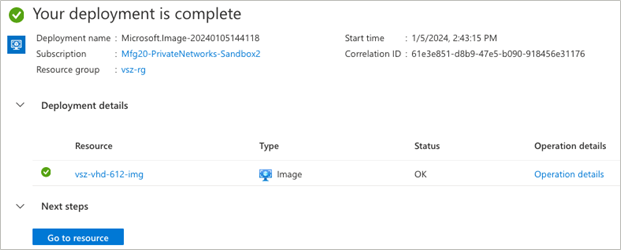
- When the image is complete, click on Go to resource.