Creating a vSZ Image for Virtual Machines
Follow these steps to create a vSZ image for virtual machines.
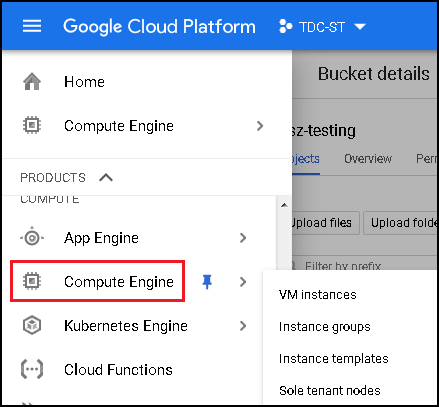
- From Google Developers Console, click .
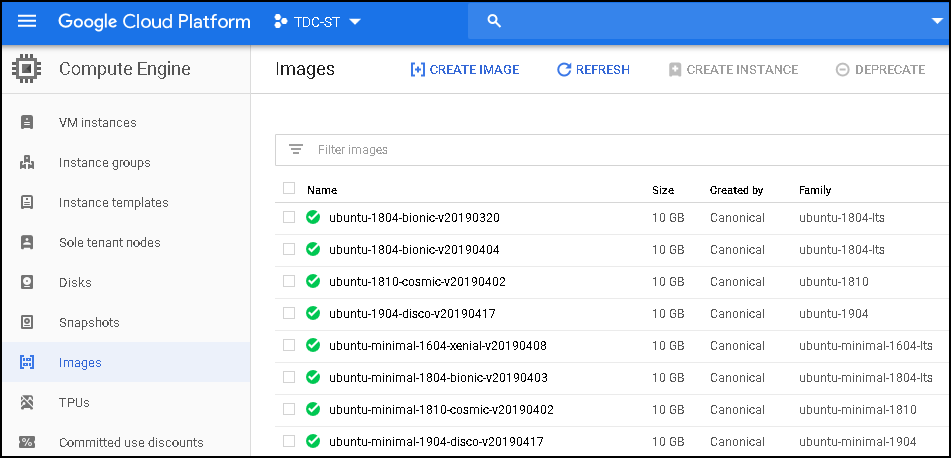
- On the menu, click Images, and then
click Create
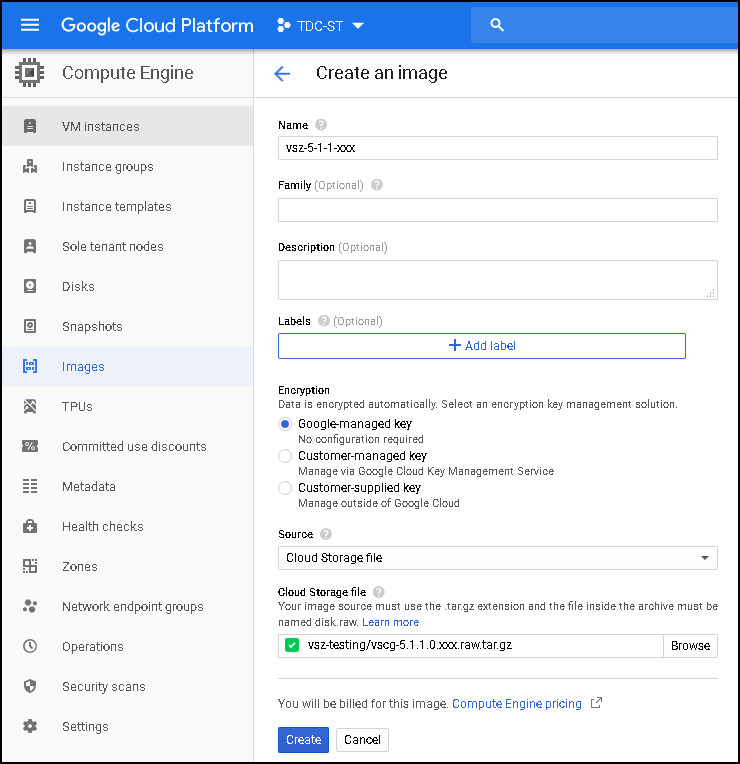
Image. The Create an image page appears.
- Configure the properties of the
new image by filling out the boxes below.
- In Name, type the name of the image.
- In Description, provide a brief description about the image.
- In Encryption, select an option from the drop-down list containing Automatic (recommended) and Customer supplied.
- In Source, select Cloud storage file.
- In Cloud Storage file, click Browse, and then select the .raw.tar.gz image file that you extracted previously.
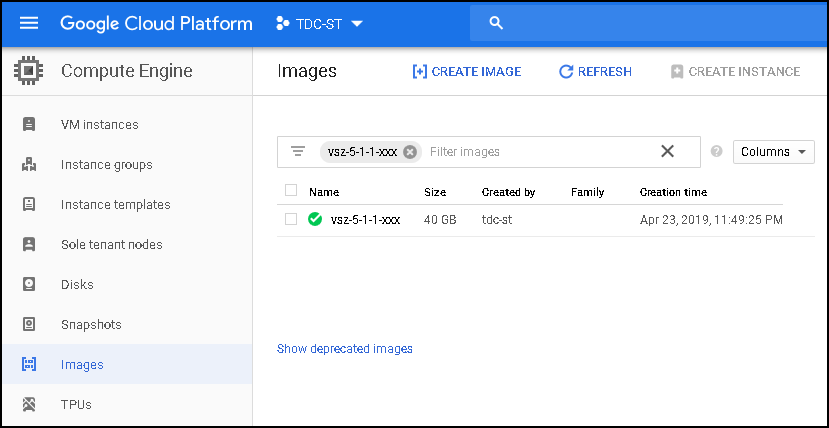
- Click Create. The new image is listed.