Restoring a Cluster Backup
When restoring a cluster backup, remember that you must perform the restore procedure
on the exact same node which you generated the cluster backup.
- Go to .
- In the Cluster Backups History section, locate the cluster backup that you want to restore.
- Select the backup file that you want to restore, and then click Backup Entire Cluster.
- The following confirmation message appears:
Are you sure you want to restore the cluster?. Click
Yes.
The page refreshes, and then the following message appears: System is restoring! Please wait...
Note: The cluster restore process may take several minutes to complete.When the restore process is complete, the controller logs you off the web interface automatically.
Do not refresh the controller web interface while the restore process is in progress. Wait for the restore process to complete successfully.
- Log back on to the controller web interface.
Note: If the web interface displays the message Cluster is out of service. Please try again in a few minutes. appears after you log on to the controller web interface, wait for about three minutes. The dashboard will appear shortly. The message appears because the controller is still initializing its processes.
- Go to , and then check the Current System Information section and verify that all nodes in the cluster have been restored to the previous version and are all in service.
- Go to .
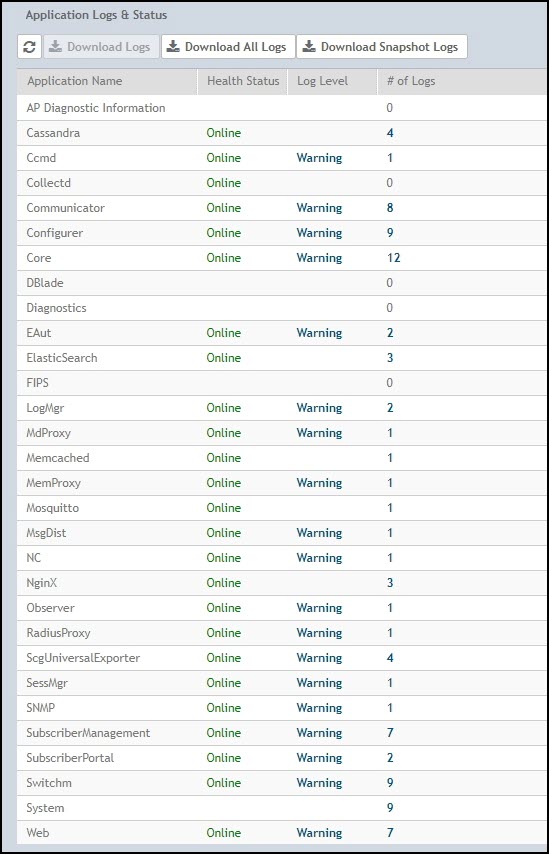
- Check the Health Status column and verify that all of the controller processes are online.
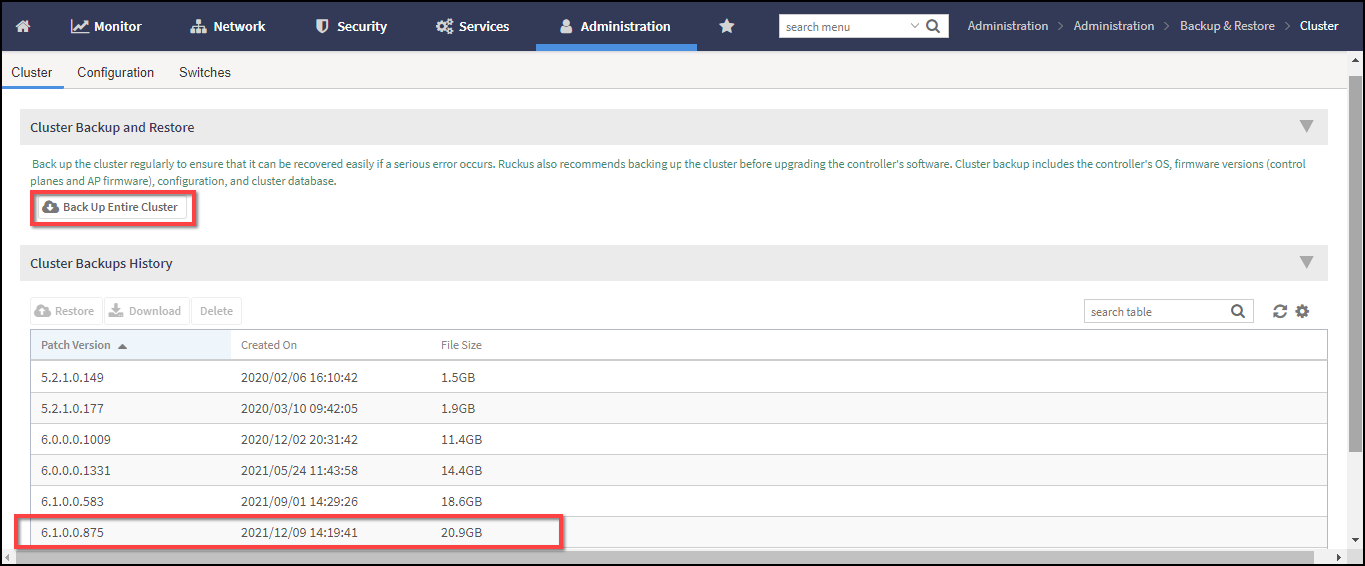

You have completed restoring the cluster backup. After the upgrade is complete, go to the Application Logs page and verify that all of the controller processes are online.
Restoring a Cluster Backup Using the CLI
- Enter the vSZ CLI.
- Enter the following command and enter the password to log into the CLI.
- Enter the following command to restore a cluster backup:
- Specify the number mentioned against the cluster backup that you wish to restore.
