Creating a Cluster Backup

Follow these steps to back up an entire controller cluster.
  1. Take note of the current system time.

    To view the current system time, go to Administration > System > Time.

  2. Go to Administration > Administration > Backup & Restore > Cluster.
  3. Click Back Up Entire Cluster.

    The following confirmation message appears: Are you sure you want to back up the cluster?

  4. Click Yes.

    The following message appears: The cluster is in maintenance mode. Please wait a few minutes.

When the cluster backup process is complete, a new entry appears in the Cluster Backups History section with a Created On value that is approximate to the time when you started the cluster backup process.

Note: If you have an FTP server, back up the entire cluster and upload the backup files from all the nodes in a cluster to a remote FTP server.

You have completed backing up the controller cluster.
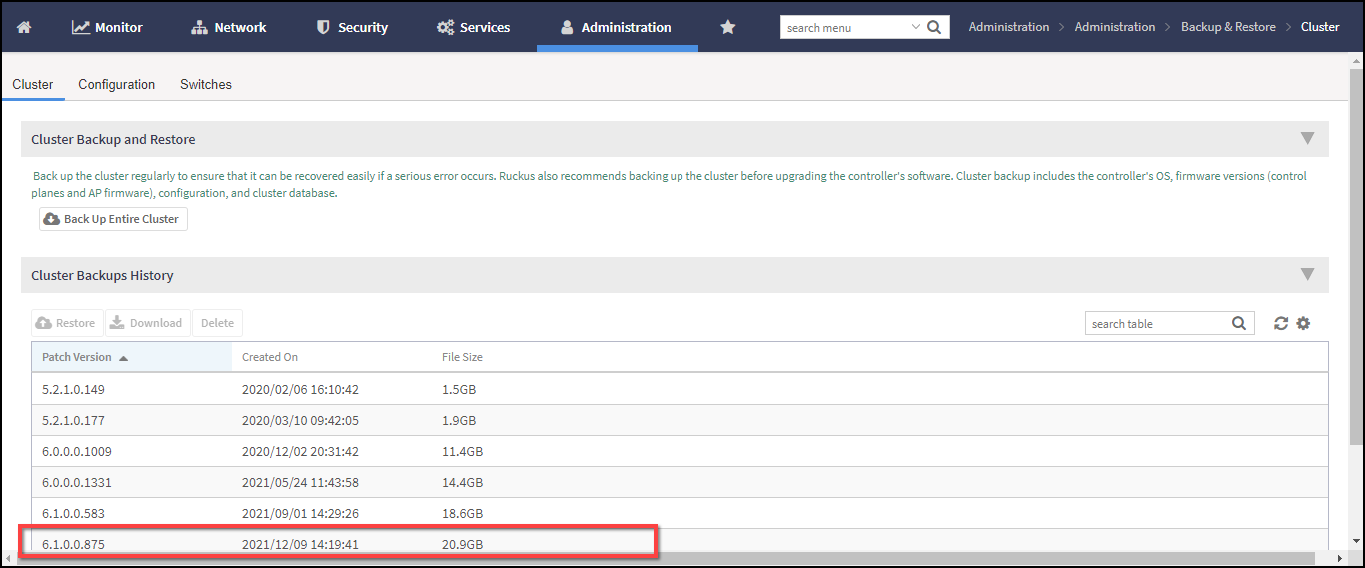
A new entry appears in the Cluster Backups section