White Label Customization
White Label Customization allows the
Managed Service Provider (MSP) domain user or the partner domain user with the permission
to
access White Label Customization to customize their company logo, company icon,
and company
name.
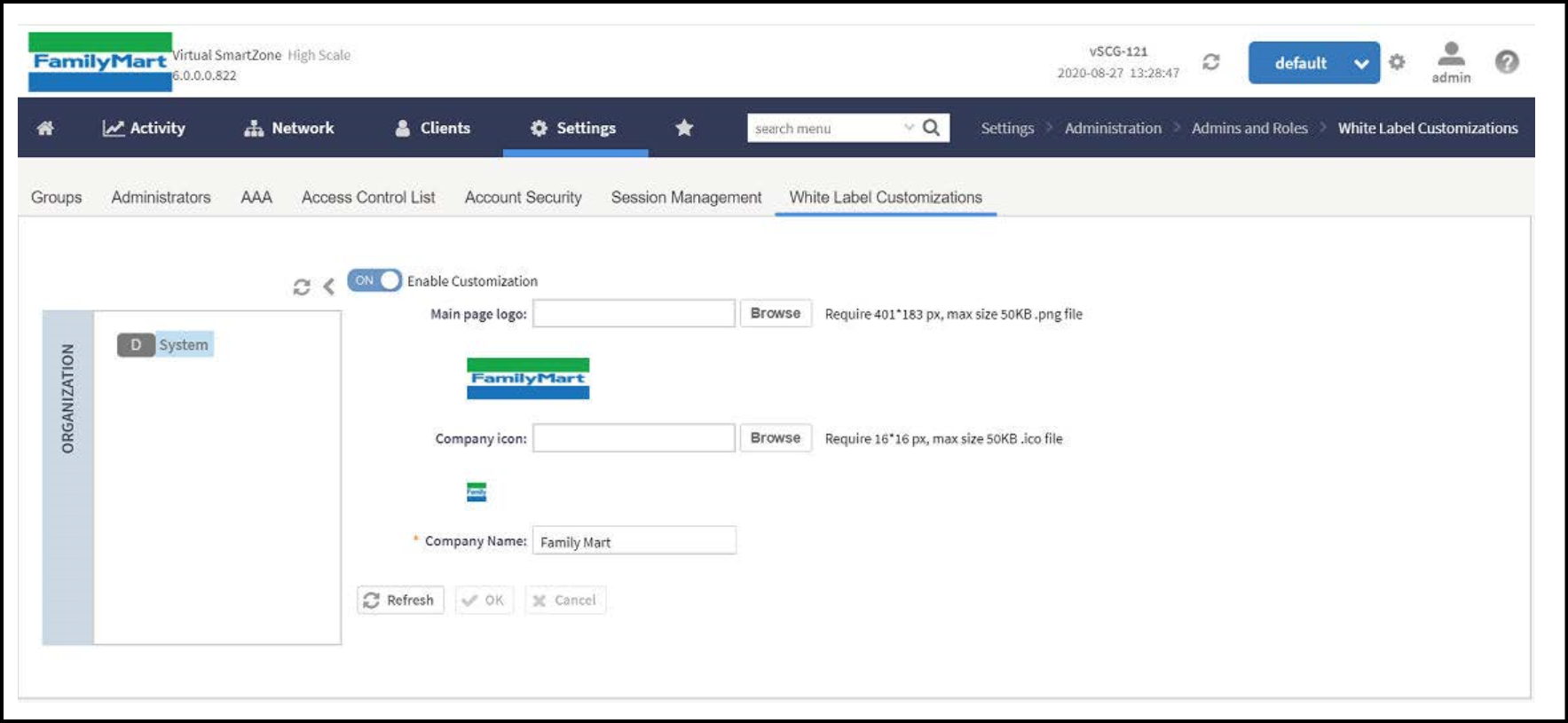
Complete the following steps to display the company logo, company icon, and company name on the controller.
Note: If you do not have the White
Label Customization permission, you cannot access white label
customizations.
Complete the following steps to configure White Label Customization:
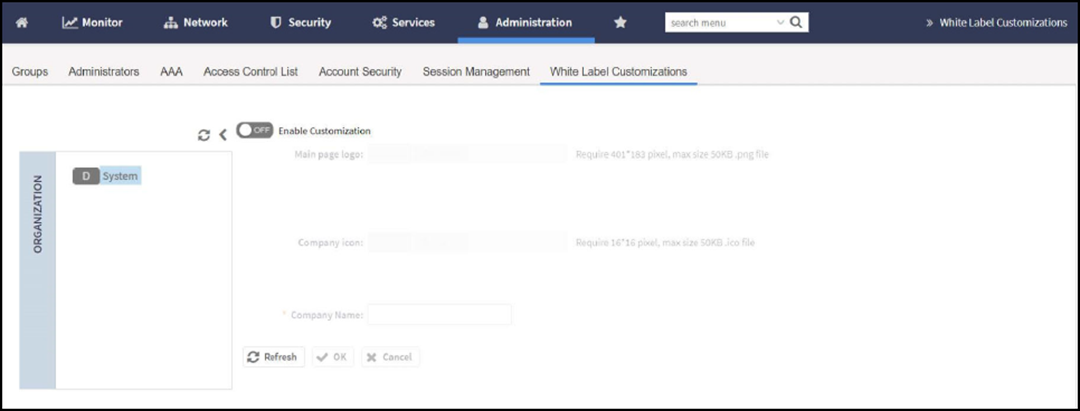
- From the main menu, navigate to Administration > Administration > Admins and Roles > White Label Customizations.
- Set the Enable
Customization toggle switch to ON. Note: The partner domain user can view only their own domain to configure logo, icon and name of the company.
- Main page logo: Click Browse to select the company logo.
- Company icon: Click Browse to select the company icon.
- Company Name: Enter the name of the company.
- Click OK to confirm settings or click Cancel to disable customization.
- Click Refresh to refresh the page.