Controller User Interface (UI)
- Category - The menu items are organized into
distinct categories or groups making it easier to find and access specific
functionalities. The categories are Monitor, Network, Security, Services,and Administration.
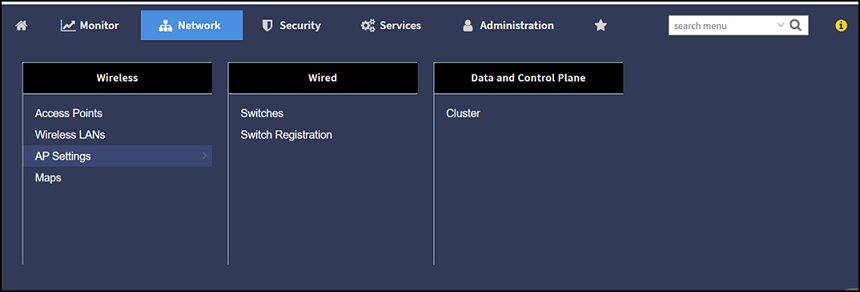
For example, the menu items under the category Network are displayed as per the screenshot below.
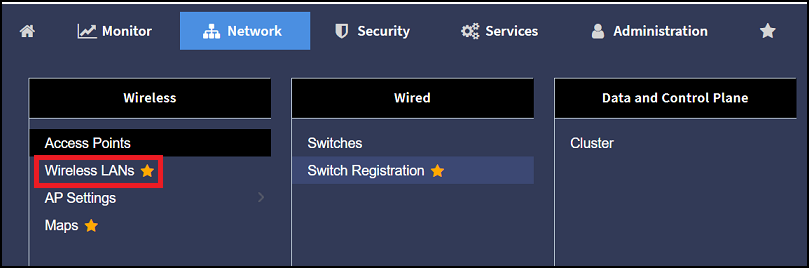
- Favorite - The Star icon allows you to mark menu items as favorites. This saves you time by providing quick access to the functions you use most often; simply click the star icon on the main menu to access a list of single-click links to your favorite menu options. The star icon acts like a toggle allowing you to add or remove any menu item to or from your list of favorites.
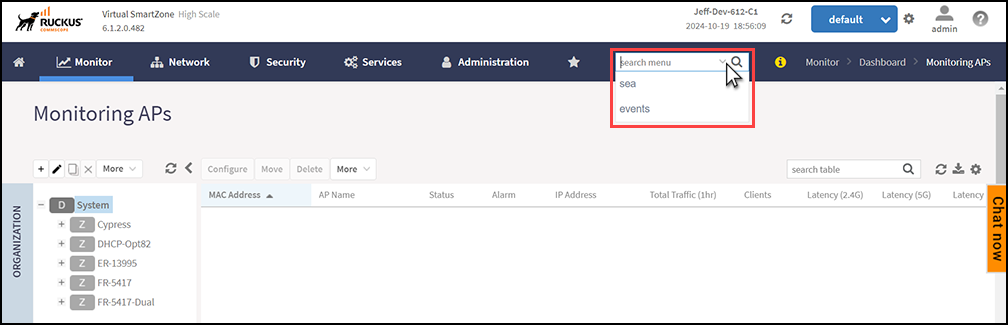
- Search - The Search menu facilitates UI navigation by allowing you to input specific menu keywords or specific terms. When you use the search option, it queries the system and returns results that match your input, making it easier to locate specific menu options.
- Breadcrumb Trail - The Breadcrumb trail a navigation aid that shows your current location within the menu hierarchy. This allows you to see where you are and easily navigate back to previous levels.
- Search History - The Search history provides a record of the searches you have previously conducted, listing the keywords or phrases you entered when searching for information. Hovering your mouse over an entry in the search history allows you to rerun the search or delete the entry from the search history.