Setting User Preferences
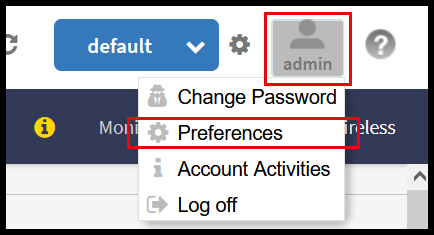
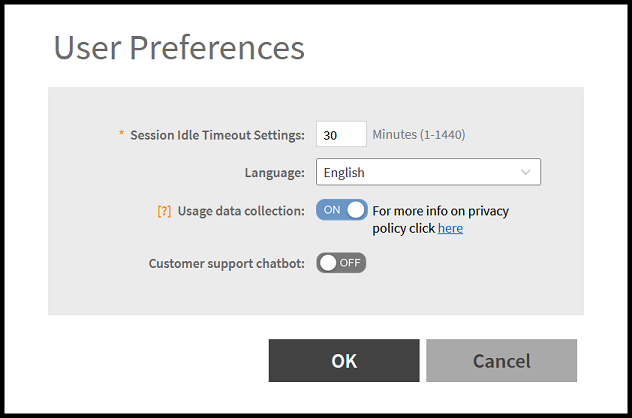
To access these settings, click the user profile icon in the upper-right corner of the Web UI and select Preferences. The User Preferences window is displayed. These settings are user specific.
The configurable options are:
-
Session Idle Timeout Settings - The duration in minutes that the Web UI can remain idle before you are automatically logged off.
-
Language - Select the language of your choice from the drop-down list to view the web interface content. The following languages are supported in the application -
- English
- Spanish
- Brazilian Portuguese
- French
- German
- Italian
- Russian
- Simplified Chinese
- Traditional Chinese
- Korean
- Usage Data
Collection - By default, this toggle switch is OFF
(disabled). Enablethis option to collect data usage statistics and
anonymous configuration information. This option helps optimize UI
pages and features by learning from the way the product is used.
This data is for product improvement only and is not used in any
other manner. No personally identifiable information is collected.
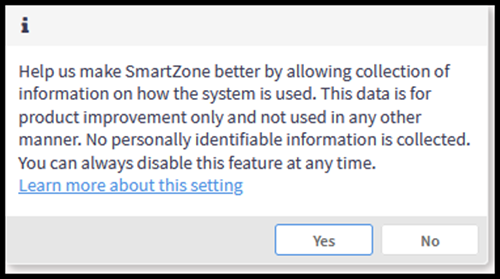
Usage Data Collection Pop-up Message
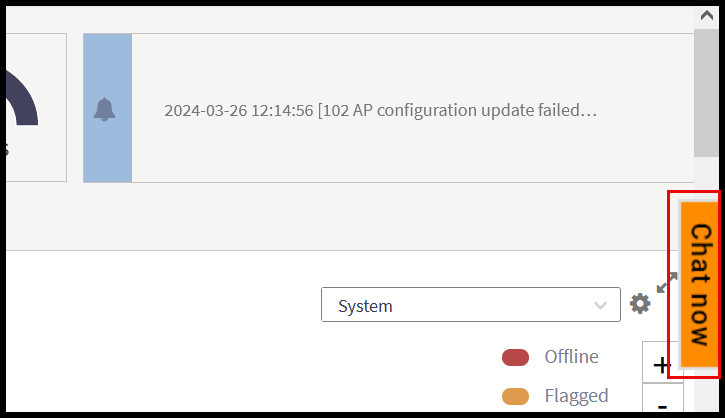
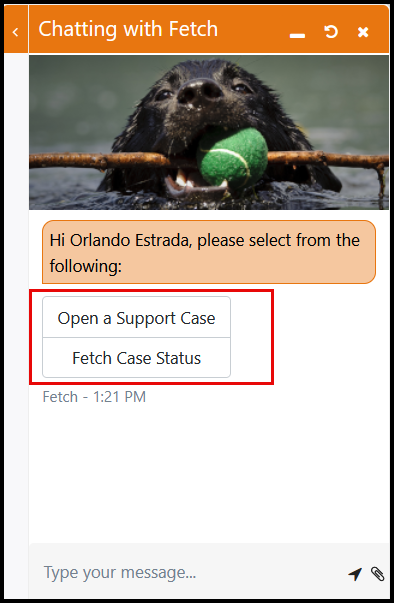
- Customer Support Chatbot - By default, this option is enabled (toggled ON).This option enables the Chat nowfeature, accessible on the right-hand side of browser window from anywhere in the SmartZone Web UI. When you click Chat now, you will be prompted to log in, register, or continue as a guest. To chat with a RUCKUS support agent, you must authenticate by logging in to the service using an active RUCKUS account. Otherwise, the chat session will be restricted to accessing the Knowledge Base and online help only.
Once logged in with a valid account, the Chat Now feature will enable you to fetch information about support cases or even open a new support ticket, if needed.
- Usage Data
Collection - By default, this toggle switch is OFF
(disabled). Enablethis option to collect data usage statistics and
anonymous configuration information. This option helps optimize UI
pages and features by learning from the way the product is used.
This data is for product improvement only and is not used in any
other manner. No personally identifiable information is collected.