Backing Up to an FTP Server
Follow these steps to back up the
controller network configuration to an FTP server.
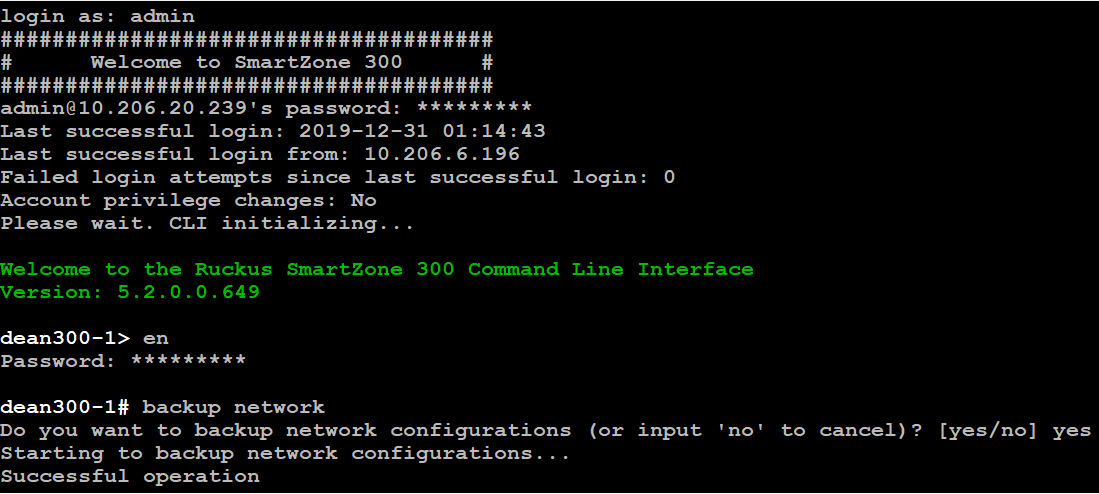
- Log on to the controller from the controller's command line interface (CLI). For more information, see the corresponding Command Line Interface Reference Guide for your controller platform.
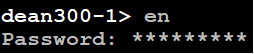
- At the prompt, enter en to enable privileged mode.
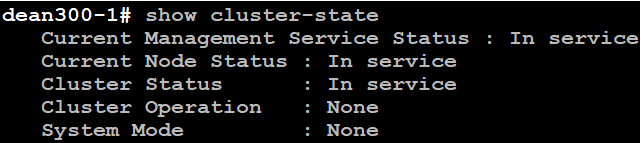
- Enter - to display the statuses of the node and the cluster.
- Enter backup network to back up the controller network configuration, including the control plane and data plane information.
- Enter show backup-network to view a list of backup files that have been created.
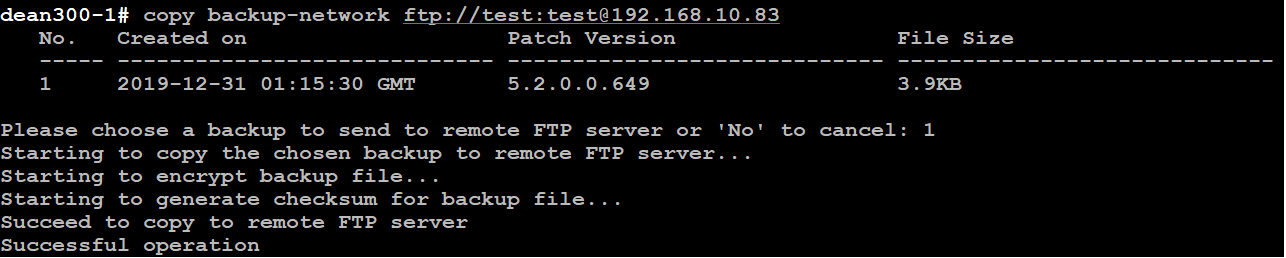
- Enter
copy backup-network{ftp-url}, where {ftp-url} (remove the braces) is the URL or IP address of the FTP server to which you want to back up the cluster configuration. - Enter the number of the backup file that you want to export to the FTP server.
- Using an FTP client, log on to the FTP server, and then verify that the backup file exists.