Restoring from an FTP Server
- Only release 2.1 and later support restoring from an FTP server.
- In this current release, restoring the entire cluster from an FTP server is unsupported. The restore process must be performed on one node at a time.
- Restoring from an FTP server can only be performed using the
CLI.
Caution: Restoring a backup file to the controller requires restarting all of the controller services.
Follow these steps to restore a backup file of the controller's network configuration that you previously uploaded to an FTP back to the controller.
- Log on to the controller from the CLI. For more information, see the corresponding Command Line Interface Reference Guide for your controller platform.
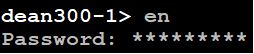
- At the prompt, enter
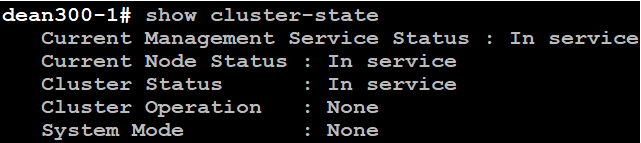
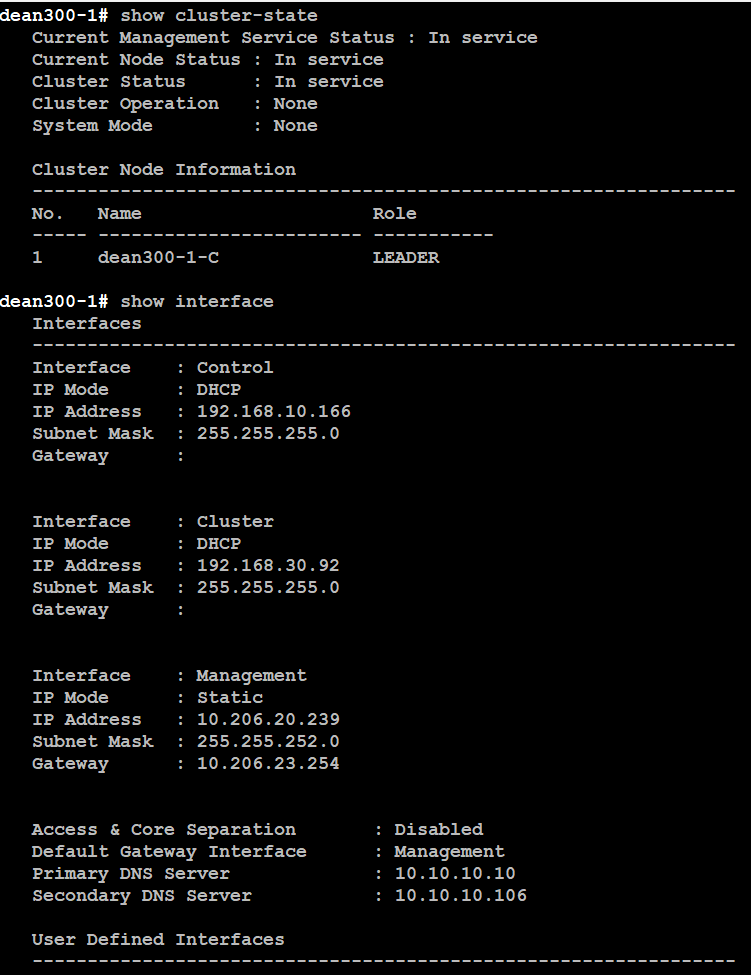
ento enable privileged mode. - Enter show cluster-state to display the statuses of the node and the cluster.
- Enter the following command to log on to the FTP server and check for available backup files that can be copied to the controller:
- If multiple backup files exist on the FTP server, the
CLI prompts you to select the number that corresponds to the file that you want to copy
back to the controller.
If a single backup file exists, the CLI prompts you to confirm that you want to copy the existing backup file to the controller.
- Enter
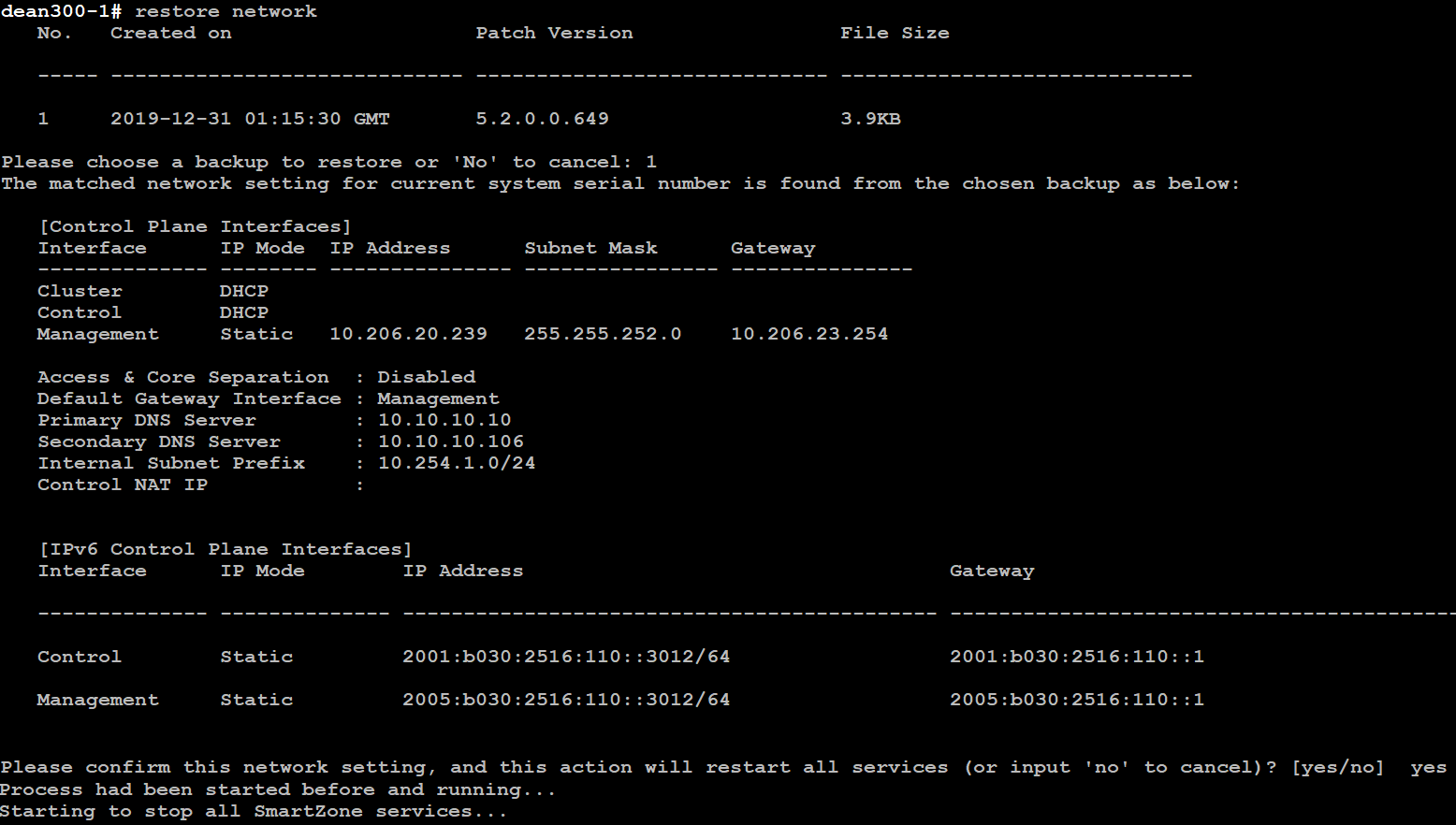
show backup-networkto verify that the backup file was copied back to the controller successfully. - Run restore network to start restoring the contents of the backup file to the current controller.
- Enter the number that corresponds to the backup file that you want to restore.
The CLI displays the network configuration that the selected backup file contains.
If the serial number of the current controller matches the serial number contained in one of the backup files, the CLI automatically selects the backup file to restore and displays the network configuration that it contains.
- Type
yes to confirm that you want to restore the selected backup file. The controller starts
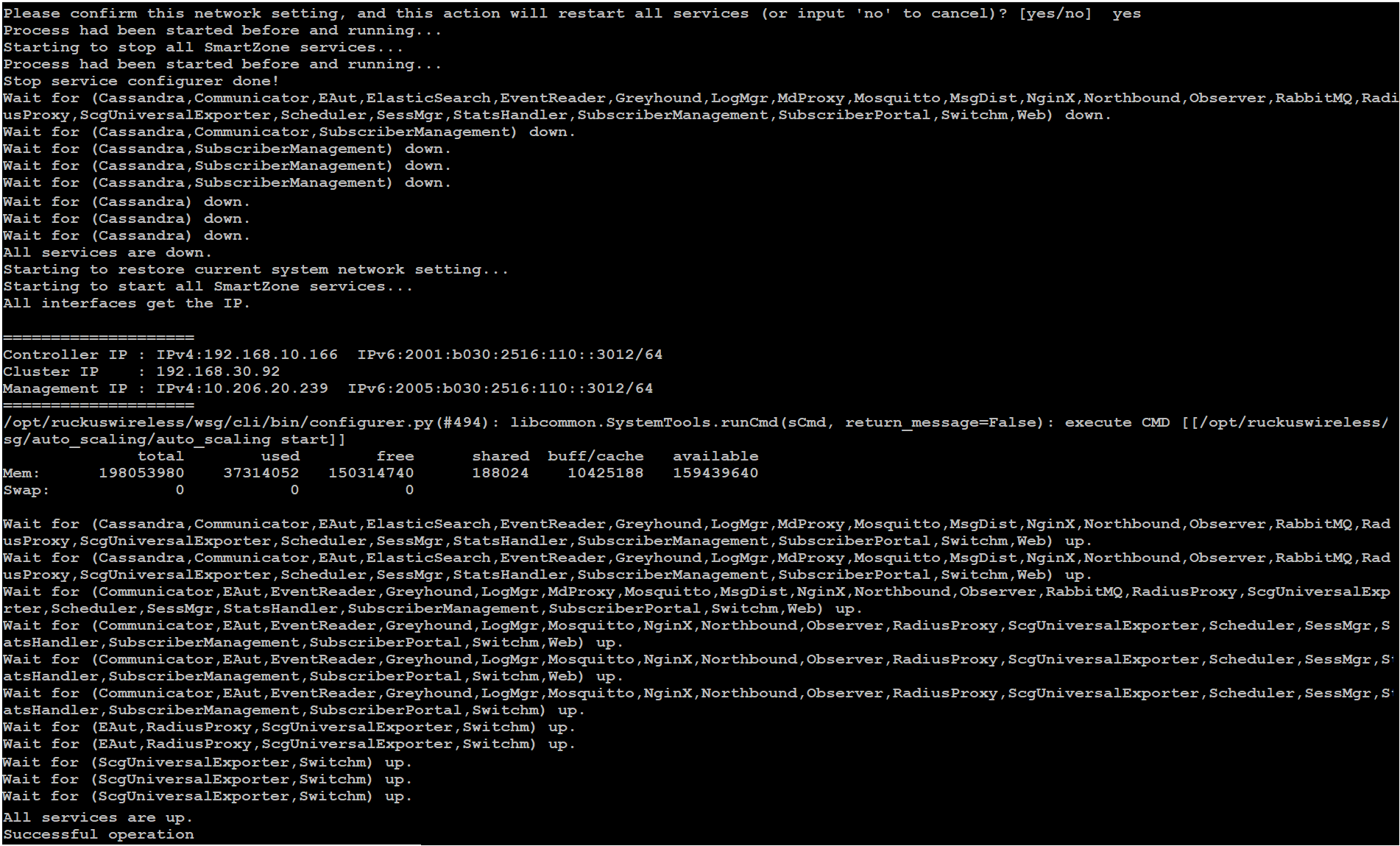
the restore process and performs the following steps:
- Stop all services.
- Back up the current network configuration.
- Clean up the current network configuration.
- Restore the network configuration contained in the selected backup file.
- Restart all services.
- Do the following to verify that the restore process was completed successfully:
- Run show cluster-state to verify that the node and the cluster are back in service.
- Run show interface to verify that all of the network configuration settings have been restored.

You have completed importing and applying the network configuration backup from the FTP server to the controller.