Deployment Scenario 2: Adding Units to a Ring or Linear Topology Using the SPX Interactive-Setup Utility
Ruckus recommends the SPX interactive-setup utility for adding new units to an existing topology. New units can be added to form a linear or ring topology.
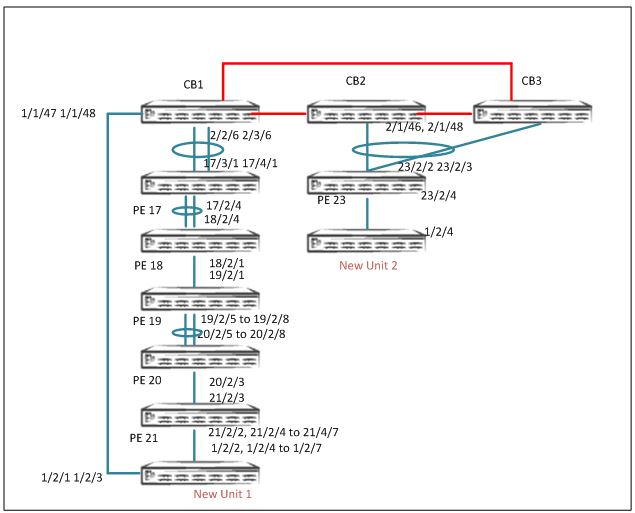
For example, in the following topology, a new unit is added to the PE 17-18-19-20-21 chain to make it a ring, and a new unit is added to chain 23.
    active       standby
     +---+        +---+        +---+
 -2/1| 1 |2/4--2/4| 2 |2/1==2/1| 3 |2/4-
 |   +---+        +---+        +---+   |
 |                                     |
 |-------------------------------------|
            +----+        +----+        +----+        +----+        +----+
  2/2/6==3/1| 17 |2/4--2/4| 18 |2/1--2/1| 19 |2/5==2/5| 20 |2/3--2/3| 21 | <<< Add New Unit 1
            +----+        +----+        +----+        +----+        +----+

            +----+
 2/1/46==2/2| 23 | <<< Add New Unit 2
            +----+

The New Unit 1 is added in a PE Ring Topology:
Link 1: 1/2/2, 1/2/4 to 1/2/7 to 21/2/2, 21/2/4 to 21/2/7
Link2: 1/2/1, 1/2/3 to 1/1/47 1/1/48

The New Unit 2, is added in a PE Linear Topology
Link 1: 1/2/4 to 23/2/4
- On an ICX 7750 stack or standalone unit, enter the
spx cb-enablecommand. - If zero-touch is enabled, make sure that the utility is turned off before running SPX interactive-setup.
- Configure zero-touch ports or SPX ports or SPX LAGs that connect to the CB.
To add new units, Ruckus recommends configuring SPX ports or SPX LAGs when SPX ports are known.
Configuration on CB for Adding New Unit 1 (In Ring Topology)
SPX# configure terminal
SPX(config)# spx cb-config
SPX (config-spx-cb)# spx-lag 1/1/47 1/1/48

SPX(config)# spx unit 21
SPX(config-spx-unit-21)# spx-lag 21/2/2 21/2/4 to 21/2/7

Configuration on CB for adding New Unit 1 (In Linear Topology)
SPX(config)# spx unit 23
SPX(config-spx-unit-23)# spx-port 23/2/4
For a linear topology: Specify the SPX ports or SPX LAGs connecting from the new PE unit.
For a ring topology: Specify the SPX ports or the SPX LAG connecting the CB to the new unit and from the edge PE to the new unit that completes the ring.
- Run SPX interactive-setup on the CB master. Use option 3 because both new units have
a startup configuration. The discovered topology is presented.
ICX7750-48F Router# spx interactive-setup You can abort spx interactive-setup at any stage by <ctrl-c> 0: quit 1: change PE IDs 2: discover and convert new units (no startup-config flash) to PEs 3: discover and convert existing/new standalone units to PEs Please type your selection: 3 Probing topology to find standalone units... Horizontal bars link to discovered units. Vertical bars link to CB or PEs. Chain #0: link to PE(s), so display PE chain(s). ============================= #1: icx7450-32zp-poe-management-module 609C.9F1D.AF60 +----+ 2/1/46==2/2| 23 |2/4- +----+ 23/2/4 | | 2/4 +----+ | 1 | +----+ Chain #1: link to PE(s), so display PE chain(s). ============================= #2: icx7250-24-port-management-module CC4E.24DF.0A72 +----+ +----+ +----+ +----+ +----+ 2/2/6==3/1| 17 |2/4--2/4| 18 |2/1--2/1| 19 |2/5==2/5| 20 |2/3--2/3| 21 |2/2= +----+ +----+ +----+ +----+ +----+ 1/1/47 | | 2/1 +----+ | 2 | +----+ 2/2 || || 21/2/2 - Accept the discovered topology when prompted. When prompted, accept the default PE
ID for new units, or enter the desired PE ID.
chain #0: Do you want to select this chain?(enter 'y' or 'n'): y #1: icx7450-32zp-poe-management 609C.9F1D.AF60, type an ID (No: 0, default: 24): You selected 1 unit(s): #1: ID=24, #1 +----+ +----+ 2/1/46==2/2| 23 |2/4--2/4| 24 | +----+ +----+ Proceeding will produce the above topology. Do you accept it? (enter 'y' or 'n'): y Chain #1: link to PE(s), so display PE chain(s). ============================= #2: icx7250-24-port-management-module CC4E.24DF.0A72 +----+ +----+ +----+ +----+ +----+ 2/2/6==3/1| 17 |2/4--2/4| 18 |2/1--2/1| 19 |2/5==2/5| 20 |2/3--2/3| 21 |2/2= +----+ +----+ +----+ +----+ +----+ 1/1/47 | | 2/1 +----+ | 2 | +----+ 2/2 || || 21/2/2 chain #1: Do you want to select this chain?(enter 'y' or 'n'): y #2: icx7250-24-port-management CC4E.24DF.0A72, type an ID (No: 0, default: 22): - Once you accept the topology, the new topology is displayed.
You selected 1 unit(s): #2: ID=22, #2 +----+ +----+ +----+ +----+ +----+ 1/1/47==2/1| 22 |2/2==2/2| 21 |2/3--2/3| 20 |2/5==2/5| 19 |2/1--2/1| 18 |2/4- +----+ +----+ +----+ +----+ +----+ | | +----+ | 2/2/6==3/1| 17 |2/4- +----+ Proceeding will produce the above topology. Do you accept it? (enter 'y' or 'n'): y - Confirm the topology with the specified PE IDs. After confirmation, the new units reload and join the Campus Fabric domain as PE units.
- Once all PEs are ready, enter the
show running-configcommand to verify SPX LAG configurations and the new PE IDs. - Verify the PE operational state.
SPX# show spx T=20h16m21.5: alone: standalone, D: dynamic cfg, S: static ID Type Role Mac Address Pri State Comment 1 S ICX7750-48XGF active cc4e.246e.db80 128 local Ready 2 S ICX7750-48XGC standby 609c.9f1f.d900 128 remote Ready 3 S ICX7750-48XGC member 609c.9f1f.d180 0 remote Ready 17 S ICX7450-24G spx-pe 609c.9f39.daa8 N/A remote Ready 18 S ICX7450-24G spx-pe cc4e.248b.ad08 N/A remote Ready 19 S ICX7250-24 spx-pe cc4e.24df.0e3e N/A remote Ready 20 S ICX7250-24 spx-pe cc4e.24de.4c0a N/A remote Ready 21 S ICX7250-24 spx-pe cc4e.24df.0cd6 N/A remote Ready 22 S ICX7250-24 spx-pe cc4e.24df.0a72 N/A remote Ready 23 S ICX7450-32ZP spx-pe 609c.9f1d.afc0 N/A remote Ready 24 S ICX7450-32ZP spx-pe 609c.9f1d.af60 N/A remote Ready active standby +---+ +---+ +---+ -2/1| 1 |2/4--2/4| 2 |2/1==2/1| 3 |2/4- | +---+ +---+ +---+ | | | |-------------------------------------| +----+ +----+ +----+ +----+ +----+ 1/1/47==2/1| 22 |2/2==2/2| 21 |2/3--2/3| 20 |2/5==2/5| 19 |2/1--2/1| 18 |2/4- +----+ +----+ +----+ +----+ +----+ | | +----+ | 2/2/6==3/1| 17 |2/4- +----+ +----+ +----+ 2/1/46==2/2| 23 |2/4--2/4| 24 | +----+ +----+ - Once the topology is active, verify the CSP operational state using the
show spx csp allcommand. If there is a ring in the topology, verify the ring operational state using theshow spx ring allcommand.Note: There are no specific
showcommands for ZTP. All commands that apply to SPX apply to ZTP. Refer to Debugging and Verification Commands.