Deployment Scenario 7: SPX PE Movement: Moving PEs Without Changing IDs
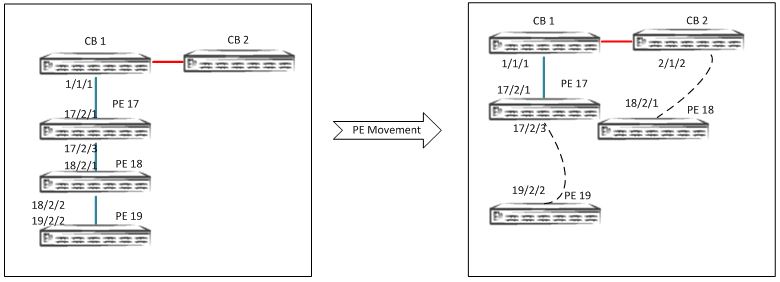
In the following example, PE 18 is moved to a different CB port, and PE 19 is moved under PE 17.
- Enter the
spx allow-pe-movementcommand in global configuration mode.SPX(config)# spx allow-pe-movement Please remove the spx allow-pe-movement configuration after the PEs are moved.
SPX# show spx T=24m5.6: alone: standalone, D: dynamic cfg, S: static ID Type Role Mac Address Pri State Comment 1 S ICX7750-48XGF active 609c.9f1f.9900 128 local Ready 2 S ICX7750-48XGF standby cc4e.246d.9b00 128 remote Ready 17 S ICX7450-48G spx-pe cc4e.248e.2f90 N/A remote Ready 18 S ICX7450-48GF spx-pe cc4e.246c.f850 N/A remote Ready 19 S ICX7450-48GF spx-pe cc4e.246d.10b8 N/A remote Ready standby active +---+ +---+ | 2 |2/4--2/1| 1 |2/4 +---+ +---+ +----+ +----+ +----+ 1/1/1--2/1| 17 |2/3--2/1| 18 |2/2--2/2| 19 | +----+ +----+ +----+ - Identify the SPX port or SPX LAG on the CB where you want the PEs to be moved.
- Configure the required SPX port or SPX LAG on the CB where the PEs are intended to be moved.
- Physically remove PE 18 18/2/2 from 17/2/3, and move it to 2/1/2. Physically remove PE 19 19/2/2 from 18/2/2, and move it to 17/2/3.
- The topology stabilizes and reconverges with the new set of SPX ports.
- The old PE IDs are retained. The PE ID configuration changes to reflect the topology
changes. Use the
show running-configcommand to check the PE ID configuration. - Use the
show spxcommand to verify the operational status of the PEs.SPX# show spx T=24m5.6: alone: standalone, D: dynamic cfg, S: static ID Type Role Mac Address Pri State Comment 1 S ICX7750-48XGF active 609c.9f1f.9900 128 local Ready 2 S ICX7750-48XGF standby cc4e.246d.9b00 128 remote Ready 17 S ICX7450-48G spx-pe cc4e.248e.2f90 N/A remote Ready 18 S ICX7450-48GF spx-pe cc4e.246c.f850 N/A remote Ready 19 S ICX7450-48GF spx-pe cc4e.246d.10b8 N/A remote Ready standby active +---+ +---+ | 2 |2/4--2/1| 1 |2/4 +---+ +---+ +----+ +----+ 1/1/1--2/1| 17 |2/3--2/2| 19 | +----+ +----+ +----+ 2/1/2--2/1| 18 |2/2 +----+ - Verify that CSP is operational, that PEs are in the ready state, and that traffic
has resumed. Use the
show spx csp allcommand to verify the CSP operational status and any other items as needed. If the topology includes a PE ring, use theshow spx ring allcommand to verify that the ring is in the active state. - Save the configuration.
Note: There are no specific
showcommands for PE movement. All commands that apply to SPX also apply to ZTP.Refer to Debugging and Verification Commands.