Setup Using a Web Browser
To perform setup using a web browser,
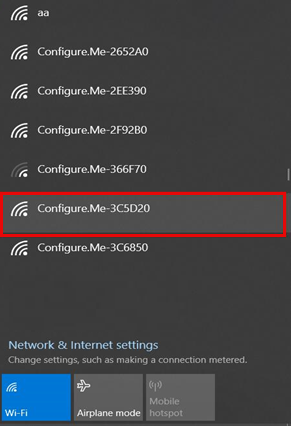
connect to the RUCKUS Unleashed setup network using any Wi-Fi capable client device.
- Using your the Wi-Fi configuration settings on your client device (such as a laptop
or mobile device), select and associate to the
Configure.Me-[xxxxxx] WLAN, and launch a web browser.
Note: Only R750 AP, R770 AP, or R850 AP support Dedicated Master mode.
- In your browser's URL bar, enter
the following address and press Enter: https://10.154.231.125:9090/.
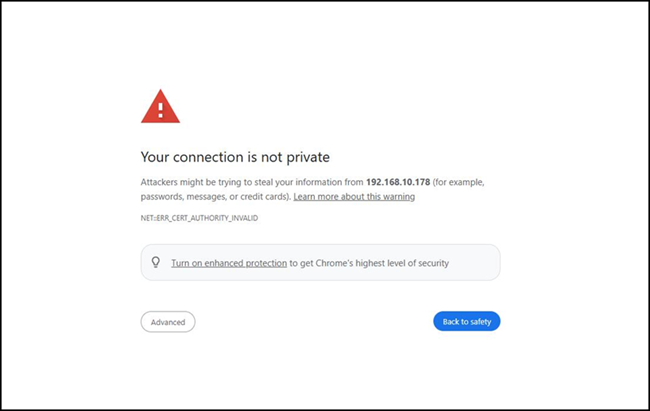
Depending on your browser, you may be presented with one of the following security warnings:
- This connection is not trusted (Firefox)
- Your connection is not private (Chrome)
- There is a problem with this website's security certificate (Internet Explorer)
This is normal, as the RUCKUS Unleashed AP does not have an SSL certificate that is recognized by your browser.
- In response to the security warning, complete one of the following
processes:
- Click I Understand the Risks > Add Exception... > Confirm Security Exception (Firefox)
- Click Advanced > Proceed to [IP address] (unsafe) (Chrome)
- Click Continue to this website (not recommended) (Internet Explorer)
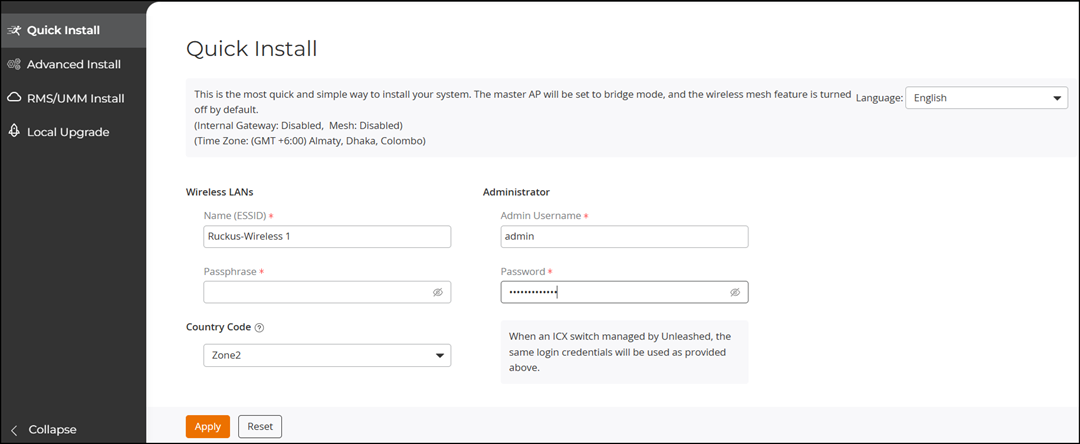
You will be redirected to the Unleashed Setup Wizard, which guides you through the process of setting up the Master AP.
- Work through the Setup Wizard and check your configuration choices on the final page, before clicking Finish to complete the setup. By default, the Quick Install page is displayed. Complete the following steps for a quick installation of the Unleashed Master AP.
Note: For other installation options,
refer to Advanced Install and
RMS/UMM Install. For information on Local Upgrade options, refer to Installation with Local Upgrade.