Before adding an AP to your RUCKUS Unleashed
network, you must verify that the RUCKUS AP is supported by RUCKUS Unleashed.
From the main menu, select
. The Access
Points page is displayed in which the following tabs are available:
| AP
List |
Provides information about access points,
such as AP name, status, model, IP address, MAC address, and additional operational
details. Refer to AP List Overview. |
| AP
Group List |
Provides AP Group information such as AP
Group name, AP members, networks, and clients. Refer to Working with AP Groups. |
| Mesh APs |
Provides information about Mesh access points, including AP name, signal, MAC
address, channel, IP address, and the number of connected clients. Refer to Viewing the Mesh APs. |
AP List Overview
Navigating to the
AP List tab allows
you to view the following information about all APs associated with your RUCKUS Unleashed network.
| AP
Name |
Displays the name of the AP. |
| Role |
Specifies whether the AP is a member or a
Master AP. |
| Status |
Displays the current status of the AP (for
example, Connected). |
| AP
Group |
Displays the AP Group name if the AP
belongs to an AP Group. |
| Model |
Displays the AP model. |
| IP
Address |
Displays the IP address assigned to the AP. |
| MAC
Address |
Displays the unique media access control
(MAC) address of the AP network interface. |
| Description |
Displays the description configured for the AP. |
| Location |
Displays the location assigned to the AP. |
| PoE Operating
Mode |
Displays the Power over Ethernet (PoE)
operating mode configured and managed on the AP. |
| Power
Profile |
Displays the applied Administrator Option Power Profile (AOPP) for the AP. The Power Profile value is
displayed as a hyperlink that opens a Power Profile Detail
sidebar. The sidebar displays the name and description of the assigned power
profile, along with its AP-model-specific configuration settings for Tx chains and
Tx power (per radio) and hardware features (such as ports, GPS, and System LED, as
applicable).
|
| Uptime |
By default, displays the duration (in days
and hours) for which the AP has been providing service. By monitoring the uptime,
you can determine if the AP has experienced any unexpected reboots, which helps in
diagnosing and addressing underlying problems. |
| AFC
Status |
Displays the status of the AP daily
check-in with the Automated Frequency Coordination (AFC) system (Passed or Failed).
AFC status is displayed only when the AP supports 6 GHz mode, the current country
code supports AFC, and AFC is enabled on the AP. |
| AFC
Power State |
Displays the power state of the AP if
supported by Automated Frequency Coordination (AFC) (Standard or Low). |
| Channel |
Displays the specific channels on which the
AP radio is broadcasting. - 2.4 GHz: 2.4 GHz overlapping
Wi-Fi channel
- 5 GHz: 5 GHz non-overlapping
Wi-Fi channel
- 6 GHz: 6 GHz non-overlapping
Wi-Fi channel
|
| Firmware Version |
Displays the firmware version of the AP
software. |
| S/N |
Displays the serial number of the AP. |
| Feature Compatibility |
Displays the feature compatibility status of the AP (Fully compatible,
Partially incompatible, or Check unavailable). |
Access Points:
AP List Tab
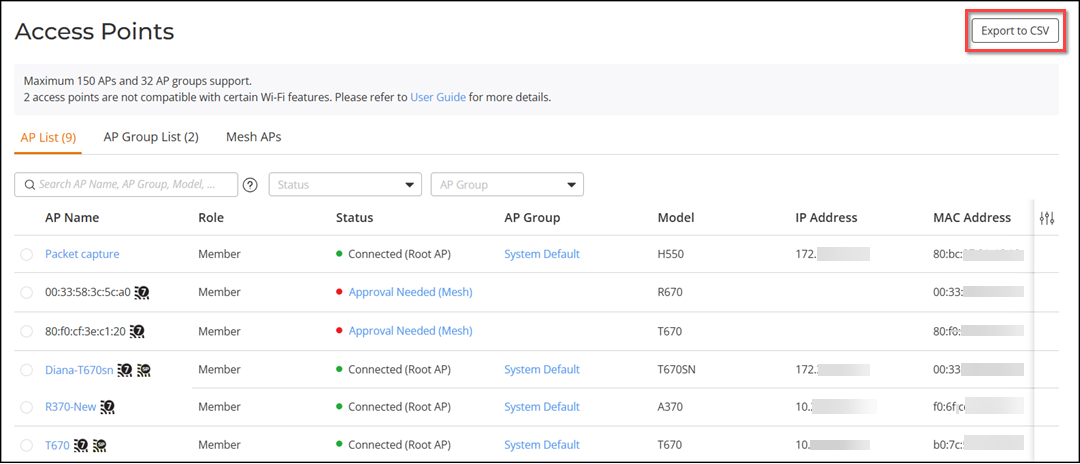
You can use the Search option to display
only the table entries matching the specified AP Name, AP Group, Model, IP Address, MAC Address, Description, Location, AFC Status, AFC Power State, Channel, Firmware Version, or S/N; enter a minimum of two
characters. Additionally, you can filter the list by selecting Status from the drop-down list.
The status options are Connected, Disconnected, Zero
Touch Mesh, Downloading Firmware, Isolated Mesh AP, Approval Pending, Provisioning, Blocked, and Not Supported. The AP Group
drop-down list displays all AP groups available in the system. Click Clear Filters to remove the
applied filters.
You can sort the list by clicking the
associated column header. You can customize which fields appear in the AP
List table by clicking the  icon and
selecting or deselecting the desired column names. Optionally, you can click Reset to default to have the
default subset of columns appear in the AP List table.
icon and
selecting or deselecting the desired column names. Optionally, you can click Reset to default to have the
default subset of columns appear in the AP List table.
Exporting the AP List to a CSV
File
You can export the AP list to a CSV file.
Only details of APs in the Connected
state are exported. The export option is disabled when no connected APs are present
and is
not available to users assigned the Operator or Monitoring
User roles.
Complete the following steps to export the
AP list to a CSV file:
- From the main menu, select . The Access
Points page is displayed.
- Click the Export to CSV option in the
upper-right corner of the page.
AP List - Export to
CSV
The AP list is downloaded as a CSV
file containing the relevant AP details.