Configuring an Individual AP
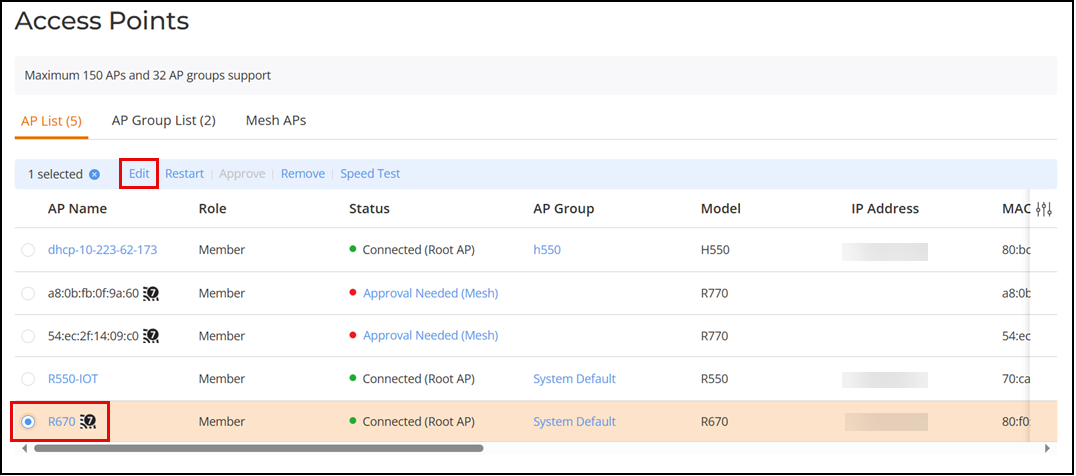
To configure a specific AP, from the main menu, click . Select the AP you want to configure and click Edit. Alternatively, click on a specific AP name, then in the Overview page, click Configure.
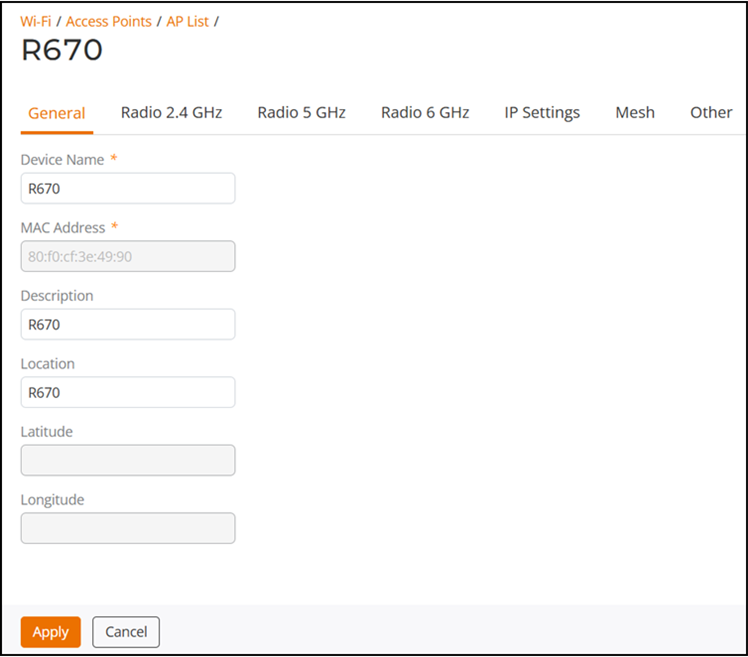
In general, the settings available on the Edit AP page for an individual AP are the same as those for global AP settings (refer to Configuring Global AP Settings). Configuring these settings for an individual AP overrides the global AP settings.
However, some settings are only configurable on a per-AP basis, as follows:
- General: Configure the device name of the AP, the description, location, and GPS coordinates.
- Radio 2.4 GHz: Enable or disable WLAN service for this radio.
- Radio 5 GHz:
Enable or disable WLAN service for this radio.
Note: For the country code "US", 11ax and 11ac APs support channel 144. For the country codes "UK" and "JP", only 11ax APs support channel 144.
- Radio 6 GHz: Enable or disable WLAN service for this radio.
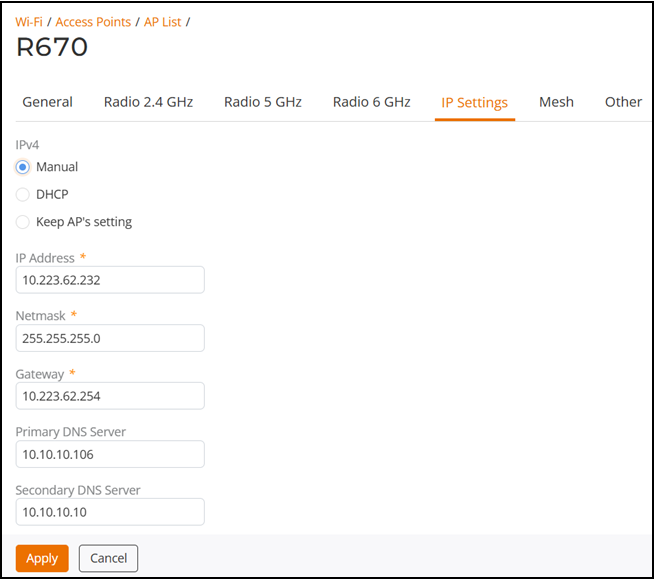
- IP Settings:
Configure a manual (static) IP address or allow the AP to obtain an IP address
using DHCP.
Note: You cannot configure the IP address settings for the current Master AP from the IP Settings tab. Select System Settings > Network Settings > IP Settings screen to change the IP settings of the Master AP.
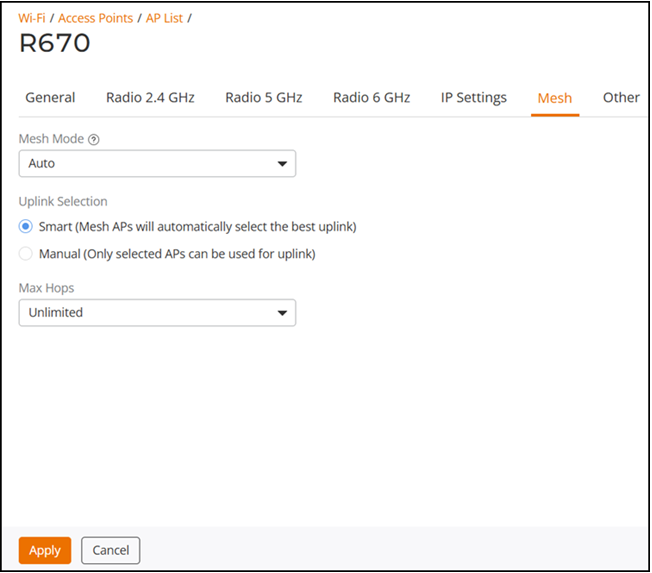
- Mesh: Configure
the following Mesh settings when the system Mesh is enabled.
- Set the Mesh Mode of an AP to manually configure the AP's Mesh role in the Mesh network (Auto (default), Root AP, Mesh AP, or Disable). Refer to Smart Mesh Networking Terms for more information about AP Mesh roles. In most cases, RUCKUS recommends setting the Mesh mode to Auto to reduce the risk of isolating a Mesh AP. Select Disable if you do not want this AP to be part of your Mesh network.
- For Uplink
Selection, choose one of the following options:
- Smart (Mesh APs will automatically select the best uplink) (default): Select this option so that the Mesh APs automatically connect to a Mesh node. Refer to Overview of Smart Mesh Networking for more information.
- Manual (Only selected APs can be used for uplink): Select this option to manually configure the uplink APs.
- Max Hops:
Select the maximum number of Mesh hops for the AP from the list
(1, 2,
3, and Unlimited
(default)). Mesh hops is the number of wireless Mesh links a data packet
takes from one Mesh AP to the Root AP. Max Hops
can be configured when the Mesh mode is set to
Auto or Mesh AP, and
the uplink selection is set to Smart.
Note: In a Mesh network, every hop reduces throughput by approximately 50%, affecting latency. When designing a Mesh network, RUCKUS recommends allowing no more than three hops to ensure good overall performance within the Mesh.
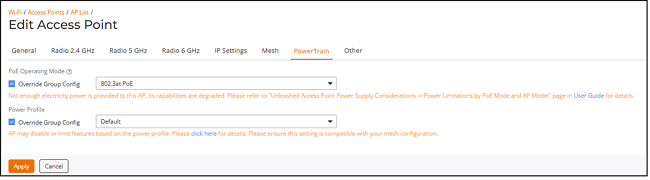
- PowerTrain: Configure
AP power-related settings to optimize AP operation based on the available power
source and deployment requirements.
Note: The PowerTrain tab is supported only on R575 and T670 access points. If the selected AP model does not support PowerTrain, the PowerTrain tab is not displayed.
- Select the Override Group Config checkbox for PoE Operating Mode, and then select the required value from the PoE Operating Mode drop-down list.
- Select the Override Group Config checkbox for Power Profile, and then select the required value from the Power Profile drop-down list.
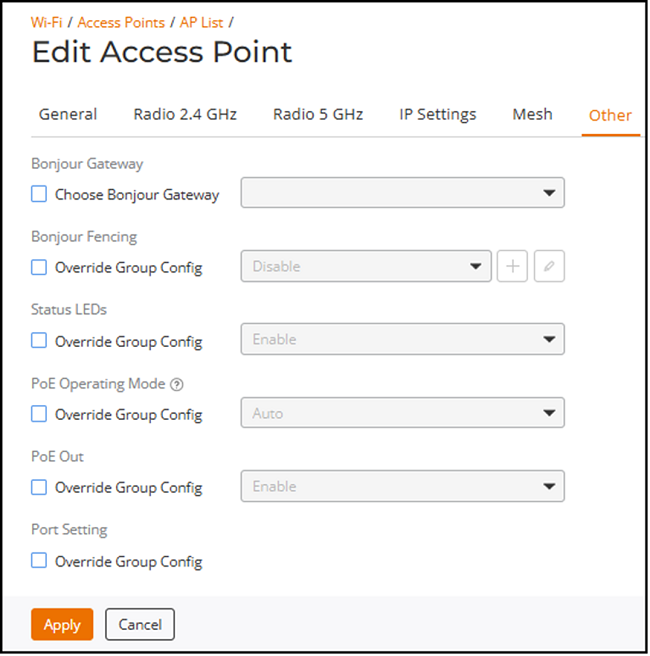
- Other: Configure
the following settings.
- Bonjour Gateway: Click the Choose Bonjour Gateway checkbox and designate this AP to serve as a Bonjour Gateway AP (refer to Bonjour Gateway for Bonjour Gateway information).
- Bonjour
Fencing: By default, this option is disabled. Click the
Override
Group Config checkbox and select a Bonjour Fencing
service or click
 to add a new Bonjour Fencing service. Refer
to Creating Bonjour Fencing Policies for more information regarding configuration settings for the Bonjour
Fencing service and rules.
to add a new Bonjour Fencing service. Refer
to Creating Bonjour Fencing Policies for more information regarding configuration settings for the Bonjour
Fencing service and rules. - Status LEDs: Select Override Group Config to disable the status LEDs of the AP.
- Port
Setting: Select Override Group
Config to override the port settings of the AP Group,
and configure a specific port for this AP. When Port
Setting is enabled, the administrator can configure the
rate limiting value of an Ethernet port in uplink and downlink
directions and control the bandwidth of an AP's Ethernet port (user
port). The value of rate limiting ranges from 1 Mbps through 1000 Mbps
(integer values), including Disabled.
You can also configure the rate limiting values from the CLI interface
(AP configuration mode).
Note: Port Setting is supported only on the H350 AP and H550 AP since they have multiple Ethernet ports.Note: Rate limiting cannot be configured for the WAN port since it is not the user port. Hence, port 3 on the H350 AP and port 5 on the H550 AP cannot be configured.
From the AP Group settings, you can configure Ethernet ports on all the APs of a certain model. Refer to Configuring AP Ethernet Ports for more information.
- PoE Operating Mode: Options vary depending on the AP model. Select Override Group Config to override the PoE settings of the AP Group, and select a PoE operating mode for this AP. For a list of PoE operating modes by AP model, refer to Access Point Power Supply Considerations.
- PoE Out: Select Override Group Config to override the AP Group configuration and enable or disable PoE output for the AP. This option is available only on specific AP models.
- PoE Out Mode: Select Override Group
Config to override the AP Group configuration and
specify the PoE output mode for the AP. This setting defines how PoE
power is distributed to the Ethernet ports when PoE Out is
enabled.
Note: This field is available only for the AP model H670 and appears only when PoE Out is set to Enabled.
- 802.3af (15.4 W): Supplies PoE power in 802.3af mode to both PORT1 and PORT2, enabling power delivery to up to two connected PoE devices at standard AF power levels. This is the default PoE Out mode when PoE Out is enabled.
- 802.3at (30 W): Supplies PoE power in 802.3at mode to PORT1 only, providing higher power output for a single connected PoE device.
- Band Operation
Mode: Select Override Group
Config to override the Band Operation Mode settings of
the AP Group, and select a band operation mode for this AP. The two
supported modes are:
- Dual-band: Supports two radios: 2x2:2 in 2.4 GHz and 4x4 in 5 GHz
- Tri-band: Supports three radios: 2x2:2 in 2.4 GHz, 2x2:2 in 5 GHz and 6 GHz
Note: The default setting is dependent on the country code associated with the AP; for example, an AP in a country that does not support 6GHz defaults to Dual-band mode.Note: Modifying the Band Operation Mode will cause the AP to reboot, which will also temporarily disconnect the Mesh connection.Note: Band Operation Mode is supported only on the AP models R670, T670, and T670SN. - Antenna
Type: Select Override Group
Config to override the antenna type settings defined at
the AP Group level, and choose the required antenna type for this AP.
The available options are:
- Sector (default): Uses a 120-degree wide antenna for broad coverage
- Narrow: Uses a 30-degree narrow antenna for focused beam
Note: Antenna Type configuration is supported only on the AP model T670SN.Note: Changing the antenna type will cause the AP to reboot.