Configuring Mesh Settings
Complete the following steps to configure the Mesh settings.
-
UI path for UnleashedFrom the main menu, select .
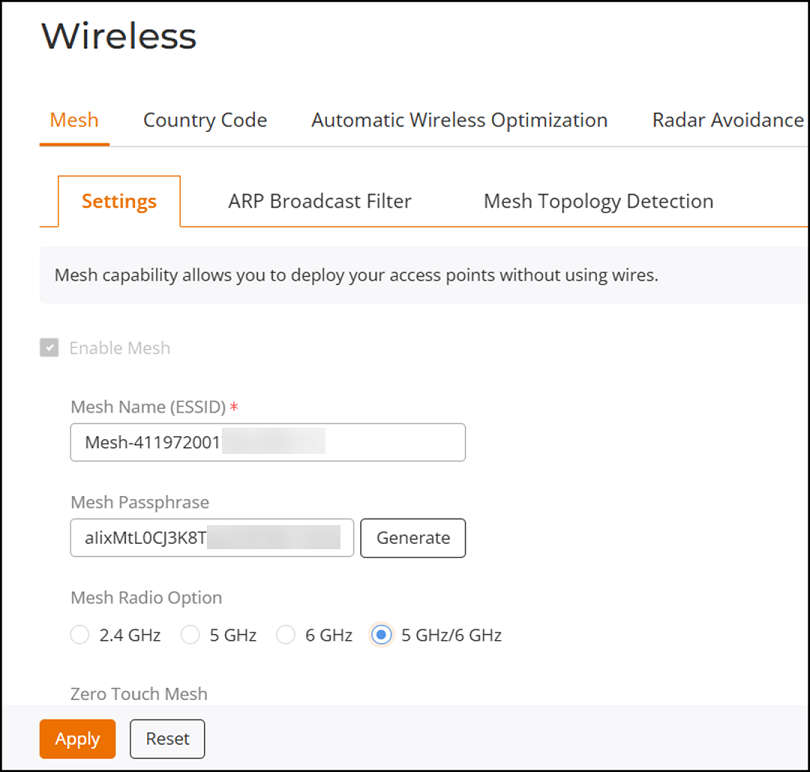
- Select the Enable Mesh checkbox.
- Under Mesh Name (ESSID), enter a name for the Mesh network.
- Under Mesh Passphrase, enter a passphrase, or click Generate to generate a random Mesh passphrase.
- Under Mesh Radio Option,
select 2.4
GHz, 5
GHz, 6
GHz, or 5
GHz/6 GHz.
By default, the 5 GHz/6 GHz radio option is selected when Mesh is enabled. Alternatively, you can select 2.4 GHz, 5 GHz, or 6 GHz to use a specific band for Mesh connectivity. This provides independent control over which radio is used for Mesh connectivity.
Note: After you have enabled Mesh, you cannot disable it again without resetting the Master AP to factory defaults (refer to Restore to Factory Settings).Note: If you have enabled Mesh during the Setup Wizard process, you need not configure it again here.Note: The Master AP cannot be a Mesh AP. The Master AP can only be a Root AP in a Mesh topology.Note: 2.4-GHz and 6-GHz Mesh radios do not support Zero Touch Mesh. - Click Apply.
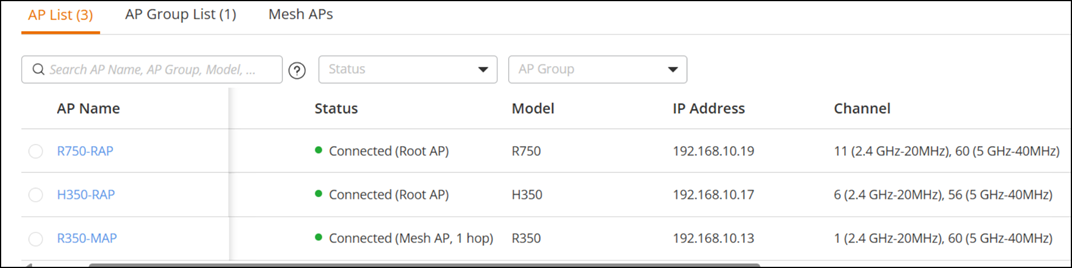
- From the main menu, select .
After Mesh is enabled and Mesh APs join the network, you can verify the AP role from the AP List page. The Status column displays whether an AP is operating as a Root AP or Mesh AP.