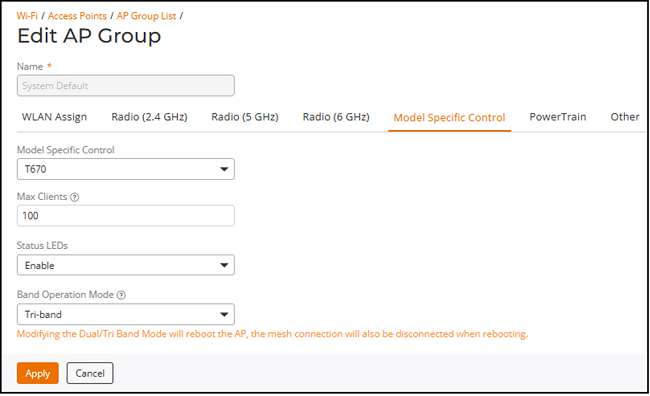
Modifying Model-Specific Controls
- From the main menu, select
.The AP Group List page is displayed.
- Click the checkbox for an AP
Group, then click Edit.The Edit AP Group page is displayed.
- Click the Model Specific Control tab.
- Select an AP model from the Model Specific Control drop-down list. The model's current settings are displayed.
- Configure the following settings
for the selected AP model and click Apply to save your changes:
- Max Clients: Set the maximum number of clients that can associate to the AP model. Note that different AP models have different maximum client limitations.
- Status LEDs: Disable the external LEDs on certain AP models. This option can be useful if your APs are installed in a public location and you do not want to draw attention to them.
- External Antenna: (For APs with external antennas only.) Enable the external antenna. When enabled, enter a gain value (for each radio) in the range from 0 through 60 dBi. The default value is 8 dBi.
- Port Setting: Refer to Configuring AP Ethernet Ports for more information on configuring AP-specific Ethernet port settings.
- PoE Operating
Mode: Specifies how the access point detects,
negotiates, and operates with the available input power from the
connected power source. The available PoE operating modes depend on the
AP model and its power capabilities. Selecting a lower PoE mode may
limit available features to reduce power consumption, while higher PoE
modes enable additional functionality but require a compatible power
source.
Select the PoE operating mode: Auto, 802.3af PoE, 802.3at PoE, PoE, 802.3bt/Class 5, 802.3bt/Class 6, and 802.3bt/Class 7 (some modes are for specific APs only). The default is Auto. If 802.3af PoE is selected, the AP operates in 802.3af mode (not 802.3at mode), and consumes less power than in 802.3at mode. However, when this option is selected, some AP features are disabled to reduce power consumption, such as the USB port and one of the Ethernet ports.
Note: On some APs, an additional mode, 802.3at+ PoE, is available. This mode enables all features on the AP but requires an Ethernet switch that supports the 802.3at+ standard due to the higher power draw from the port to which the AP is connected.For a list of PoE operating modes by AP model, refer to Access Point Power Supply Considerations.
- PoE Out:
Allows you to enable or disable Power over Ethernet (PoE) output to
devices connected to the AP. This option is available only on specific
AP models. PoE
Out is disabled by default.
Note: For AP model H670, PoE Out is supported only when the AP is powered by a DC source or an 802.3bt Class 6 PoE switch.
- PoE Out
Mode: Specifies how PoE power is distributed to
connected Ethernet ports when PoE Out is
enabled.
Note: This field is available only for the AP model H670 and appears only when PoE Out is set to Enabled.
- 802.3af (15.4 W): Supplies PoE power in 802.3af mode to both PORT1 and PORT2, enabling power delivery to up to two connected PoE devices at standard AF power levels. This is the default PoE Out mode when PoE Out is enabled.
- 802.3at (30 W): Supplies PoE power in 802.3at mode to PORT1 only, providing higher power output for a single connected PoE device.
- 5.8 GHz
Channels: If the controller country code is set to any
European Union (EU) country, then the C-band channels (U-NII-3, 5.8 GHz)
are supported based on specific AP categories and an additional
5.8 GHz
Channel option will be available. Enabling the
5.8 GHz
Channels option allows the use of restricted C-band
channels. These C-band channels are disabled by default and must only be
enabled by customers with a valid license to operate on these restricted
channels.
C-band Channel Support
- Band Operation
Mode: The two supported modes are:
- Dual-band: Supports two radios: 2x2:2 in 2.4 GHz and 4x4 in 5 GHz
- Tri-band: Supports three radios: 2x2:2 in 2.4 GHz, 2x2:2 in 5 GHz and 6 GHz
Note: The default setting is dependent on the country code associated with the AP; for example, an AP in a country that does not support 6GHz defaults to Dual-band mode.Note: Modifying the Band Operation Mode will cause the AP to reboot, which will also temporarily disconnect the Mesh connection.Note: Band Operation Mode is supported only on the AP models R670, T670, and T670SN. - Antenna
Type: Choose the required antenna type for this AP. The
available options are:
- Sector (default): Uses a 120-degree wide antenna for broad coverage
- Narrow: Uses a 30-degree narrow antenna for focused beam
Note: Antenna Type configuration is supported only on the AP model T670SN.Note: Changing the antenna type will cause the AP to reboot.
- (Optional) Repeat steps 4 and 5 for each AP model, as per your requirements.