Online Upgrade
Use the online upgrade method to upgrade your RUCKUS Unleashed network with the latest firmware available from the RUCKUS Unleashed firmware server.
Complete the following steps to upgrade the Master AP and all connected member APs using the online upgrade method.
-
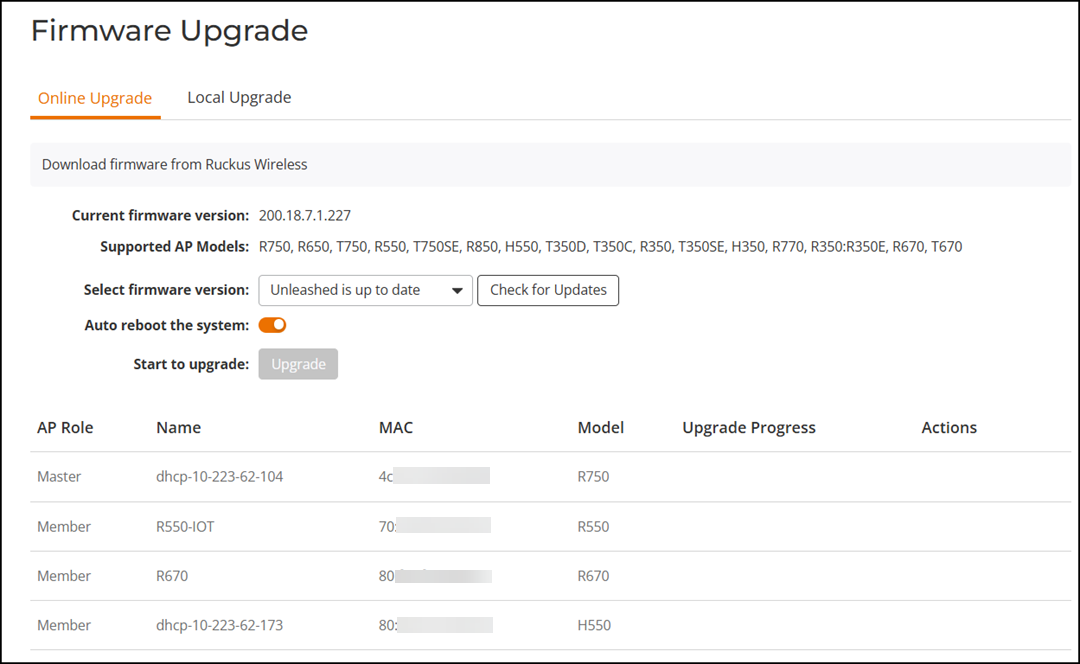
UI path for UnleashedFrom the main menu, select .The Firmware Upgrade page is displayed.
- Click the Online Upgrade tab.
- Under Select firmware
version, select one of the available firmware versions.
If the firmware version is up to date, then the Upgrade option is disabled and greyed out.
Note: You can rollback to the previous image version and restore the configuration of the previous version. The roll back syncs automatically to all member APs. If the old Master AP reboot fails and a member AP becomes the Master AP, then the new Master AP can still roll back to the previous version with the corresponding configuration. -
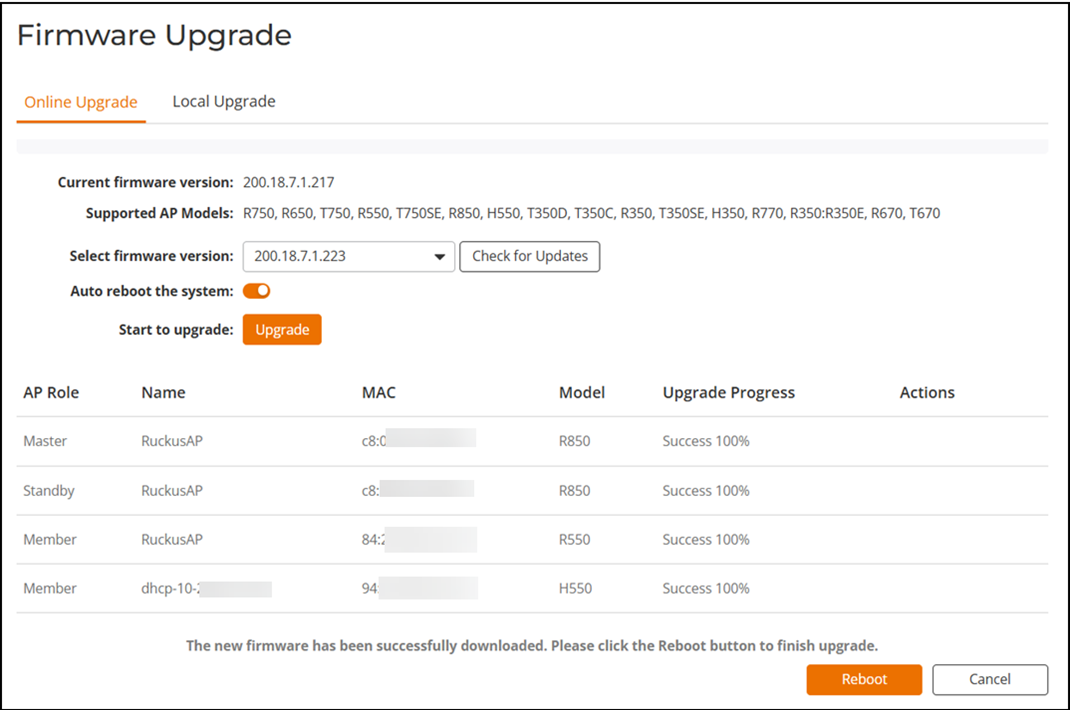
Content reuse for Unleashed(Optional) Select Auto reboot the system to automatically reboot each AP after the firmware has been deployed to the AP. By default, this option is enabled. You may want to disable this option if you prefer to wait until all APs have the new firmware before rebooting them all at once. That is, if you have multiple Unleashed AP models that require different firmware image files, you can either select the Auto reboot the system option and wait until all the APs have finished downloading the firmware and the entire RUCKUS Unleashed network is automatically rebooted, or you could choose to wait until all the APs have finished downloading the firmware and click Reboot to reboot the entire RUCKUS Unleashed network.
- Click Start to Upgrade
to begin upgrading the APs shown in the list. The Upgrade Progress column displays the progress for each AP.
- After the upgrade process is completed, click Reboot to reboot the APs.
- Log in and select to confirm the new software build number.