Creating a Guest Pass Manager
Guest Pass managers are individuals within
an organization who have the authority to generate Guest Passes for visitors.
This task describes how to create a user role for a category of user that is allowed to generate and manage Guest Passes.
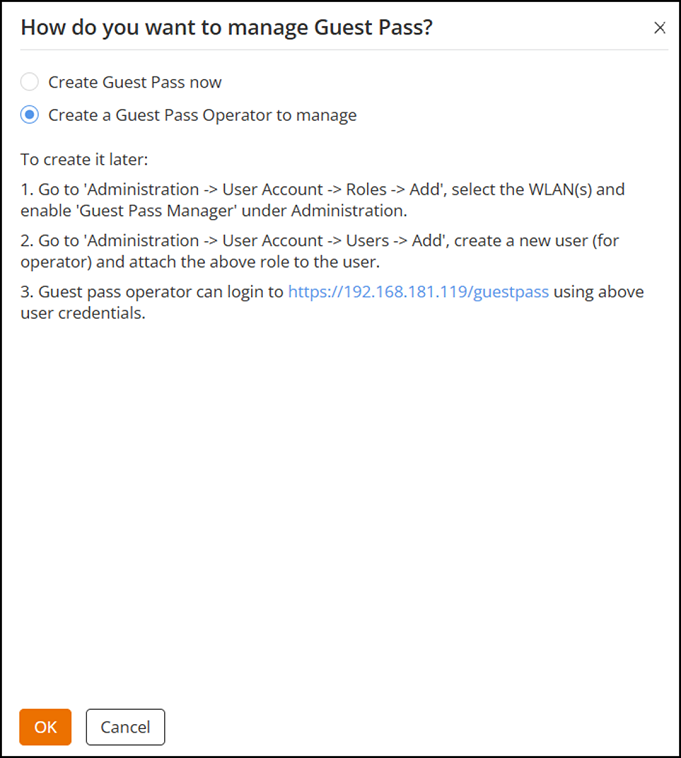
- After configuring Email and SMS settings, you will be prompted to configure a Guest Pass manager.
- Click OK to configure the Guest Pass manager role or click Cancel to configure these settings later. Refer to Configuring User Roles for more information.
-
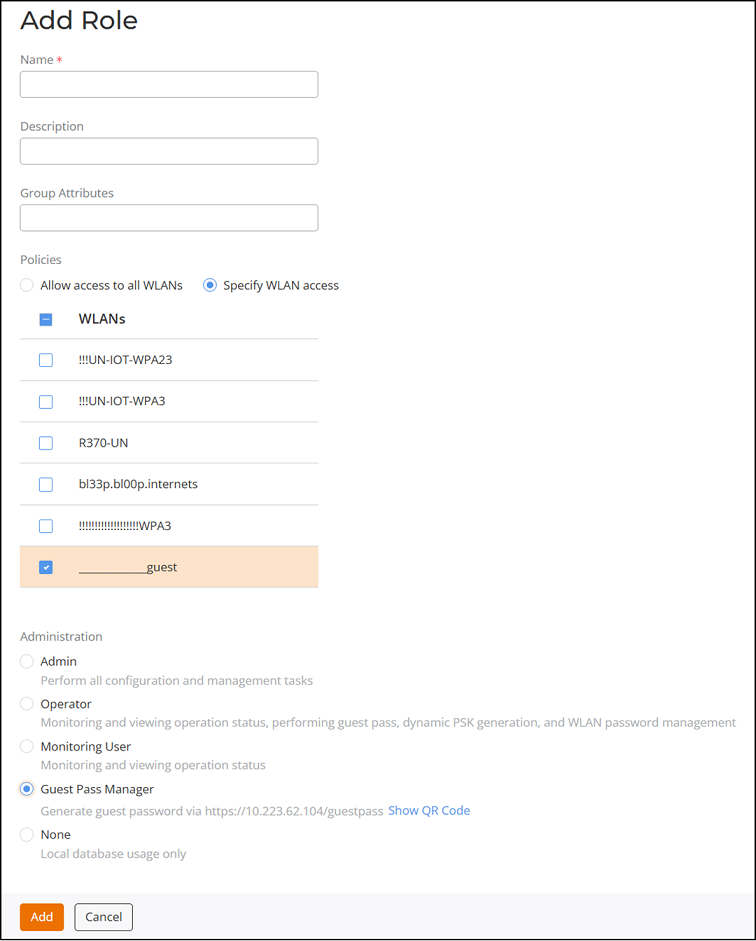
UnleashedConfigure the following settings to create a role for the Guest Pass Manager:
- Name: Enter a unique name for the guest pass manager role (from 1 through 32 characters).
- (Optional) Description: Enter a brief description for the role.
- (Optional) Group Attributes: Used by AAA servers to authenticate the user.
- Under Policies, select one of the following
options:
- Allow access to all WLANs: Selects all the WLANs available. (The list of available WLANs only includes unique password type guest WLANs.)
- Specify WLAN access: Select the specific WLANs by clicking the corresponding checkbox. The Guest Pass Manager will be allowed to issue guest passes for the selected WLANs.
- Under Administration, select Guest Pass Manager option.
- Click Add to create the role.
-
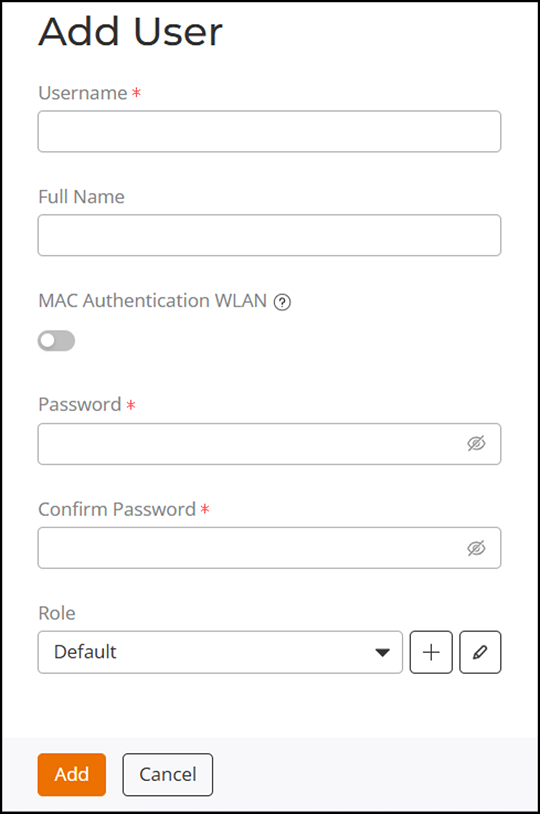
UnleashedOn the next sidebar that appears, configure the following settings to associate a user with this Guest Pass operator role:
- Username: Enter a user name.
- (Optional) Full name: Enter the full name of the user.
- Password: Enter a password. The password must be from 8 through 32 characters with at least one uppercase letter, one lowercase letter, one number and one special character, which cannot include "`" or "$(".
- Confirm Password: Re-enter the password.
- Role:
Select the Guest Pass Manager role that you created from the drop-down
list. Click the
 icon to edit the user role settings. To
create a new role, click the +
icon.
icon to edit the user role settings. To
create a new role, click the +
icon.