AP Clients
Complete the following steps to view the connected AP clients.
- From the main menu, select and click on an AP.
- In the AP List page, click on an AP.
By default, the Overview page is displayed.
- Click the Clients
tab to view the clients currently connected to the AP.
The following client information is displayed:
- MAC Address: Displays the MAC address of the client device.
- Name: Displays the name of the device. Click on the name to view additonal client details.
- Status: Displays the current authentication status of the device.
- AP Name: Displays the name of the AP the device is connected to. Click on the AP name to go to the Overview tab.
- Radio Type: Displays an icon indicating the type of Wi-Fi network connection protocol the device is using.
- Signal: Displays the signal strength status of the connection (Good, Moderate, Poor).
- Favorite: Displays whether
the client device is marked as favorite. Click the
 icon to mark
or unmark the client device as Favorite.
icon to mark
or unmark the client device as Favorite. - IP Address: Displays the IP address assigned to the device.
- Device Name: Displays the name assigned to the device, often the same as the Name.
- Device Model: Displays the specific model of the device.
- WLAN: Displays the WLAN name the device is connected to. Click on the WLAN name to view additional details.
- Radio Band: Displays the frequency band (2.4 GHz, 5 GHz, or 6 GHz) the device is operating on.
- Auth Method: Displays the authentication method used by the device.
- Legacy Device: Displays
whether the client is a legacy device. Click on the
 icon to mark
or unmark a device as a legacy device.
icon to mark
or unmark a device as a legacy device. - OS: Displays the operating system vendor, such as macOS, iOS, or Android.
- User: Displays the username associated with the device, if applicable.
- Access VLAN: Displays the access VLAN ID the device is on.
- DPSK ID: Displays the DPSK ID.
- Encryption: Displays the encryption method used for the connection.
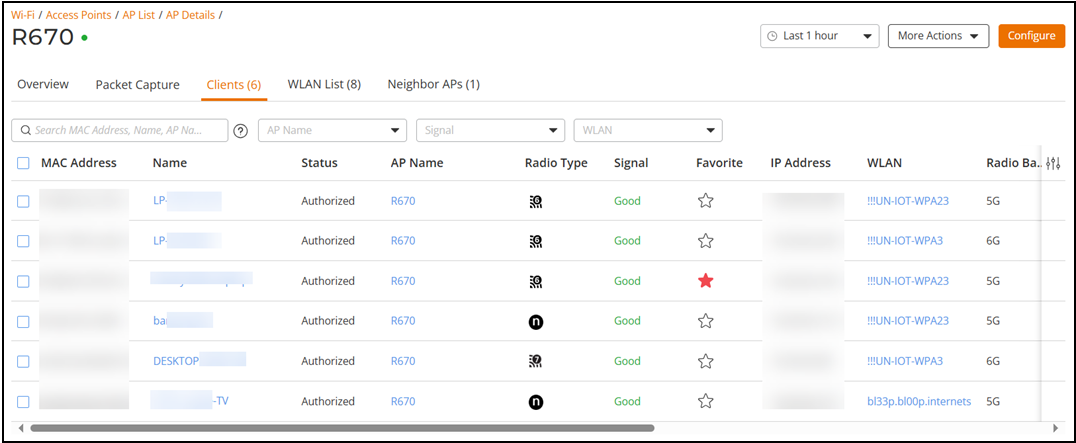


You can search the Clients table by MAC Address, Name, AP Name, Signal, IP Address, Device Name, or WLAN. You can filter the Clients table by AP Name, Signal, and WLAN; you can choose multiple options in each category.