Generating and Delivering a Single Guest Pass
A single Guest Pass can be used for one-time login, time-limited multiple logins for a single guest user, or configured so that a single Guest Pass can be shared by multiple users.
Note: The user
generating the Guest Pass must have Guest Pass generation privileges, as described
in Controlling Guest Pass Generation Privileges.
Note: For instructions on how
to generate multiple Guest Passes, refer to Generating and Printing Multiple Guest Passes at Once.
Note: If printing the Guest Pass, make sure
that your computer is connected to a local or network printer before starting.
Complete the following steps to generate a single Guest Pass.
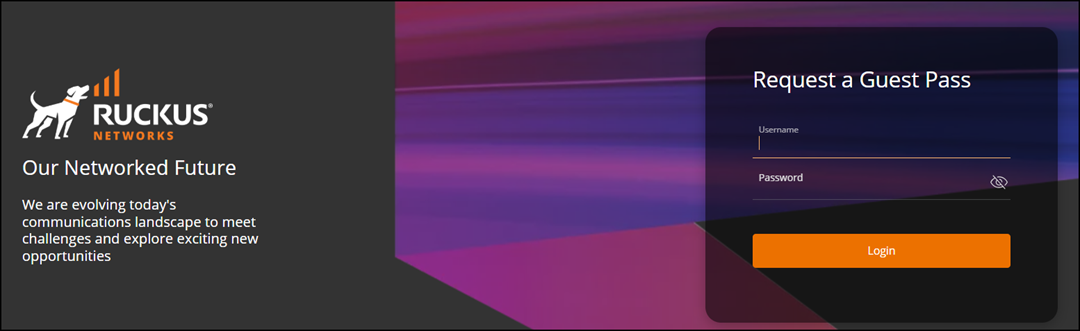
- Enter the URL of the Guest Pass request page in your web browser.
- Enter your username and password and click Login.
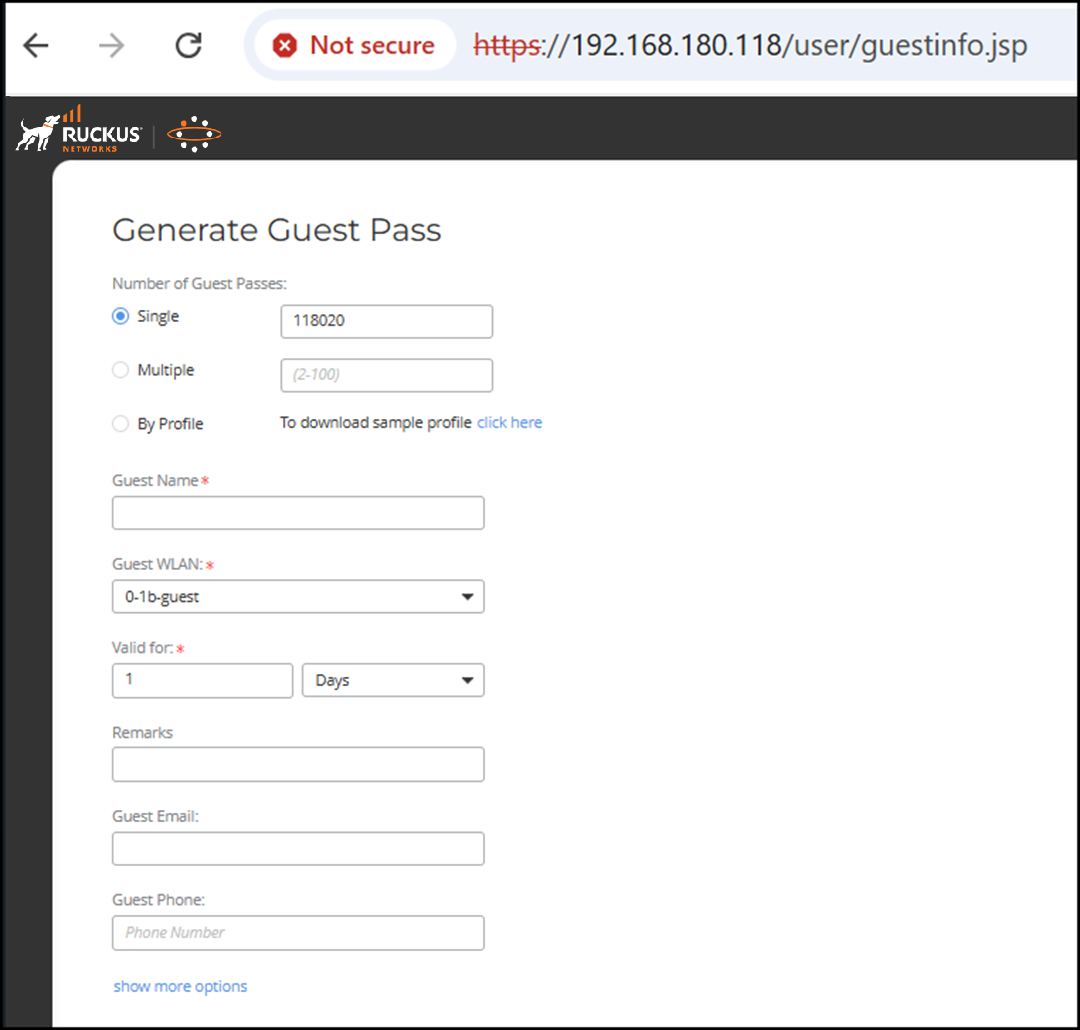
- Complete the following steps:
- For Number of Guest Passes, select Single to generate a single Guest Pass. To generate multiple Guest Passes in a batch, refer to Generating and Printing Multiple Guest Passes at Once.
- Guest Name: Enter the name of the guest user for whom you are generating the Guest Pass.
- Guest WLAN: Select the WLAN for this guest (typically, a guest WLAN).
- Valid for: Enter a number in the Valid for field and select a time unit (Hours, Days, or Weeks) to specify the time period when the Guest Pass will be valid.
- Remarks: (Optional) Enter any notes or comments. For example, if the guest user is a visitor from a partner organization, you can enter the name of the organization.
- Guest Email: (Optional) Enter the email address for this user.
- Guest Phone : (Optional) Enter a phone number for this user.
- Enable Session Timeout: Select the checkbox and select a time interval (Minutes, Hours, or Days) after which guests are required to log in again. If the Session Timeout is disabled, the connected users are not required to log in again until the Guest Pass expires.
- Enable Shared Pass: Use this option to allow multiple users to share a single Guest Pass.
- Click Generate to create the Guest Pass and the page displays the generated guest passes and allows you to select the delivery method for sharing the passes with guests.
- On the Generate Guest
Pass page, the following options are available:
- Print passes using template: Allows you to select the template used when printing guest passes.
- Print All: Prints all generated guest passes using the selected template. A new browser page displays the Guest Pass instructions and the Print dialog box is displayed.
- Email All: Sends all generated guest passes to the guests’ email addresses specified during pass creation.
- SMS All: Sends all generated guest passes to the guests’ phone numbers via SMS.
- Download All: Downloads all generated guest passes as CSV files for offline sharing or printing.
You can also select individual guest passes and choose to print, email, or send via SMS only the selected passes.
- Click Create More to
generate additional guest passes. Alternatively, you can generate multiple Guest Passes in batch, as described in Generating and Printing Multiple Guest Passes at Once.